> For the complete documentation index, see [llms.txt](https://docs.verifone.com/llms.txt). Markdown versions of documentation pages are available by appending `.md` to page URLs; this page is available as [Markdown](https://docs.verifone.com/adk-os-platform/readme/vos3-foreign-object-detection-fod.md).

# VOS3 Foreign Object Detection (FOD)

## Introduction <a href="#introduction" id="introduction"></a>

The FOD (Foreign Object Detector) is a VOS3 solution that consolidates different PinPad overlay detection mechanisms in one place and processes overlay detection tests using the common FOD application.

Different device models may have different sensors to help detect the keypad overlay.

On M450-A and M425-A VOS3 devices (also Plus variations of these devices), there is an embedded proximity sensor that emits horizontally across the keypad area and can detect the keypad overlay.

On older VOS2 devices, such as M440, M425, M400, a different solution was used - an Anti-skimming device (a probe/card) that is inserted in the card reader to measure the card slot's thickness and report an overlay if the returned value differs from the expected one. This mechanism has also been ported to VOS3 and is supported on M450, M425, M450-A, M425-A devices, as they have the same card slot thickness

{% hint style="info" %}
Check the VOS2 solution user's guide for more details about the Anti-skimming probe test implementation.
{% endhint %}

So, today, the FOD solution on VOS3 provides the following overlay detection tests:

<table><thead><tr><th width="50.39996337890625">#</th><th width="151.5999755859375">Solution</th><th width="159.7999267578125">Device models</th><th width="91.5999755859375">Platform</th><th>Tests</th></tr></thead><tbody><tr><td>1</td><td>P-sensor tests</td><td>M450-A, M425-A</td><td>VOS3</td><td><p>Scheduled Automatic tests;</p><p>Automatic tests invoked by a user application;</p><p>Manual tests on demand via MAC CP</p></td></tr><tr><td>2</td><td>Probe tests</td><td>M450, M425, M450-A, M425-A</td><td>VOS3</td><td>Manual tests on demand via MAC CP</td></tr></tbody></table>

{% hint style="warning" %}
The FOD application on VOS3 does not install automatically with the ADK/VOS3 release, and the FOD application DL should be installed on top. Please get in touch with the Support team for the proper installation file!
{% endhint %}

## The very first use and the Re-Calibration of the P-sensor <a href="#very-first-use-and-the-re-calibration-of-p-sensor" id="very-first-use-and-the-re-calibration-of-p-sensor"></a>

Below is the instruction for proper P-sensor use and the first installment on the device to set up a "No Skimmer" baseline. The recalibration option is available in the **MAC CP → FOD → Configuration** menu (read the "Configuration menu" chapter below for more details):

* Device installation should avoid direct sunlight, or being too close to a window with sunlight, or a direct halogen spotlight.
* After device installation, each device should perform a "FOD Re-Calibration" to establish a good "No Skimmer" baseline.
* The Overlay detection algorithm is embedded in the system and is not changeable by a user or application.​
* When an Overlay is detected, the user can check the device physically whether it is a real overlay or a false alarm.
* If it is indeed a false alarm, the user can perform the "FOD Re-Calibration" operation to force the device to establish a new "No Skimmer" baseline to prevent further false alarms.

{% hint style="warning" %}
Care should be taken when cleaning the device. Contamination close to the p-sensor opening should be removed carefully, and no foreign object should intrude into the p-sensor opening.
{% endhint %}

## FOD Control Panel <a href="#fod-control-panel" id="fod-control-panel"></a>

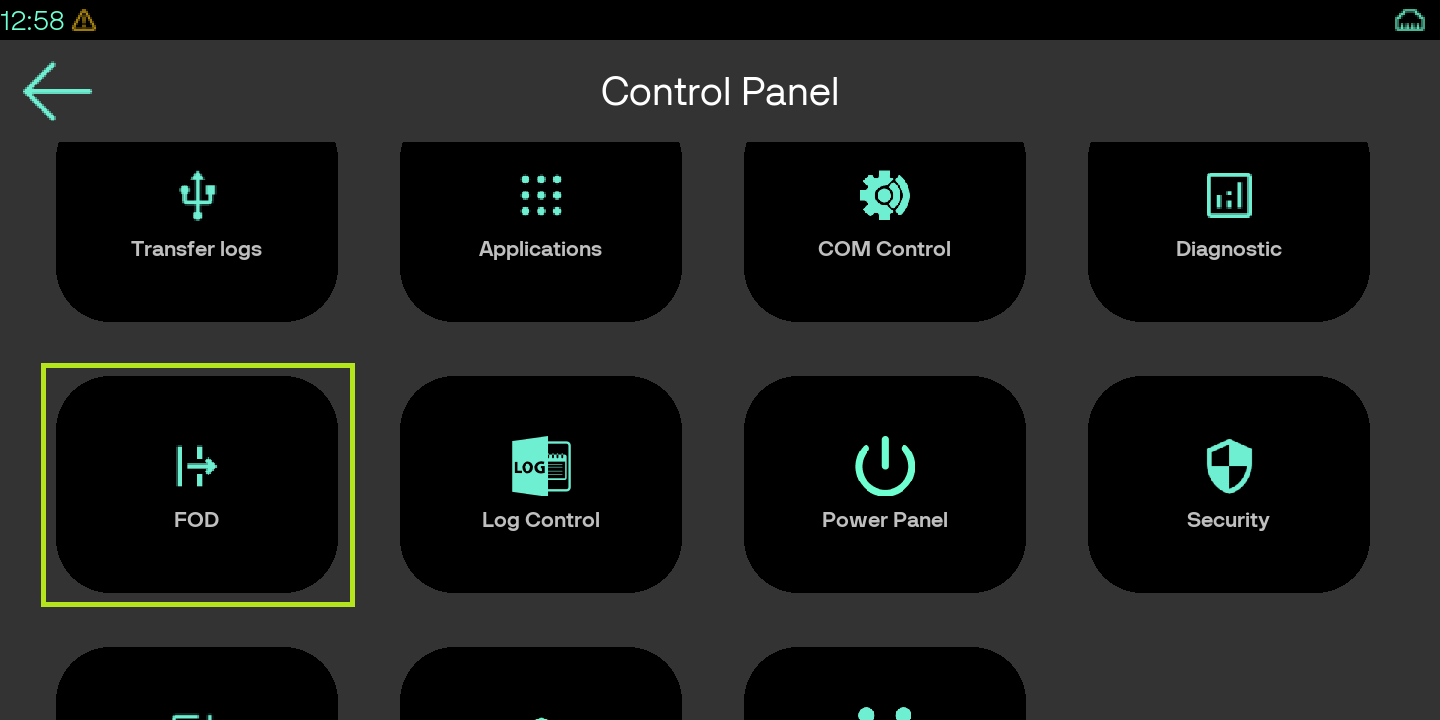
The FOD Control Panel is the System application that can be installed on the MAC desktop by the customer on demand or is included in the ADK release (newer releases).

<figure><img src="https://3462522456-files.gitbook.io/~/files/v0/b/gitbook-x-prod.appspot.com/o/spaces%2FIfFmiYwINerMPYjzrAC6%2Fuploads%2Fgit-blob-aec83ad4a11800fda8f2750ed9a39c40bf4f4ebe%2Ffod_selected.png?alt=media" alt="" width="375"><figcaption></figcaption></figure>

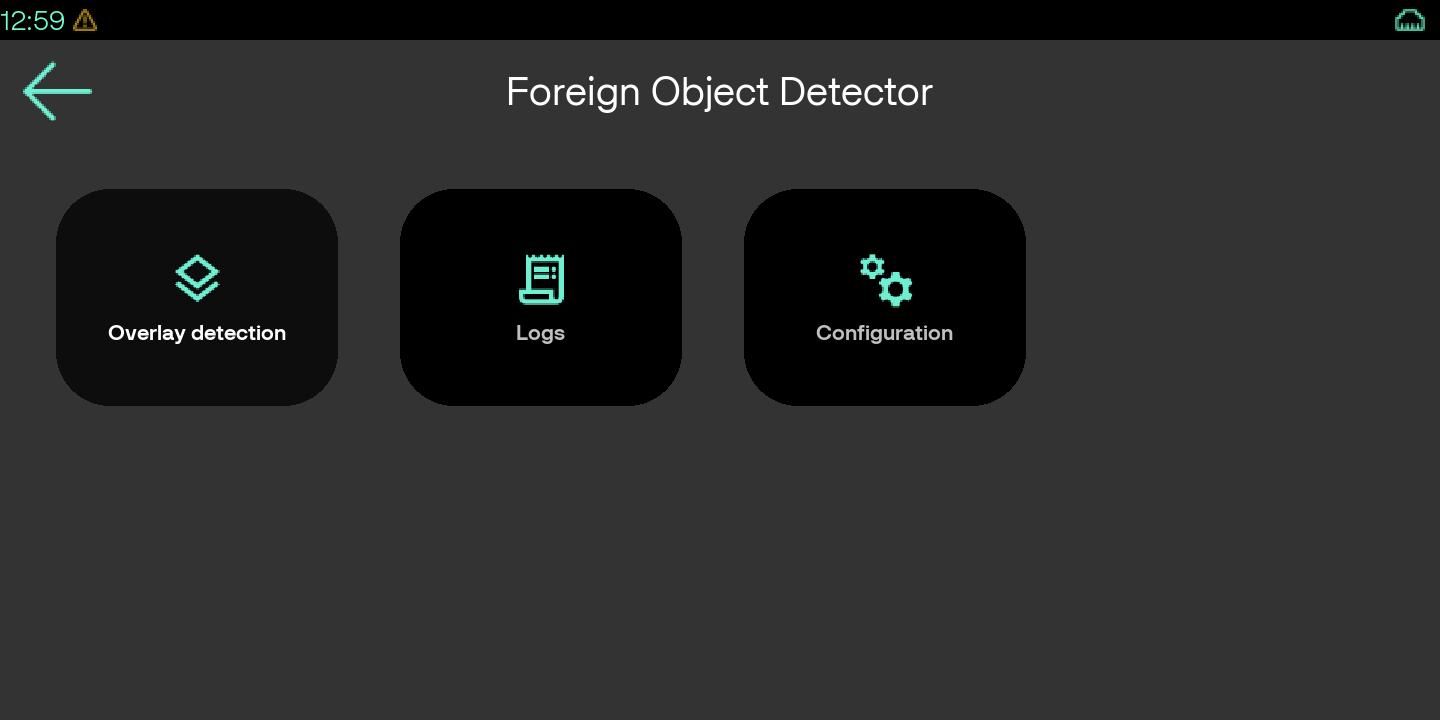
The FOD Control Panel Main menu contains the configuration of tests, test logs and the Overlay detection test running menu:

<figure><img src="https://3462522456-files.gitbook.io/~/files/v0/b/gitbook-x-prod.appspot.com/o/spaces%2FIfFmiYwINerMPYjzrAC6%2Fuploads%2Fgit-blob-2f493ccc3184d0701c4ceb9860cb1ed9500bb224%2Fmain_menu.png?alt=media" alt="" width="375"><figcaption></figcaption></figure>

## Access control <a href="#access-control" id="access-control"></a>

FOD Control Panel functions can be protected by a password, according to the common password policy on the device (defined by the Customer).

The FOD menu/operations are protected by the following access groups:

| **Menu**          | **Operation**                                  | **Access group** |
| ----------------- | ---------------------------------------------- | ---------------- |
| Logs              | All operations in the "Logs" menu              | System\_viewer   |
| Overlay Detection | All operations in the "Overlay detection" menu | System\_editor   |
| Configuration     |                                                |                  |
|                   | All except the Re-calibration operation        | System\_editor   |
|                   | Re-calibration                                 | SEC\_editor      |

According to the password policy, if the "System\_viewer", "System\_editor" or "SEC\_editor" access groups are tied to a password (e.g. Supervisor), the system will require authentication when the user try to perform a protected operation.

{% hint style="warning" %}
The Re-calibration option is under the "SEC\_editor'' access group as this operation can damage p-sensor tests if done in an improper environment. The "SEC\_editor" is usually protected by a password.
{% endhint %}

## Configuration menu <a href="#configuration-menu" id="configuration-menu"></a>

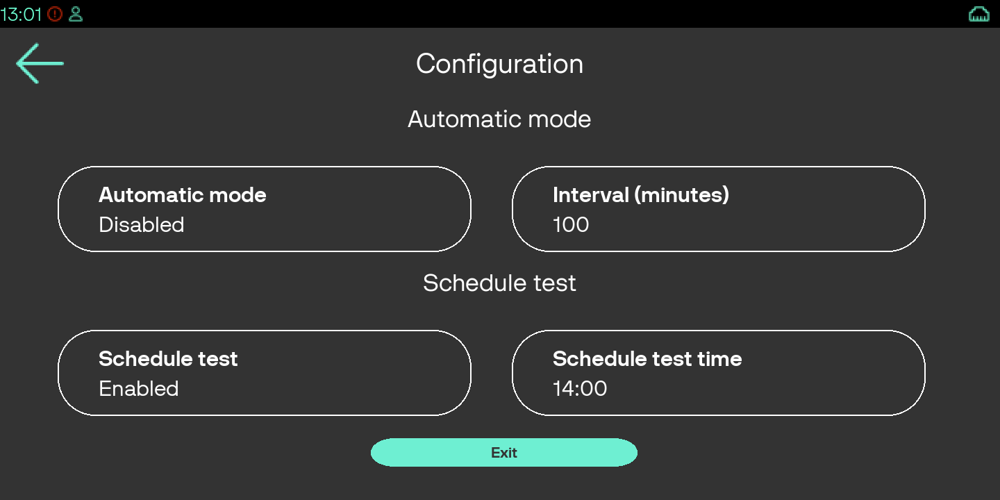
In this menu, the user can set the FOD configuration. By default, all settings are disabled.

<figure><img src="https://3462522456-files.gitbook.io/~/files/v0/b/gitbook-x-prod.appspot.com/o/spaces%2FIfFmiYwINerMPYjzrAC6%2Fuploads%2Fgit-blob-04ad94c317fa2800102440604eae506d68add1d9%2Ffodconfig1.png?alt=media" alt="" width="375"><figcaption></figcaption></figure>

<figure><img src="https://3462522456-files.gitbook.io/~/files/v0/b/gitbook-x-prod.appspot.com/o/spaces%2FIfFmiYwINerMPYjzrAC6%2Fuploads%2Fgit-blob-7ddb6df3bb467c2d8c79dccd18abe773e22527b9%2Ffdconfig2.png?alt=media" alt="" width="375"><figcaption></figcaption></figure>

<figure><img src="https://3462522456-files.gitbook.io/~/files/v0/b/gitbook-x-prod.appspot.com/o/spaces%2FIfFmiYwINerMPYjzrAC6%2Fuploads%2Fgit-blob-edba8a69ad923eded58238c14040eeab978f944c%2Ffodconfig3.png?alt=media" alt="" width="375"><figcaption></figcaption></figure>

**Automatic mode**:

* If enabled, the automatic tests will run according to the configuration in the interval given in the field "Interval". The interval is specified in **minutes**, valid range: 1–1380 (up to 23 hours).

**Schedule test**:

* If enabled, the automatic test will be scheduled at the time set in the ''Schedule test time'' field.

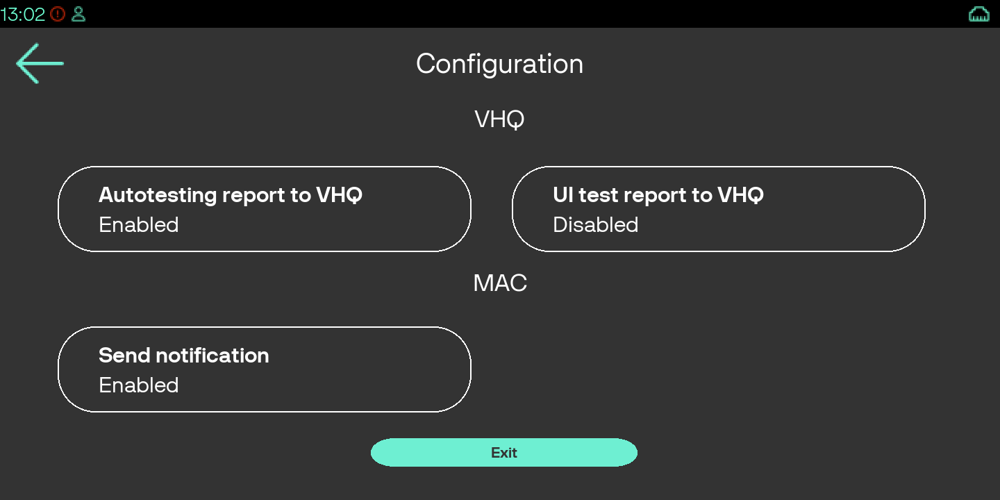
**VHQ**

* Autotesting report to VHQ
  * if enabled, then test log data will be automatically reported to VHQ
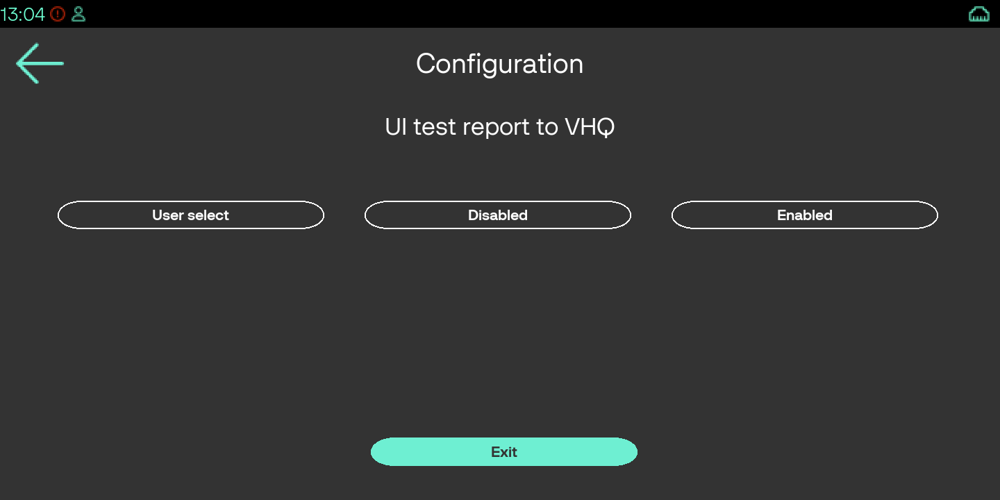
* UI test report to VHQ (config values: `0` = disabled, `1` = always report, `2` = user select)
  * if `1` (enabled), then right after the test data will be automatically reported to VHQ
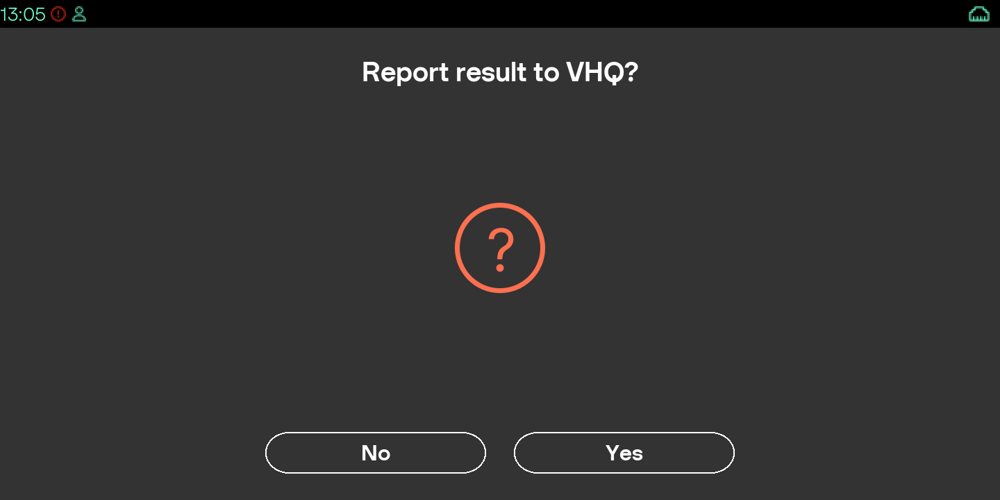
  * if `2` (''User select''), then right before the test, the UI prompt with the "Report result to VHQ? Yes/No" will be displayed

<figure><img src="https://3462522456-files.gitbook.io/~/files/v0/b/gitbook-x-prod.appspot.com/o/spaces%2FIfFmiYwINerMPYjzrAC6%2Fuploads%2Fgit-blob-c821b44bf3874b9185c38529c9160616eccb573d%2Fvhq1.png?alt=media" alt="" width="375"><figcaption></figcaption></figure>

<figure><img src="https://3462522456-files.gitbook.io/~/files/v0/b/gitbook-x-prod.appspot.com/o/spaces%2FIfFmiYwINerMPYjzrAC6%2Fuploads%2Fgit-blob-7b01824260d91544d1a59f7580fdd14a40f16923%2Fvhq2.png?alt=media" alt="" width="375"><figcaption></figcaption></figure>

**MAC**

* Send Notification
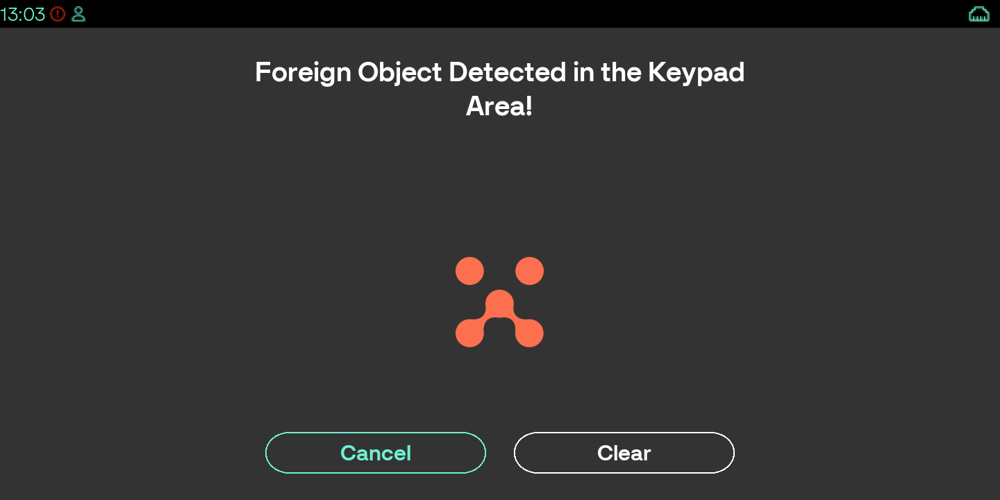
  * if enabled, then a new MAC notification will be generated and the UI message will be displayed if a Foreign object is detected in the keypad area. The MAC Notification then will be displayed in the status bar, and also available in the Notifications Control Panel.
    * "Cancel" - to close the message
    * "Clear" - to clear (delete) the MAC notification

<figure><img src="https://3462522456-files.gitbook.io/~/files/v0/b/gitbook-x-prod.appspot.com/o/spaces%2FIfFmiYwINerMPYjzrAC6%2Fuploads%2Fgit-blob-82c1407e232671b51226dad2a6d1de19111991a0%2Fmac1.png?alt=media" alt="" width="375"><figcaption></figcaption></figure>

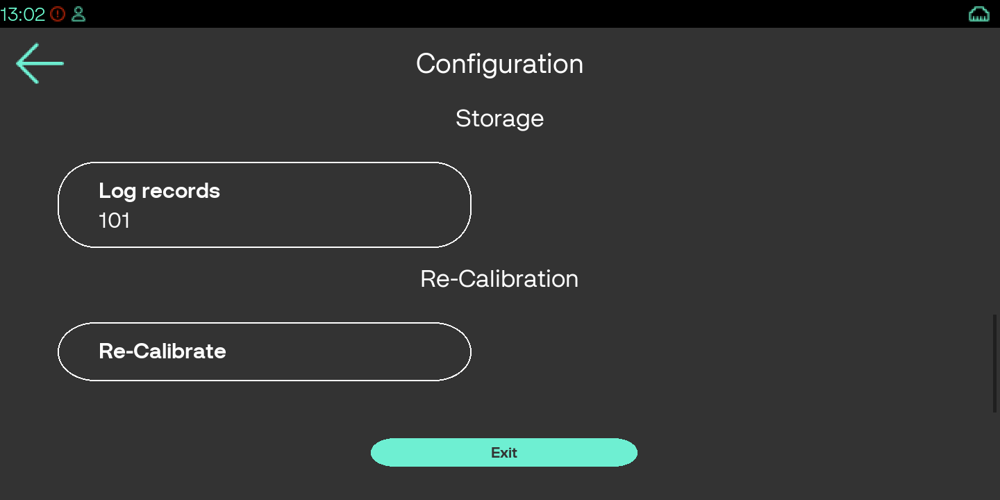
**Storage**

* the amount of logs stored in the database

**Re-Calibration**

* Recalibrates the p-sensor baseline. The FOD daemon maintains three baseline levels:
  * **FCB (Factory-Calibration Baseline)** — derived from factory calibration data on first run; never changes.
  * **PIB (Post-Installation Baseline)** — set by Re-Calibration; computed as the average of FCB and the current proximity reading. Reset each time the operator performs Re-Calibration.
  * **Daily Baseline** — adjusted automatically after each PCI reboot (within 30 minutes of reboot time) to compensate for slow environmental drift. Only updated when no overlay is detected and readings are within expected bounds.

**Default configuration values** (applied when no user config file is present):

| **Field**          | **Default** | **Valid values**     | **Description**                                                                      |
| ------------------ | ----------- | -------------------- | ------------------------------------------------------------------------------------ |
| `auto_mode`        | 0           | 0 or 1               | Enable periodic automatic p-sensor tests at fixed interval.                          |
| `interval`         | 60          | 1–1380 (minutes)     | Interval between automatic tests.                                                    |
| `schedule_test`    | 0           | 0 or 1               | Enable a single daily test at a fixed time.                                          |
| `schedule_time`    | "12:00:00"  | HH:MM:SS string      | Time of day for the scheduled test (local device time).                              |
| `max_log`          | 2000        | Any positive integer | Maximum log entries kept per table in the database.                                  |
| `report_to_vhq`    | 0           | 0 or 1               | Automatically report automatic test results to VHQ.                                  |
| `report_to_vhq_ui` | 0           | 0, 1, or 2           | 0 = disabled; 1 = always report after manual test; 2 = prompt user before reporting. |
| `notify_mac`       | 0           | 0 or 1               | Generate a critical MAC notification when an overlay is detected.                    |

{% hint style="warning" %}
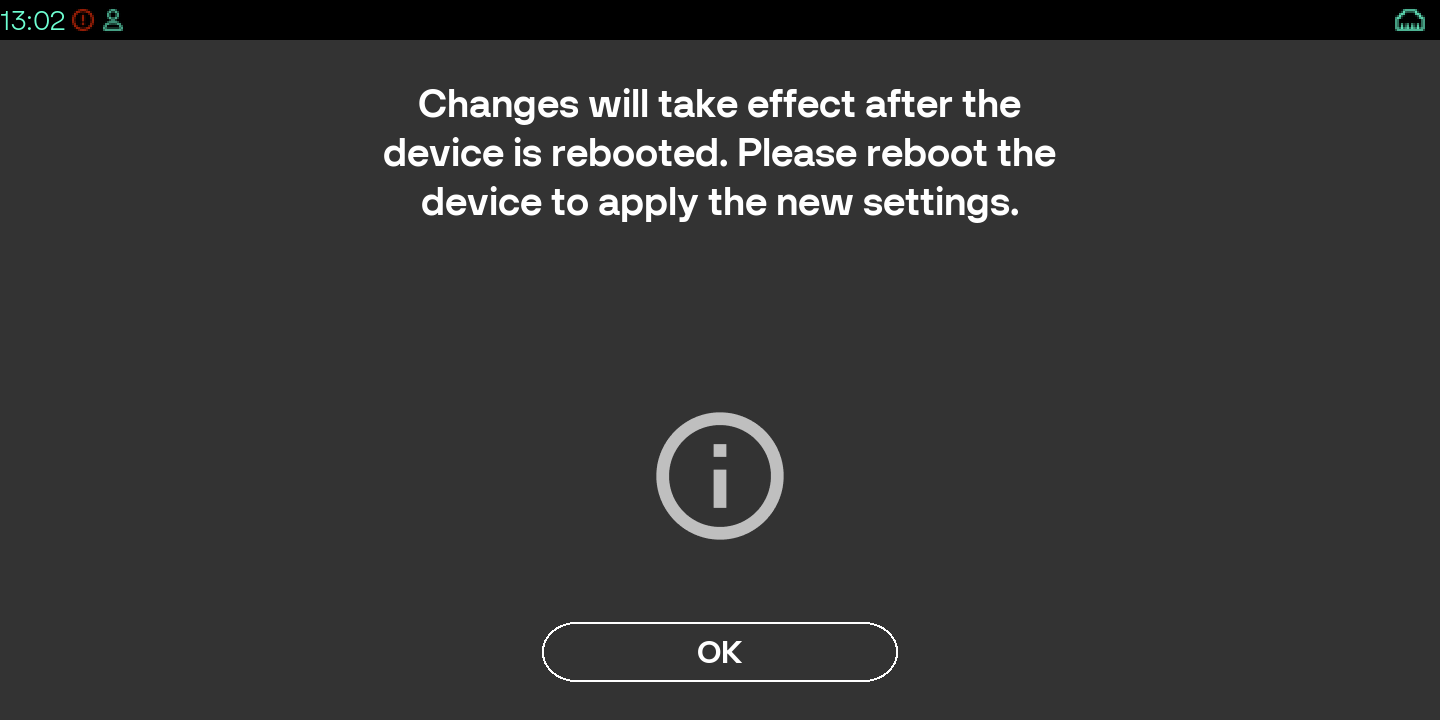
All changes will take effect after the device is rebooted:
{% endhint %}

<figure><img src="https://3462522456-files.gitbook.io/~/files/v0/b/gitbook-x-prod.appspot.com/o/spaces%2FIfFmiYwINerMPYjzrAC6%2Fuploads%2Fgit-blob-8b650efe4fb68170ab688e6c9b8af5a7dbeb6b84%2Freboot.png?alt=media" alt="" width="375"><figcaption></figcaption></figure>

## Remote configuration <a href="#remote-configuration" id="remote-configuration"></a>

All settings listed above can be configured by loading a user-signed config file. The example of configuration:

```
{     
    "auto_mode":0,
    "interval":5,     
    "max_log":2000,     
    "report_to_vhq":0,     
    "schedule_test":0,     
    "report_to_vhq_ui":0,     
    "notify_mac":0,     
    "schedule_time":"12:00:00" 
}
```

**Configuration field notes:**

* `interval`: value in **minutes**, valid range 1–1380.
* `report_to_vhq_ui`: `0` = disabled, `1` = always report after manual test, `2` = prompt user before reporting.

The example of packaging (check the Packman user's guide for more details about the packaging and signing):

```python
$(vos3_PACK_SCRIPT) \
         --dest $@/$(vos3_PACKAGE_NAME).tar \         
         --bndlname $(NAME) \         
         --pkgname $(NAME) \         
         --version $(VERSION) \         
         --user usr1 \         
         --group share \         
         --type versioned_data \         
         --permission 777 \         
         --umask 002 \         
         config.json=config.json
```

## Manual P-sensor tests <a href="#manual-p-sensor-tests" id="manual-p-sensor-tests"></a>

P-sensor tests detect the pinpad overlay by the proximity sensor that emits horizontally across the keypad area.

Tests can be scheduled or automatic according to the configuration.

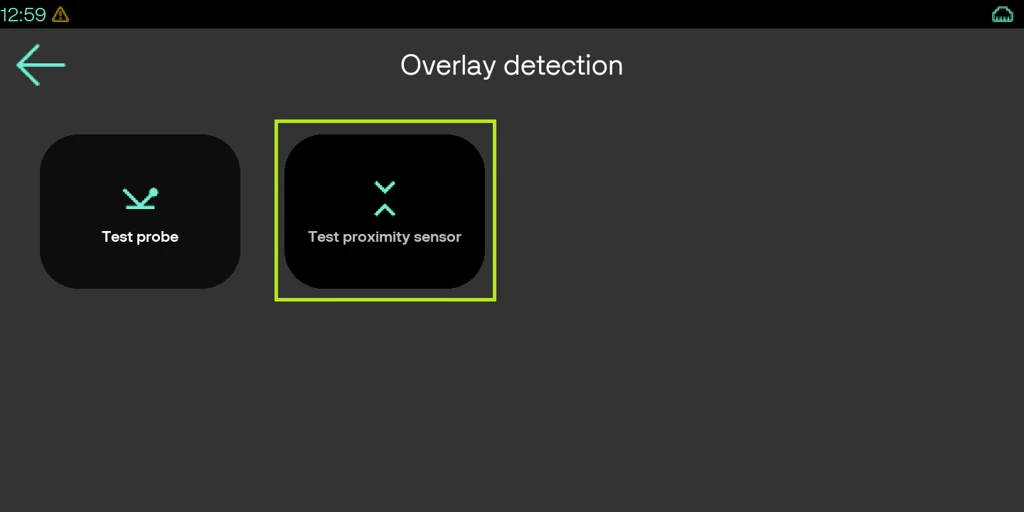
To run P-sensor test manually, the user needs to enter the "Overlay detection" menu and select the "Test proximity sensor".

<figure><img src="https://3462522456-files.gitbook.io/~/files/v0/b/gitbook-x-prod.appspot.com/o/spaces%2FIfFmiYwINerMPYjzrAC6%2Fuploads%2Fgit-blob-d8c0d9f7ece3984ef30b4084b018d70a055b10ae%2Fman1.png?alt=media" alt="" width="375"><figcaption></figcaption></figure>

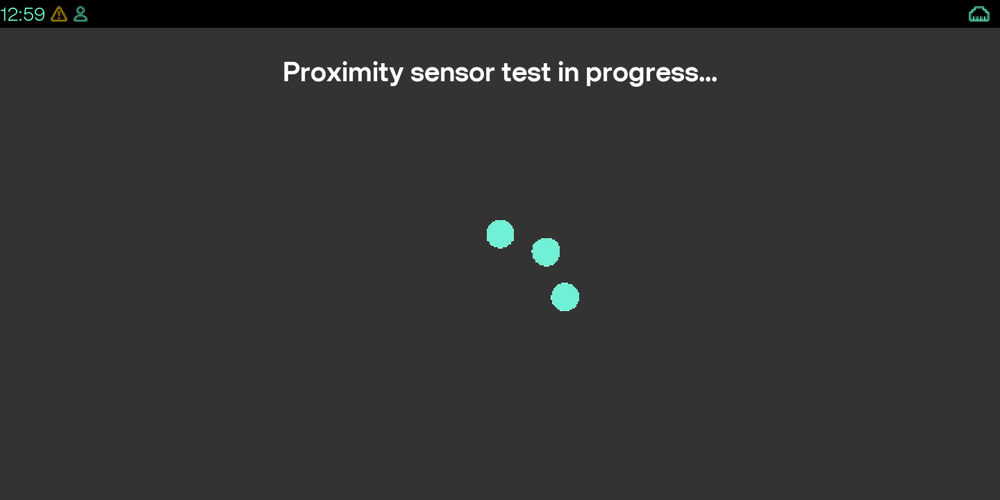
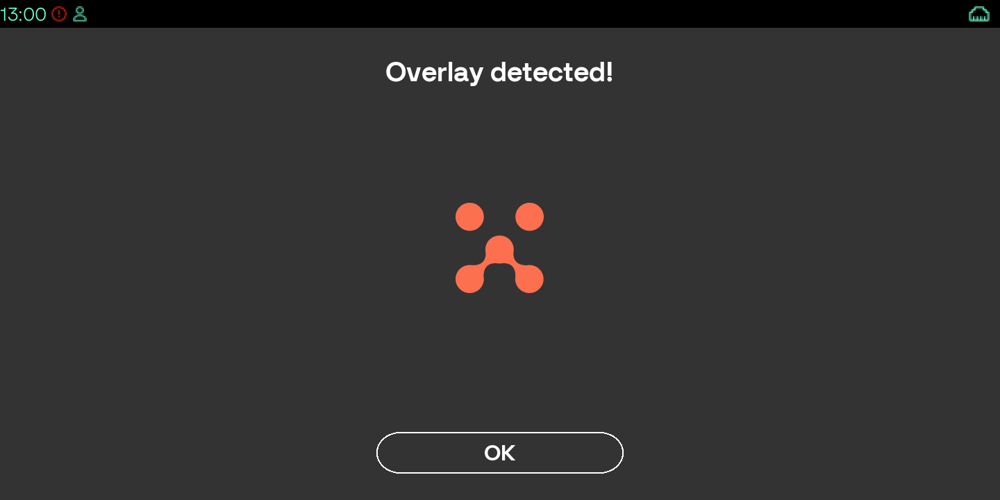
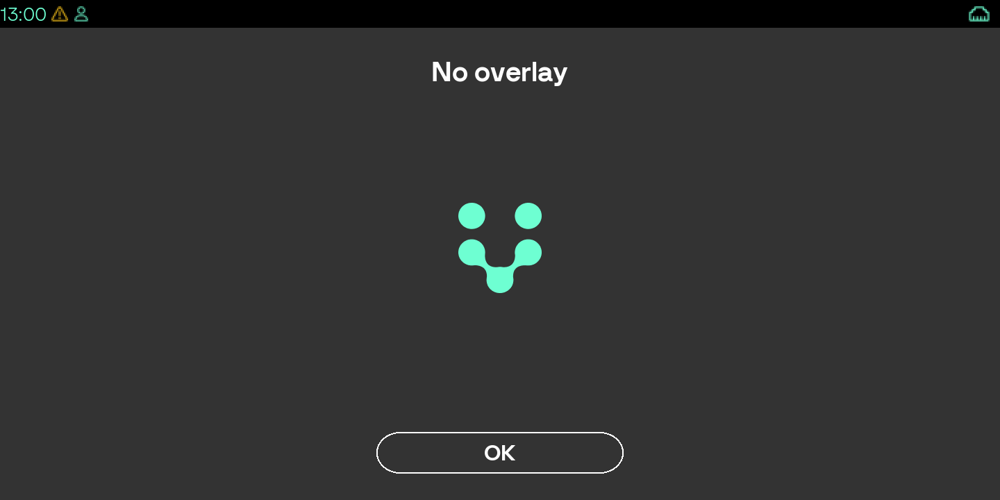
The system will start the test and return the overlay status: "Overlay detected!" or "No overlay"

<figure><img src="https://3462522456-files.gitbook.io/~/files/v0/b/gitbook-x-prod.appspot.com/o/spaces%2FIfFmiYwINerMPYjzrAC6%2Fuploads%2Fgit-blob-974f6edf980bab8152635d551774c7b034684480%2Fman2.png?alt=media" alt="" width="375"><figcaption></figcaption></figure>

<figure><img src="https://3462522456-files.gitbook.io/~/files/v0/b/gitbook-x-prod.appspot.com/o/spaces%2FIfFmiYwINerMPYjzrAC6%2Fuploads%2Fgit-blob-a84cb396842fbd3fd83bda7fa5f6336eaf882fae%2Fman3.png?alt=media" alt="" width="375"><figcaption></figcaption></figure>

<figure><img src="https://3462522456-files.gitbook.io/~/files/v0/b/gitbook-x-prod.appspot.com/o/spaces%2FIfFmiYwINerMPYjzrAC6%2Fuploads%2Fgit-blob-f68e717533866c3f78158585fdf45478dfc64565%2Fman4.png?alt=media" alt="" width="375"><figcaption></figcaption></figure>

**Note:** The p-sensor test can return four possible outcomes:

* **No overlay** — test passed, no foreign object detected.
* **Overlay detected!** — a foreign object is detected in the keypad area.
* **Sun-light too strong** — ambient light exceeded the sensor threshold. This is not an overlay detection. Move the device away from direct sunlight or strong artificial light and re-run the test.
* **Variation Out-Of-Range** — sensor readings were too unstable to produce a reliable result. The test retries automatically up to 5 times with 5-second pauses between attempts. If readings remain unstable, this result is recorded (result code 2). Common causes: vibration, nearby movement, or a hardware issue near the sensor. Re-run the test on a stationary device.

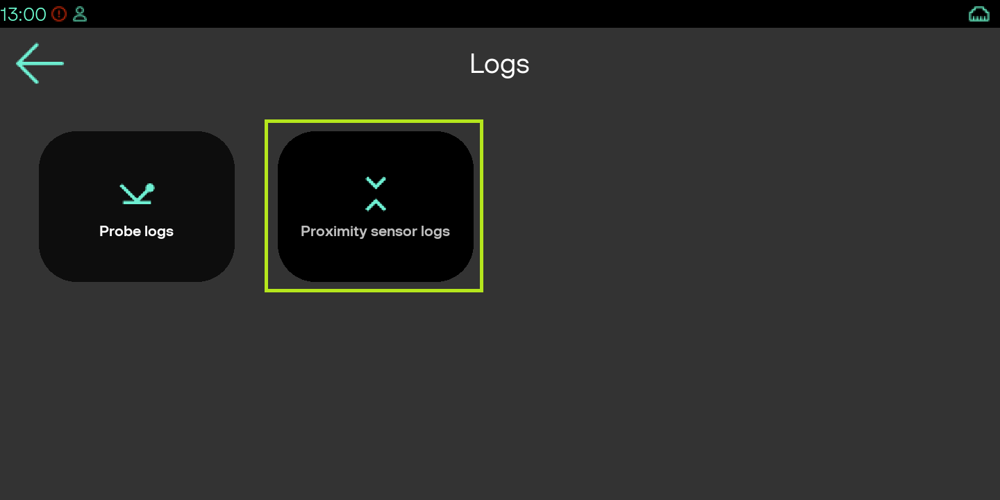
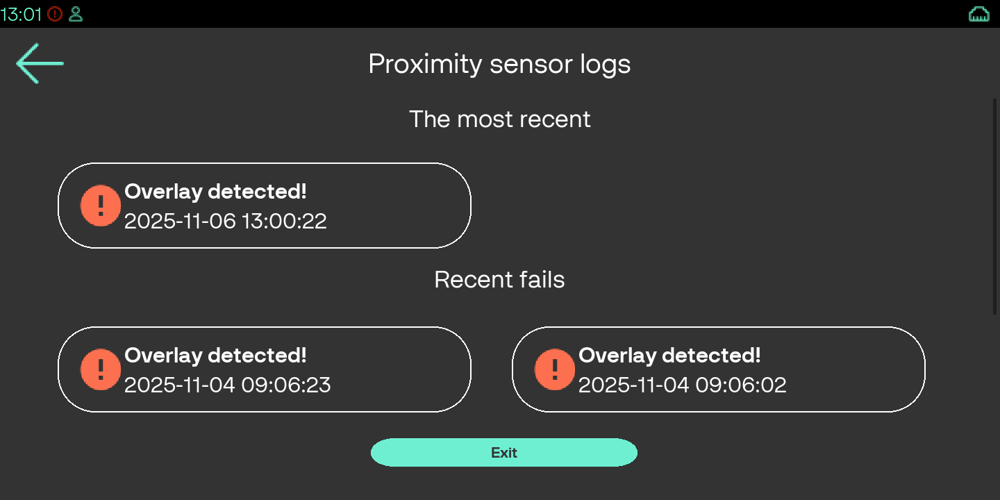
Test results will be stored in FOD Proximity Sensor Logs where:

* The most recent section shows the latest log entry;
* The "Recent fails'' section shows all failed logs (the number of logs according to the configuration)

{% hint style="warning" %}
The failed log is the test result that doesn't return "No overlay".
{% endhint %}

<figure><img src="https://3462522456-files.gitbook.io/~/files/v0/b/gitbook-x-prod.appspot.com/o/spaces%2FIfFmiYwINerMPYjzrAC6%2Fuploads%2Fgit-blob-2e04d3db77d0971b5f9aba8b50c836ed386e757d%2Flogs1.png?alt=media" alt="" width="375"><figcaption></figcaption></figure>

<figure><img src="https://3462522456-files.gitbook.io/~/files/v0/b/gitbook-x-prod.appspot.com/o/spaces%2FIfFmiYwINerMPYjzrAC6%2Fuploads%2Fgit-blob-04748dafab03e4c292f9f8e18dda656b70185271%2Flogs2.png?alt=media" alt="" width="375"><figcaption></figcaption></figure>

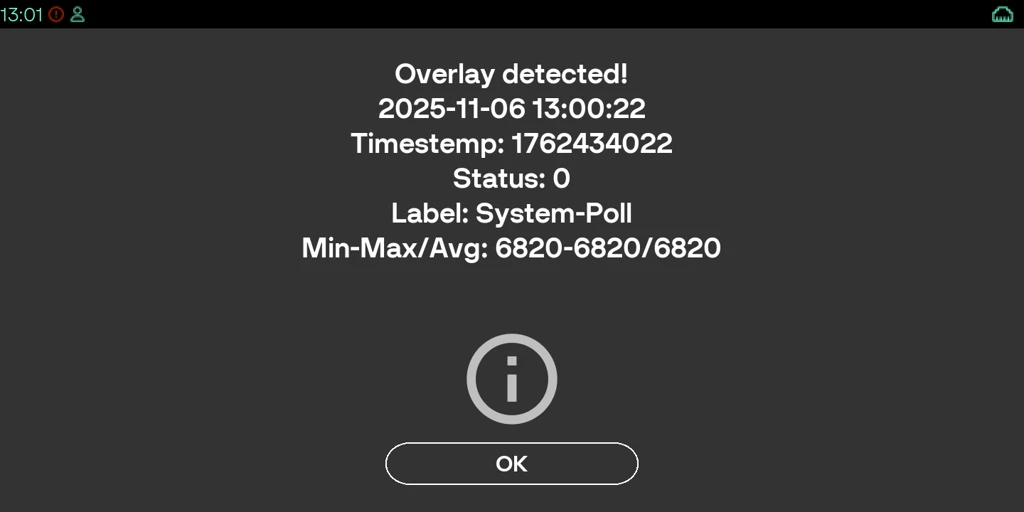
To see detailed information about the test result, need to select the log entry:

<figure><img src="https://3462522456-files.gitbook.io/~/files/v0/b/gitbook-x-prod.appspot.com/o/spaces%2FIfFmiYwINerMPYjzrAC6%2Fuploads%2Fgit-blob-a5391df96b577b4bb6c5b0d8806bcb19450a59df%2Flogs3.png?alt=media" alt="" width="375"><figcaption></figcaption></figure>

## Manual Probe tests <a href="#manual-probe-tests" id="manual-probe-tests"></a>

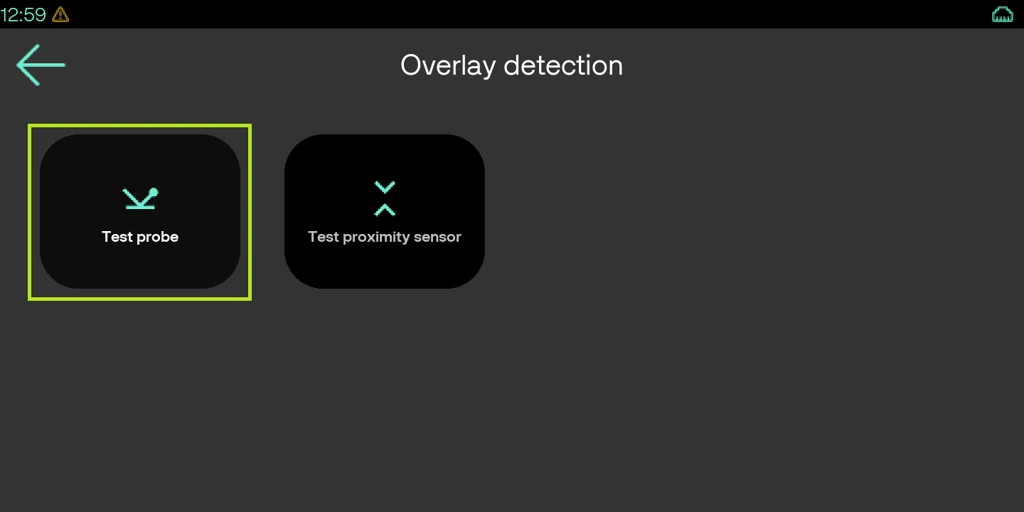
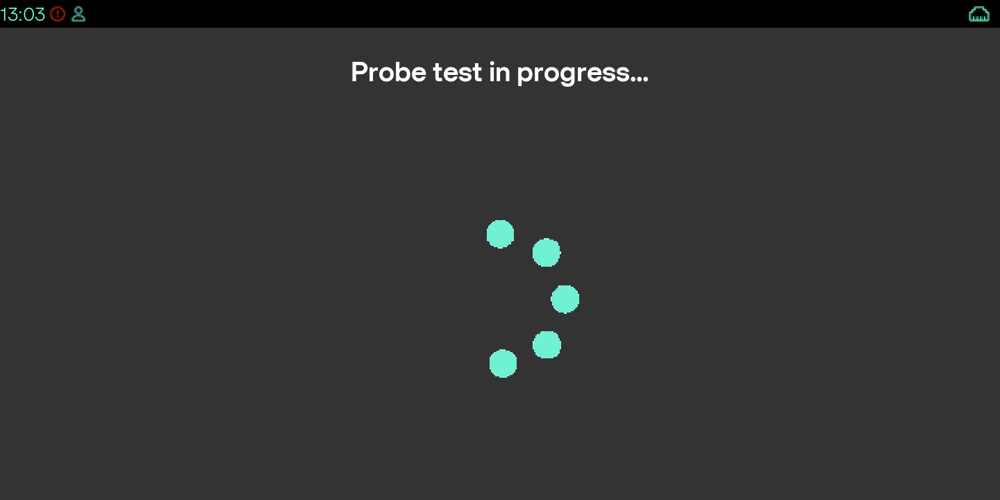
The Probe test is only manual, and requires the use of the Anti-skimming device (a probe/card) that must be inserted in the card reader **before** the test.

To run the Probe test manually, the user needs to enter the "Overlay detection" menu and select the "Test probe".

<figure><img src="https://3462522456-files.gitbook.io/~/files/v0/b/gitbook-x-prod.appspot.com/o/spaces%2FIfFmiYwINerMPYjzrAC6%2Fuploads%2Fgit-blob-541769344c295110029b0a70afd710d68ab5729b%2Fprobe1.png?alt=media" alt="" width="375"><figcaption></figcaption></figure>

The system will start the test and return the overlay status: "Overlay detected!" or "No overlay"

<figure><img src="https://3462522456-files.gitbook.io/~/files/v0/b/gitbook-x-prod.appspot.com/o/spaces%2FIfFmiYwINerMPYjzrAC6%2Fuploads%2Fgit-blob-bc208e49c4a004095897f521433d1de090ee9048%2Fprobe2.png?alt=media" alt="" width="375"><figcaption></figcaption></figure>

<figure><img src="https://3462522456-files.gitbook.io/~/files/v0/b/gitbook-x-prod.appspot.com/o/spaces%2FIfFmiYwINerMPYjzrAC6%2Fuploads%2Fgit-blob-a84cb396842fbd3fd83bda7fa5f6336eaf882fae%2Fman3.png?alt=media" alt="" width="375"><figcaption></figcaption></figure>

<figure><img src="https://3462522456-files.gitbook.io/~/files/v0/b/gitbook-x-prod.appspot.com/o/spaces%2FIfFmiYwINerMPYjzrAC6%2Fuploads%2Fgit-blob-f68e717533866c3f78158585fdf45478dfc64565%2Fman4.png?alt=media" alt="" width="375"><figcaption></figcaption></figure>

{% hint style="info" %}
The probe test takes approximately **10 seconds** to complete. The call is asynchronous — it returns `Result::Ok` immediately and the result is stored in the log database when the test finishes. Retrieve results with `fod_get_probe_check_logs()`.
{% endhint %}

Test results will be stored in FOD Probe Logs.

## Automatic P-sensor tests <a href="#automatic-p-sensor-tests" id="automatic-p-sensor-tests"></a>

Automatic p-sensor tests can be initiated either by Automatic configuration of test running, or by the API call.

The Automatic test configuration is described in the "Configuration menu" chapter.

{% hint style="warning" %}
The customer needs to set the automatic test during a non-transaction period (user finger or card movements can return false-positive Overlay detection results as they will be sensed by the p-sensor).
{% endhint %}

If the automatic test returns the "Overlay detected", the user should check the physical appearance of the device. It is up to the application to stop transactions or show an error message on the screen if the overlay is detected.

Below is the description of the external API to run p-sensor tests that can be used by an application.

{% hint style="info" %}
**Note on TestReason parameter:** Applications must always pass `TestReason::NORMAL` to `fod_psensor_check()`. The `DAILY` and `RECALIBRATION` values are reserved for the `sys_fod` system process and return `AccessRestricted` when called from a regular application.
{% endhint %}

{% hint style="warning" %}
**Both** `fod_psensor_check()` **and** `fod_probe_check()` **are asynchronous.** The return value of these calls only tells you whether the test thread was successfully *started*:

* `Result::Ok` — test thread started. The test is now running in the background.
* Any other code (e.g. `PsensorAbsent`, `PsensorTestInProgress`, `PsensorBaselineNotSet`) — test did **not** start. See the Return Codes table for the cause.
  {% endhint %}

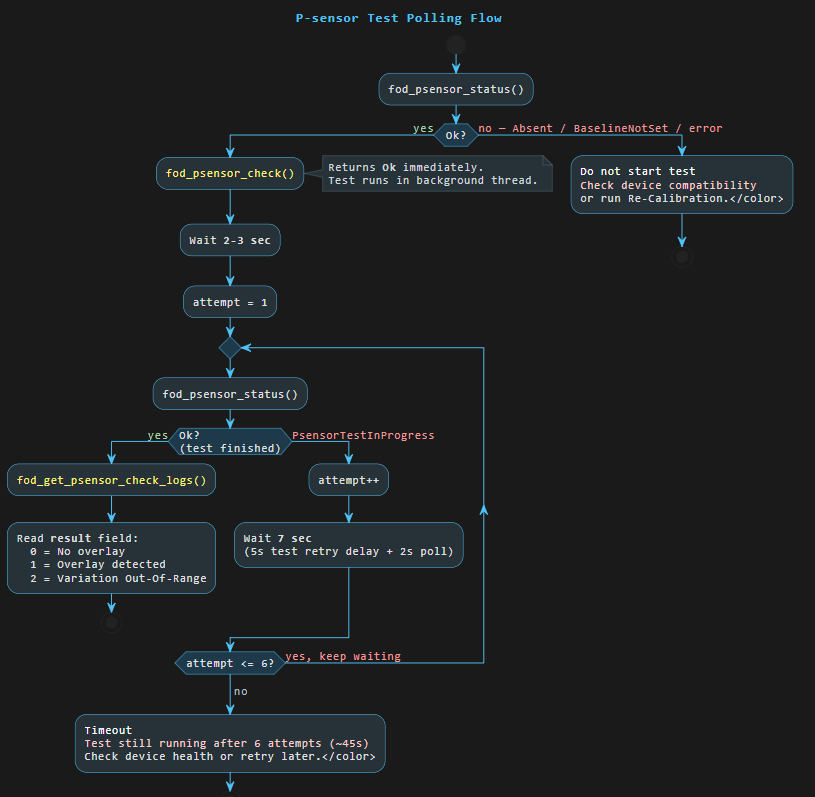
The actual overlay detection outcome is **never** returned by `fod_psensor_check()` directly. It is written to the log database when the test finishes. To retrieve it: poll `fod_psensor_status()` (every 2–3 seconds — see note below) until it no longer returns `PsensorTestInProgress`, then call `fod_get_psensor_check_logs()`.

```
enum class Result
{
	Ok = 0,
	BadParameter,
	SockCreateErr,
	SockUnlinkErr,
	SockOpenErr,
	SockWriteErr,
	SockReadErr,
	InvalidJSON,
	BadOutputFile,
	ProbeAbsent,
	PsensorAbsent,
	ProbeCommunicationErr,
	PsensorCommunicationErr,
	ProbeTestInProgress,
	PsensorTestInProgress,
	PsensorBaselineNotSet,
	AccessRestricted
};
enum class TestReason{
	NORMAL = 0,
	DAILY,
	RECALIBRATION
};
/**
 * Set configuration for Foreign Object Detector
 * @param[in] config_js - JSON object
 * @return Operation result
 */
FOD_API Result fod_set_config( const vfiipc::JSObject &config_js );
/**
 * Get configuration for Foreign Object Detector
 * @param[out] config_js - JSON object
 * @return Operation result
 */
FOD_API Result fod_get_config( vfiipc::JSObject &config_js );
/**
 * Start foreign object detection probe test
 * @param[in] report_to_vhq - report results to VHQ agent
 * @return Operation result
 */
FOD_API Result fod_probe_check( bool report_to_vhq = false );
/**
 * Start foreign object detection Proximity sensor test
 * @param[in] report_to_vhq - report results to VHQ agent
 * @param[in] reason - must be Normal for regular use
 * @return Operation result
 */
FOD_API Result fod_psensor_check( bool report_to_vhq = false, TestReason reason = TestReason::NORMAL );
/**
 * Dump foreign object detection probe tests results to the file
 * @param[out] file_path - output file path
 * @return Operation result
 */
FOD_API Result fod_get_probe_check_logs( std::string &file_path );
/**
 * Get Proximity sensor status
 * @return Operation result[OK, absent, in progress]
 */
FOD_API Result fod_psensor_status();
/**
 * Dump foreign object detection Proximity sensor tests results to the file
 * @param[out] file_path - output file path
 * @return Operation result
 */
FOD_API Result fod_get_psensor_check_logs( std::string &file_path );
/**
 * Foreign object detection probe tests results in json object
 * @param[out] records - json object array with records
 * @return Operation result
 */
FOD_API Result fod_get_probe_check_logs( vfiipc::JSObject &records );
/**
 * Foreign object detection Proximity sensor tests results in json object
 * @param[out] records - json object array with records
 * @return Operation result
 */
FOD_API Result fod_get_psensor_check_logs( vfiipc::JSObject &records );
/**
 * Dump foreign object detection Proximity sensor baseline logs to the file
 * @param[out] file_path - output file path
 * @return Operation result
 */
FOD_API Result fod_get_baseline_logs( std::string &file_path );
/**
 * Foreign object detection Proximity sensor baseline logs in json object
 * @param[out] records - json object array with records
 * @return Operation result
 */
FOD_API Result fod_get_baseline_logs( vfiipc::JSObject &records );
```

### Log record fields <a href="#log-record-fields" id="log-record-fields"></a>

The log records returned by `fod_get_psensor_check_logs()` and `fod_get_probe_check_logs()` contain the following fields. Understanding the difference between `status`, `result`, and `vhq_status` is important:

#### P-sensor log fields <a href="#p-sensor-log-fields" id="p-sensor-log-fields"></a>

| **Field**                           | **Type**         | **Description**                                                                                                                                                                                                                                              |
| ----------------------------------- | ---------------- | ------------------------------------------------------------------------------------------------------------------------------------------------------------------------------------------------------------------------------------------------------------ |
| `result`                            | integer          | The **overlay detection outcome**: `-1` = test did not complete (communication error); `0` = no overlay; `1` = overlay detected; `2` = Variation Out-Of-Range (readings too unstable after all retries).                                                     |
| `status`                            | integer          | The **infrastructure result** (`Result` enum value): reflects whether the sensor communication worked, not whether an overlay is present. `0` (Ok) means the sensor was read successfully; `12` (PsensorCommunicationErr) means the sensor data read failed. |
| `vhq_status`                        | integer          | Result of the VHQ report submission: `-1` = VHQ reporting was not requested, or VHQ is unavailable on this device; `0` = report sent successfully; other values = TMS error code from `tms_sendCustomAppEvent()`.                                            |
| `description`                       | string           | Human-readable outcome: "No overlay", "Overlay detected!", "Sun-light too strong", "Variation Out-Of-Range", or "Bad sensor data".                                                                                                                           |
| `label`                             | string           | `"System-Poll"` = test started by the auto/scheduled mechanism; `"User-Poll"` = test started by a user application.                                                                                                                                          |
| `RIR_max`, `RIR_min`, `RIR_average` | integer          | Proximity sensor (infrared reflectance) reading statistics across the measurement window. Useful for diagnosing borderline or unstable results.                                                                                                              |
| `AIR_average`                       | integer          | Ambient light sensor average. Values above 150 000 trigger the "Sun-light too strong" result.                                                                                                                                                                |
| `baseline`                          | integer          | The daily baseline value in effect when the test ran. Stored for traceability.                                                                                                                                                                               |
| b1                                  | integer          | Needed for diagnosing borderline or unstable results.                                                                                                                                                                                                        |
| `local_time`, `timestamp`           | string / integer | Local time string and Unix timestamp of the test.                                                                                                                                                                                                            |

#### Probe log fields <a href="#probe-log-fields" id="probe-log-fields"></a>

| **Field**     | **Type** | **Description**                                                                                                                                                                                                                                                                                                                   |
| ------------- | -------- | --------------------------------------------------------------------------------------------------------------------------------------------------------------------------------------------------------------------------------------------------------------------------------------------------------------------------------- |
| `status`      | integer  | Combines infrastructure and detection outcome for probe tests: `0` (Ok) = no overlay; `11` (ProbeCommunicationErr) = sensor read failed; any other non-zero value = ICC skimmer error code indicating overlay or hardware issue. *Note: probe tests have no separate* `result` *field —* `status` *is the authoritative outcome.* |
| `vhq_status`  | integer  | Same as p-sensor: `-1` if not sent, `0` if sent successfully, otherwise TMS error code.                                                                                                                                                                                                                                           |
| `description` | string   | "No overlay detected" or "Overlay detected!" or an error description.                                                                                                                                                                                                                                                             |
| `SN`          | string   | Serial number of the anti-skimming probe card used in the test.                                                                                                                                                                                                                                                                   |

## API Return Codes Reference <a href="#api-return-codes-reference" id="api-return-codes-reference"></a>

All API functions return a value from the `Result` enum. The table below explains each code and the recommended action:

| **Code**                                                               | **Value** | **Meaning**                                                                                                           | **Recommended action**                                         |
| ---------------------------------------------------------------------- | --------- | --------------------------------------------------------------------------------------------------------------------- | -------------------------------------------------------------- |
| `Ok`                                                                   | 0         | Success. For `fod_psensor_check()` / `fod_probe_check()`: the test thread was *started*, not completed.               | —                                                              |
| `BadParameter`                                                         | 1         | Invalid or malformed parameter.                                                                                       | Validate input JSON.                                           |
| `SockCreateErr, SockUnlinkErr, SockOpenErr, SockWriteErr, SockReadErr` | 2–6       | IPC socket error communicating with the FOD daemon.                                                                   | Verify the FOD daemon is running.                              |
| `InvalidJSON`                                                          | 7         | Config JSON is syntactically invalid.                                                                                 | Validate JSON format and field names.                          |
| `BadOutputFile`                                                        | 8         | Cannot write the log output file.                                                                                     | Check filesystem permissions.                                  |
| `ProbeAbsent`                                                          | 9         | Probe sensor not available on this device.                                                                            | Check device compatibility table.                              |
| `PsensorAbsent`                                                        | 10        | Proximity sensor not available on this device.                                                                        | Check device compatibility; call `fod_psensor_status()` first. |
| `ProbeCommunicationErr`                                                | 11        | Probe sensor data read error.                                                                                         | Ensure probe card is fully inserted; retry.                    |
| `PsensorCommunicationErr`                                              | 12        | Proximity sensor data read error.                                                                                     | Retry; check device health.                                    |
| `ProbeTestInProgress`                                                  | 13        | A probe test is already running.                                                                                      | Wait for the current test to finish before starting a new one. |
| `PsensorTestInProgress`                                                | 14        | A p-sensor test is already running.                                                                                   | Poll with `fod_psensor_status()` until it returns `Ok`.        |
| `PsensorBaselineNotSet`                                                | 15        | No p-sensor calibration baseline exists.                                                                              | Perform Re-Calibration from MAC CP → FOD → Configuration.      |
| `AccessRestricted`                                                     | 16        | Calling process is not authorized. Returned when a non-`sys_fod` process uses `TestReason::DAILY` or `RECALIBRATION`. | Use `TestReason::NORMAL`.                                      |

### fod\_psensor\_status() return values <a href="#fod_psensor_status-return-values" id="fod_psensor_status-return-values"></a>

This function reports the current state of the proximity sensor. It is the recommended way to check readiness before starting a test, and to poll for completion after one:

* `Ok` — sensor present, idle, baseline set. Safe to start a test.
* `PsensorAbsent` — proximity sensor not available on this device model.
* `PsensorTestInProgress` — a test is currently running.
* `PsensorBaselineNotSet` — sensor present but not calibrated. Perform Re-Calibration first.

{% hint style="warning" %}
**Polling frequency:** when waiting for a test to finish, call `fod_psensor_status()` no more than once every **2–3 seconds**. The call communicates with the FOD daemon over a Unix socket; polling faster than this is wasteful and puts unnecessary load on the system without providing any benefit, as test results are not available at sub-second granularity.
{% endhint %}

## P-sensor Test Polling Flow <a href="#p-sensor-test-polling-flow" id="p-sensor-test-polling-flow"></a>

The following diagram illustrates the recommended application-side flow for running a p-sensor test and retrieving the result. Because `fod_psensor_check()` is asynchronous, the caller must poll `fod_psensor_status()` to detect completion.

<figure><img src="https://3462522456-files.gitbook.io/~/files/v0/b/gitbook-x-prod.appspot.com/o/spaces%2FIfFmiYwINerMPYjzrAC6%2Fuploads%2Fgit-blob-e50550a651fa44fba6be99a8de1dd5448f2fb2aa%2Fimage.png?alt=media" alt=""><figcaption></figcaption></figure>

## Key File Paths <a href="#key-file-paths" id="key-file-paths"></a>

Useful for troubleshooting and deployment:

| **Path**                                                           | **Description**                                                                                                            |
| ------------------------------------------------------------------ | -------------------------------------------------------------------------------------------------------------------------- |
| `/mnt/appdata/versioned/usr1/config.json`                          | User-supplied FOD configuration. If present, overrides the system defaults. Deploy via Packman (see Remote configuration). |
| `/mnt/sysdata/versioned/sys_fod/config.json`                       | System default FOD configuration.                                                                                          |
| `/mnt/sysdata/versioned/sys_fod/log.db`                            | SQLite database with all p-sensor, probe, and baseline log entries.                                                        |
| `/mnt/sysdata/versioned/sys_fod/baseline.json`                     | P-sensor calibration baseline (FCB, PIB, daily values). Deleted or reset by Re-Calibration.                                |
| `/persist/sensors/registry/registry/sip3510_platform.prox.fac_cal` | Factory calibration data. Used on first run to bootstrap the baseline when `baseline.json` does not exist.                 |
| `/tmp/fod.sock`                                                    | Unix domain socket for IPC between the API library and the FOD daemon.                                                     |

## Known limitations <a href="#known-limitations" id="known-limitations"></a>

{% hint style="info" %}
Avoid p-sensor test running right after the reboot, as it requires the system to load and establish the p-sensor configuration. Keep at least 20 seconds between the reboot and the p-sensor test.
{% endhint %}

{% hint style="info" %}
**First test after daemon start-up may be slightly inconsistent.** The proximity sensor hardware needs a short stabilisation period after the daemon initialises. The very first test run (particularly on a freshly installed or recently rebooted device) may produce unstable readings and trigger a "Variation Out-Of-Range" result. If this happens, wait a few seconds and re-run the test — subsequent tests on a stabilised sensor will be reliable. This is expected behaviour and does not indicate a hardware fault.
{% endhint %}

{% hint style="info" %}
If the new configuration is set via API, the device needs to be rebooted to apply the new config (e.g. enable/disable automatic tests).
{% endhint %}

## FAQ <a href="#faq" id="faq"></a>

#### The p-sensor test returns "Sun-light too strong". Is the device compromised? <a href="#the-p-sensor-test-returns-sun-light-too-strong-.-is-the-device-compromised" id="the-p-sensor-test-returns-sun-light-too-strong-.-is-the-device-compromised"></a>

No. This result means the ambient light level exceeded the sensor threshold and the test could not produce a reliable reading. It does not indicate an overlay. Move the device away from direct sunlight or strong artificial light and re-run the test.

#### fod\_psensor\_check() returns PsensorBaselineNotSet. What should I do? <a href="#fod_psensor_check-returns-psensorbaselinenotset.-what-should-i-do" id="fod_psensor_check-returns-psensorbaselinenotset.-what-should-i-do"></a>

The device has not been calibrated yet. Perform "FOD Re-Calibration" from MAC CP → FOD → Configuration to establish a baseline. Ensure the device is in proper lighting conditions (no direct sunlight) during calibration.

#### The test returns "Overlay detected" but the device looks clean. What should I do? <a href="#the-test-returns-overlay-detected-but-the-device-looks-clean.-what-should-i-do" id="the-test-returns-overlay-detected-but-the-device-looks-clean.-what-should-i-do"></a>

This is likely a false alarm caused by environmental changes (new lighting conditions, device relocation, or contamination near the p-sensor opening). Perform "FOD Re-Calibration" from MAC CP → FOD → Configuration to establish a new "No Skimmer" baseline.

#### Can my application use TestReason::DAILY or TestReason::RECALIBRATION? <a href="#can-my-application-use-testreason-daily-or-testreason-recalibration" id="can-my-application-use-testreason-daily-or-testreason-recalibration"></a>

No. These values are reserved for the `sys_fod` system process. Calling `fod_psensor_check()` with these reasons from a regular application returns `AccessRestricted`. Always use `TestReason::NORMAL`.

#### I called fod\_set\_config() but the auto-test is not running. Why? <a href="#i-called-fod_set_config-but-the-auto-test-is-not-running.-why" id="i-called-fod_set_config-but-the-auto-test-is-not-running.-why"></a>

Configuration changes (enabling/disabling auto tests, changing interval, etc.) require a device reboot to take effect.

#### Can probe tests be scheduled or automated? <a href="#can-probe-tests-be-scheduled-or-automated" id="can-probe-tests-be-scheduled-or-automated"></a>

No. Probe tests are manual-only and require the Anti-skimming probe card to be physically inserted in the card reader before starting the test.

#### How do I check whether the p-sensor is available on the current device? <a href="#how-do-i-check-whether-the-p-sensor-is-available-on-the-current-device" id="how-do-i-check-whether-the-p-sensor-is-available-on-the-current-device"></a>

Call `fod_psensor_status()` before running a test. It returns `Ok` (sensor ready and baseline set), `PsensorAbsent` (sensor not available on this device model), `PsensorTestInProgress` (a test is already running), or `PsensorBaselineNotSet` (sensor present but not yet calibrated — perform Re-Calibration first).

#### What does "Variation Out-Of-Range" mean in the p-sensor logs? <a href="#what-does-variation-out-of-range-mean-in-the-p-sensor-logs" id="what-does-variation-out-of-range-mean-in-the-p-sensor-logs"></a>

The sensor readings were too unstable to produce a reliable result. The test retries up to 5 times with 5-second pauses. If readings remain unstable after all retries, "Variation Out-Of-Range" is recorded (result code 2). This is not an overlay detection. Common causes: device vibration, nearby movement, or a hardware issue near the sensor. Re-run the test on a stationary device.

#### fod\_psensor\_check() returned Ok but there is no test result yet. Is that expected? <a href="#fod_psensor_check-returned-ok-but-there-is-no-test-result-yet.-is-that-expected" id="fod_psensor_check-returned-ok-but-there-is-no-test-result-yet.-is-that-expected"></a>

Yes. `fod_psensor_check()` is asynchronous: it starts the test in a background thread and returns `Result::Ok` immediately. The result is only available in the log database after the test completes. Poll `fod_psensor_status()` until it no longer returns `PsensorTestInProgress`, then call `fod_get_psensor_check_logs()` to retrieve the result.

#### What is "Baseline drift out of range" in the baseline logs? <a href="#what-is-baseline-drift-out-of-range-in-the-baseline-logs" id="what-is-baseline-drift-out-of-range-in-the-baseline-logs"></a>

This critical warning is logged during the automatic daily baseline check (triggered within 30 minutes after each PCI reboot). It means the proximity reading during the daily check exceeded the expected drift threshold, indicating the device environment changed significantly or a real overlay may be present. Physically inspect the device. If it is clean, perform Re-Calibration to re-establish the baseline.

#### Can auto\_mode and schedule\_test be enabled at the same time? <a href="#can-auto_mode-and-schedule_test-be-enabled-at-the-same-time" id="can-auto_mode-and-schedule_test-be-enabled-at-the-same-time"></a>

Yes. If both are enabled, the FOD daemon runs two independent test series: a periodic test at the configured interval, and a single daily test at the scheduled time. Both use `TestReason::NORMAL` and the `report_to_vhq` setting applies to both.

#### How long does a p-sensor test take? What are the minimum and maximum expected durations? <a href="#how-long-does-a-p-sensor-test-take-what-are-the-minimum-and-maximum-expected-durations" id="how-long-does-a-p-sensor-test-take-what-are-the-minimum-and-maximum-expected-durations"></a>

The p-sensor test is asynchronous. In the fast path (no retries needed), it completes in approximately **2–3 seconds**. If the sensor readings are unstable (Variation Out-Of-Range), the test retries up to 5 times with 5-second pauses between attempts. The maximum expected duration is approximately **45 seconds** (6 polling attempts). If the test is still running after \~45 seconds, check device health or retry later.


---

# Agent Instructions
This documentation is published with GitBook. GitBook is the documentation platform designed so that both humans and AI agents can read, navigate, and reason over technical content effectively. Learn more at gitbook.com.

## Querying This Documentation
If you need additional information that is not directly available in this page, you can query the documentation dynamically by asking a question.

Perform an HTTP GET request on the current page URL with the `ask` query parameter, and the optional `goal` query parameter:

```
GET https://docs.verifone.com/adk-os-platform/readme/vos3-foreign-object-detection-fod.md?ask=<question>&goal=<endgoal>
```

`ask` is the immediate question: it should be specific, self-contained, and written in natural language.
`goal` is optional and describes the broader end goal you are ultimately trying to accomplish on behalf of the user. GitBook uses it to tailor the answer towards what is most useful for that goal.

The response will contain a direct answer to the question and relevant excerpts and sources from the documentation.

Use this mechanism when the answer is not explicitly present in the current page, you need clarification or additional context, or you want to retrieve related documentation sections.