> For the complete documentation index, see [llms.txt](https://docs.verifone.com/llms.txt). Markdown versions of documentation pages are available by appending `.md` to page URLs; this page is available as [Markdown](https://docs.verifone.com/adk-os-platform/readme/vos3-password-management.md).
# VOS3 Password Management
On VOS3, the MAC Desktop, MAC Control Panel, or a dedicated operation of a MAC Control Panel can be protected by a password.
Note: Password management in this guide applies to **MAC Control Panels**. It is not intended for direct use by payment applications as a MAC policy feature. However, **Authman** can still be reused by user applications to protect app-specific functionality with password checks. A Password Policy however must be present before any user apps are allowed to start.
## Terms
This chapter describes the terms used in this and related guides
* Operator: The person handling the terminal
* "User": User is a short term for a MAC password user. Each user can only access the functions, which are assigned to him in the password policy file.
* Password policy file: A file, which assigns pre-defined access groups to a password user.
* Access group: A pre-defined group of functions. This can be a function in the MAC Control Panel or basic functions like access to the MAC desktop.
* System access group: an access group that provides access to the MAC Control Panel function or MAC Desktop.
* User access group: access group which provide access to user application function(s).
* Authman: Authentication manager, it is manager which connects access group with a "User".
* Password file: A file, which sets the passwords for the users defined in the password policy file
* Valid password policy: a policy, which defines eight system access groups:
`System_viewer, Desktop_viewer, System_editor, COM_editor, LCP_editor, SEC_editor, SW_downloader, VHQ_editor`
## Password Protection configuration
The password protection configuration logic is following:
Each MAC Control Panel itself defines a list of ''access groups'' and maps these access groups to actions in the panel. For example, the "Date & Time" Control Panel has 2 predefined access groups: `System_viewer` and `System_editor`.
The `System_editor` access group allows changing the date and time, while all other functions of this Control Panel are tied to the `System_viewer`.
The mapping of access groups to functions in the Control Panel can **NOT** be changed by the configuration.
**Access group mapping of system control panels**
The default control panel operations are mapped to these access groups:
| **Panel Name** | **Sub-Panel** | **Menu** | **Sub-Menu or operation** | **Access Group name** |
| ----------------- | ----------------- | ----------------------- | ------------------------------------ | --------------------- |
| **MAC Desktop** | | | | `Desktop_viewer` |
| **Control Panel** | | | | |
| | **Notifications** | | | N/A |
| | **Info** | | | `System_viewer` |
| | **Date & Time** | | | |
| | | Time | | `System_viewer` |
| | | | View | `System_viewer` |
| | | | Edit | `System_editor` |
| | | Date | | |
| | | | View | `System_viewer` |
| | | | Edit | `System_editor` |
| | | 24H reboot | | |
| | | | View | `System_viewer` |
| | | | Edit | `System_editor` |
| | | Time zone | | |
| | | | View | `System_viewer` |
| | | | Edit | `System_editor` |
| | **Settings** | | | |
| | | Display | | `System_viewer` |
| | | | View | `System_viewer` |
| | | | Edit | `System_editor` |
| | | Audio | | `System_viewer` |
| | | | View | `System_viewer` |
| | | | Edit | `System_editor` |
| | | Keyboard | | `System_viewer` |
| | | | View | `System_viewer` |
| | | | Edit | `System_editor` |
| | **Transfer logs** | | | `System_viewer` |
| | **CCP** | | | |
| | | View | | `System_viewer` |
| | | Edit/Configure | | `COM_editor` |
| | **Log Control** | | | |
| | | Logging channels | | `System_viewer` |
| | | | View | `System_viewer` |
| | | | Edit | `LCP_editor` |
| | | Log settings | | `System_viewer` |
| | | | View | `System_viewer` |
| | | | Edit | `LCP_editor` |
| | **Power Panel** | | | |
| | | Restart | | `System_viewer` |
| | | Shutdown | | `System_viewer` |
| | **Security** | | | |
| | | Keys | | `System_viewer` |
| | | | Warrantied key status | `System_viewer` |
| | | | Payment key status | `System_viewer` |
| | | | Load Warrantied keys | `SEC_editor` |
| | | | Load Payment keys | `SEC_editor` |
| | | | Write VRK certificate to USB | `SEC_editor` |
| | | Tamper | | `System_viewer` |
| | | | Tamper status | `System_viewer` |
| | | | Tamper log | `System_viewer` |
| | | | Clear tamper | `SEC_editor` |
| | | Security identification | | `SEC_editor` |
| | | Date and Time | | `SEC_editor` |
| | | | View | `SEC_editor` |
| | | | Edit | `SEC_editor` |
| | | MIB | | `System_viewer` |
| | | | MIB info | `System_viewer` |
| | | | Load MIB | `SEC_editor` |
| | | Password management | | `SEC_editor` |
| | | | Change password | `SEC_editor` |
| | **Software** | | | |
| | | Download Netloader | | `SW_downloader` |
| | | Download Zontalk | | `SW_downloader` |
| | | Download USB | | `SW_downloader` |
| | | Install Result | | `System_viewer` |
| | | Software List | | `System_viewer` |
| | **Diagnostics** | | | |
| | | Display | | `System_viewer` |
| | | Keyboard | | `System_viewer` |
| | | Card | | `System_viewer` |
| | | Buzzer/Audio | | `System_viewer` |
| | | LED | | `System_viewer` |
| | | Touch Panel | | `System_viewer` |
| | | SD Card | | `System_viewer` |
| | | Battery | | `System_viewer` |
| | **VHQ** | | | |
| | | Versions | | `System_viewer` |
| | | Heartbeat | | `VHQ_editor` |
| | | Reset Agent | | `VHQ_editor` |
| | **VCL** | | | |
| | | VCL Status | | `System_viewer` |
| | **FOD** | | | |
| | | Logs | | `System_viewer` |
| | | Overlay Detection | | `System_editor` |
| | | Configuration | | `System_editor` |
| | | | All except the Re-calibration option | `System_editor` |
| | | | Re-calibration | `SEC_editor` |
**Default Passwords Policy**
The VOS3/ADK release contains a default Password policy, that defines which access groups are accessible by which user. This default configuration is system-signed and can't be changed or deleted.
{% hint style="warning" %}
The Solutions provider must provide a user-signed configuration file to enable passwords.
{% endhint %}
```
MAC user name | access groups
-----------------------------
Guest | System_viewer, Desktop_viewer, System_editor, COM_editor, LCP_editor, SEC_editor, SW_downloader, VHQ_editor
```
"Guest" is a predefined user, which doesn't require password entry, so all ''access groups'' that shouldn't be protected by a password, should use the ''Guest'' user.
The default Password policy sets all operations to Guest, no password is required and password protection is **disabled** by default on virgin devices.
{% hint style="danger" %}
A valid Password Policy with enabled passwords must be loaded during deployment.
{% endhint %}
{% hint style="danger" %}
User applications will not start if no Password Policy is loaded and passwords are not set for each user in the policy file (except the Guest). If the device will be used in its default state - no user-signed Password Policy loaded, passwords will not be required to enter MAC Control Panels, but the user application running will be restricted.
{% endhint %}
**Enabling Password protection**
At Deployment, the password protection must be enabled by loading:
* a user-signed Password policy file, that changes the default Password Policy
* a Password upwd file to set a password for each user mentioned in the Password Policy (except the "Guest")
Below are a few examples of user-signed configurations:
**User configuration example 1**
{% file src="/files/LDNYq2zyMS1ufXntRfme" %}
Content:
```
MAC user name | access groups
-----------------------------
SUPERVISOR | System_viewer, System_editor, COM_editor, LCP_editor, SEC_editor, SW_downloader, VHQ_editor
LEVEL1 | System_viewer, System_editor, COM_editor, LCP_editor
Guest | System_viewer, Desktop_viewer
```
With this configuration, only MAC UI operations tied to the `System_viewer` or `Desktop_viewer` access groups will be available without password entry. All other operations will require Level 1 or Supervisor password entry.
**User configuration example 2**
{% file src="/files/NEGzed0RHRv8eXMdquNK" %}
Content:
```
MAC user name | access groups
-----------------------------
SUPERVISOR | System_viewer, System_editor, COM_editor, LCP_editor, SEC_editor, SW_downloader, VHQ_editor
LEVEL1 | System_viewer, System_editor, COM_editor, LCP_editor
Desktop | Desktop_viewer
Guest | System_viewer
```
With this configuration, only the MAC UI operations tied to the `System_viewer` access group will be available without password entry. All other operations will require Desktop, Level 1 or Supervisor password entry. The difference from the 1st example is that the MAC Desktop will be protected by a password now.
**User configuration example 3**
{% file src="/files/CmV6TJm674QZDiG8MTLQ" %}
Content:
```
MAC user name | access groups
-----------------------------
Guest | System_viewer, Desktop_viewer, System_editor, COM_editor, LCP_editor, SEC_editor, SW_downloader, VHQ_editor
```
All access groups are tied to the Guest.
This configuration disables the password protection for MAC Control Panels and access to MAC Desktop.
{% hint style="info" %}
Loading a different user-signed Password Policy file doesn't delete the user name or password from the existing passwords DB.
{% endhint %}
{% hint style="warning" %}
The configuration change takes effect after the device reboots.
{% endhint %}
{% hint style="danger" %}
Each access group shall be added to at least one user. Otherwise, the operation that belongs to this access group won't be available.
{% endhint %}
**Password Policy Change**
In general, this user-signed policy configuration is used to increase the password protection level by removing access groups from "Guest".
The Customer can introduce a new "user" in the user-signed configuration, or freely change the mapping between "user"s and "access\_group"s.
{% hint style="info" %}
In the default Password Policy file we are providing "Level1" and "Supervisor" to mimic VOS2 sysmode user names, but these could be called differently, like the "Administrator" or "Merchant" if the Customer wishes.
{% endhint %}
{% hint style="danger" %}
Be careful by introducing new password names, as the password name is case sensitive, so the "SUPERVISOR" is not the same as "Supervisor".
{% endhint %}
{% hint style="info" %}
MAC Control Panel icons couldn't be hidden by the configuration change. Control panel visibility is defined in the Control Panel manifest files, which can't be changed by the Customer.
{% endhint %}
**MAC Desktop protection**
By default, the MAC Desktop doesn't require a password.
The user can enable MAC Desktop protection by loading a user-signed Password Policy along with a password, which associates the access group `Desktop_viewer` with a username other than "Guest". In this case, the system will prompt for a password when entering the MAC Desktop.
{% hint style="info" %}
If the password is set on the MAC Desktop entry, it is a one-time login, and the session is not stored, so the "Logout" icon will not be shown in the MAC Control Panel.
{% endhint %}
## Access session
When the user wants to use a control panel operation which is protected, the system first checks for an active session for the user, which is associated with this function in the configuration file. It will prompt for a login for this MAC user name if no active session is found.
The user list provided is coming from the Password Policy file (according to the protected MAC operation).
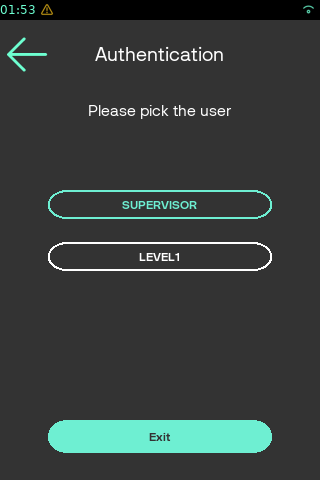
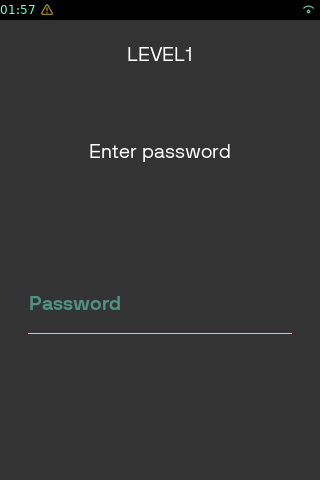
When the user chooses the user name, the password entry is displayed.
The entered password must be approved by the ''Green key'' if the device has a keypad. On devices without a keypad, the additional button to approve operation is displayed on the screen.
After the successful login, the access session is kept for 3 minutes of user inactivity or until the MAC closes, or until the user switches to the MAC desktop, or the device is rebooted.
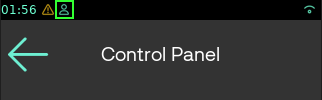
The icon on the MAC status bar indicates that there is an active access session:
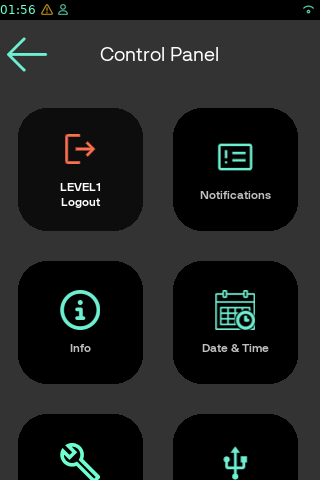
The MAC Control Panel shows the "**\[*****MAC user name*****]** **Logout**" icon if there is any logged-in user:
The icon on the MAC status bar and MAC Control Panel are removed on logout.
## Login into a different user
If a different MAC CP operation requires a different access group (for example, the Date/Time change requires access to `System_editor` (belongs to "Level1" and "Supervisor"), but the Key loading requires a `SEC_editor` (belongs to "Supervisor"), the user is prompted to log in with a different MAC user name.
If multiple users are allowed access to an access group, the operator is prompted to select a user.
## Entering Password values
The password entry will be aborted after 60 seconds of inactivity.\
There is also a password entry cool-down timer of 5 seconds if the wrong password is entered.
The entered password is not stored in plaintext. Once a full password is entered, or the password entry is canceled/timed out, the password is cleared from memory immediately.
## Password Value Guidelines
The password entered should:
* have a minimum length of 7 digits;
* should not match the previous password.
## Password Value Storage and Initial Password Entry
Initially, a virgin VOS3 device doesn't have any password values set in the ''Password Database''.
Note: This differs from Trident and Engage devices, which came with ''default'' password values in the ''pre-expired'' state.
During the deployment process, both: user-signed Password Policy and the Password change file (containing encrypted password values) should be installed on the device.
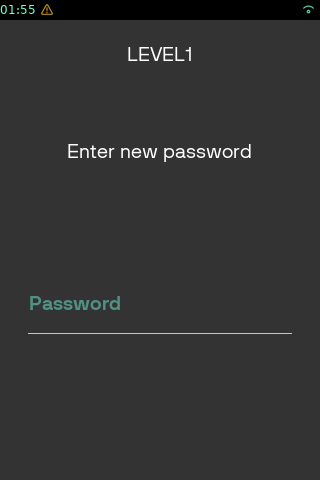
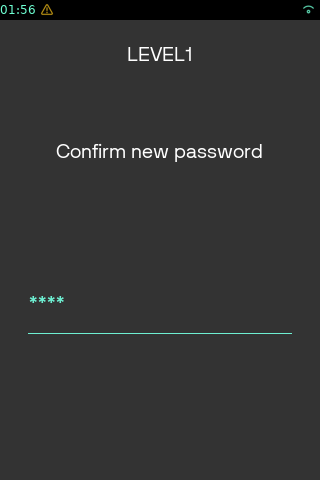
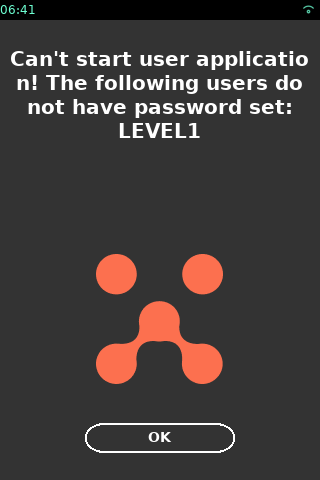
If the Password Policy is loaded, but the password value is not set, the user is prompted to enter the very first password value once he initiates a function that requires password entry.
Below is the example of case when the user-signed Password policy defines "LEVEL1" password entry, but the password value was not set:
{% columns %}
{% column %}
{% endcolumn %}
{% column %}
{% endcolumn %}
{% endcolumns %}
## Password Value Change / Set
The password value could be changed in the following ways:
1\) Via the MAC Control Panel → Security → Password Manager (requires access to that panel)
2\) By the Password change package installation.
3\) By the Password change API.
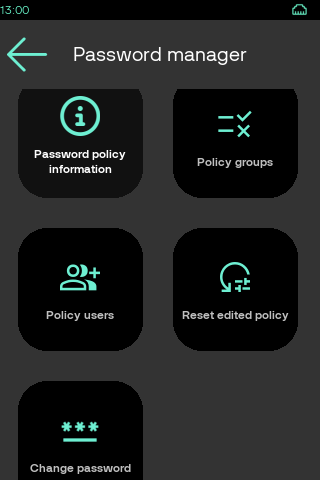
## Password policy Control Panel aka Password manager
Password manager (MAC Control Panel → Security → Password Manager) allows to:
* Set/change user password.
Starting with ADK-MAC 3.85.39/Authman 2.2, it is now possible to edit the valid password policy:
* Review current policy.
* Edit access groups and assign users.
* Edit users and assign access groups.
* Reset edited policy.
## Password Expiration
The password could be set to the expired state by the remote password change package only.
This could be useful at the deployment stage when a default password value is set, but it needs to be pre-expired, so the end-user who will do the very first log in, will be prompted to enter a default password value and then define a new password value.
## Password state after repair operations
The fastboot and reflash operations delete the user\_name/access\_groups configurations and password database.
After these operations it needs to install a Password Policy package and load initial password values, otherwise, the very first password will be entered manually by the user during the very first login into a protected MAC operation.
## Password configuration debugging
It is possible to get the information from the device on what the password management configuration (MAC user name mapping with access groups) is loaded:
* The configuration is displayed in the MAC "Diagnostics" panel
* The configuration could be downloaded via the "Log Transfer" operation from the MAC CP
* The configuration content is also saved in system logs (via "AUTHMAN" logging channel), so this information could be used for investigations if needs to understand what configuration was on the device at a particular period of time.
## Deployment Process
Initially, fresh devices come without any Password Policy, but to protect devices from malicious use, a user application running is not possible if there is no Password Policy.
At Verifone or Customer deployment, the following procedures should be performed to set the needed password protection.
**If the Customer will NOT use the password protection**
If passwords won't be used in the field, the deployment should load the Password Policy file which disables password protection (see the User configuration example #3 above). This file should be user-signed and loaded on the device.
If no Password Policy file is loaded on the device, user applications will not start.
**If the Customer will use the password protection**
To set password protection logic, the appropriate Password Policy file should be loaded (see the User configuration examples #1 and #2 above). This file should be user-signed and loaded on the device.
If initial password values should be set by deployment then they need to load 2 additional files:
* The password encryption key (UVRK) - should be requested in the Verifone Premier Portal
* The password file (UPWD) - prepared by the Deployment/Customer, and user-signed
{% hint style="warning" %}
If the initial password is not set, the user application will not start, and the user will be prompted to enter the very first password value manually in the MAC Security Control Panel.
{% endhint %}
**What is the Password encryption key (UVRK):**
The password encryption key type is a "Customer Asymmetric key". It is used to protect the password file (UPWD file) for secure storage and transfer outside the device.
The password encryption key is requested and loaded to the device as any other Customer key - as a VRK payload (UVRK file).
**What is the Password file (UPWD):**
The Password file (UPWD file) is generated, using the Packman tool, see the related section in the ADK Programmer's guide's section for reference and examples:
* Application Development Kit (ADK) > Developing Applications > Packman Tool > Command line interface > upwd\_build command (vos3 & vaos only)
To generate a Password file, the user must have access to:
* Packman tool
* Password change JSON file:
* Contains all the passwords that you would like to change on the device in a JSON format as well as additional device targeting restrictions.
* Encryption certificate from the related Password encryption key pair:
* Used to encrypt the password change JSON file inside the resulting UPWD file.
To handle a large number of devices it is possible to provide several Password files in one installation file:
* In this case, only password files matching S/N on the targeted device would be installed;
* The remaining Password files would be ignored.
For more information on generating one installation file from several UPWD files, see:
* Application Development Kit (ADK) > Developing Applications > Packman Tool > Command line interface > merge command
{% hint style="info" %}
Additional notes:
* The password may be set to pre-expired state - so the user will be prompted to reset a value during his very first login.
* The password file can be used to reset the existing password value on the device in the field, **without knowing the old value**, it just needs to be recreated and signed with the Customer's sponsor.
{% endhint %}
## Authman password protection mechanism reuse in a User application
It is possible to use VOS3 Authentication manager for User application needs to protect a user-app menu or button or a single functionality with a password.
The user app can be protected by an existing password that is already used on the device (e.g. Supervisor, Level1) or a new password can be introduced specifically for the user app.
The user app should simply integrate the access group call to the functionality (menu, button) it wants to protect with a password. An existing MAC access group listed in can be used (System\_editor, SEC\_editor etc.) or the new access group for the user app (user access group) needs can be implemented.
**Example of authentication call**
**Code example**
```
#include
bool is_authenticated_for_edit()
{
return vfi::authman::authenticate({"Usr1_editor"});
}
```
**Configuration example 1**
Below is the example of "supervisor\_auth.ini" INI file for configuring access groups associated with SUPERVISOR password.
In the example, the user1 application XYZ added a new access group **Usr1\_editor** and associated it to the SUPERVISOR password. Therefore, the supervisor\_auth.ini file should have this new access group added
**Usr1: supervisor\_auth.ini**
```
[user]
name=SUPERVISOR
[access]
groups=System_viewer, System_editor, COM_editor, LCP_editor, SEC_editor, SW_downloader, VHQ_editor, Usr1_editor
```
**Configuration example 2**
In the second example, the user decided to create an additional password for the user application, so he needs to create a new authman config file to tie the new access group to that new password.
**Usr1: usr1\_auth.ini**
```
name=Usr1
[access]
groups=Usr1_editor
```
The customer will also need to set a password for "Usr1" in the same way as for "SUPERVISOR" and "LEVEL1".
NB! If the new password value is not set, then the user can set it manually via the Security Control Panel (if he has access).
**Authentication notes**
The usr1 application unlike the sys (Control Panel) application will not have authenticated sessions:
* each authentication request will require credentials providing (select username, enter a password);
* no automatic logout after 3min time of user inactivity;
* no logged-in user icon on statusbar.
These limitations are because authentication sessions were designed for the Control Panel system applications and are not suitable for the usr1 application.
## Password policy validation
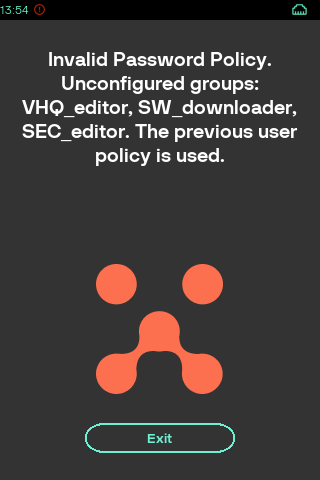
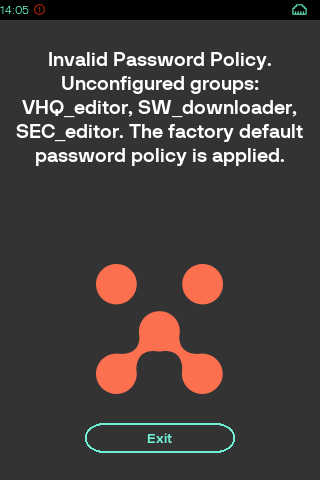
Authman checks user password policy files at every boot. In case of invalid password policy there are two recovery cases:
1. Apply previous password policy if available (the valid backup policy is saved at every boot).
2. Apply factory default password policy: user application running is not possible in that case.
There is a popup message for both cases:
{% columns %}
{% column %}
{% endcolumn %}
{% column %}
{% endcolumn %}
{% endcolumns %}
## Troubleshooting
**The password is forgotten or unknown**
If the device is connected to TMS, then the password value can be changed via TMS by uploading a password change package or via an API.
If the device is not connected to the TMS and it is not possible to install the password change package, then the device needs to be sent to Repair Center.
**Password protection needs to be enabled**
Install the user-signed Password Policy file to set at least one user that is not the ''Guest''.
**Password protection needs to be disabled**
Install the user-signed Password Policy file where all access groups tied to the "Guest".
**The user application couldn't start because of the missing Password Policy**
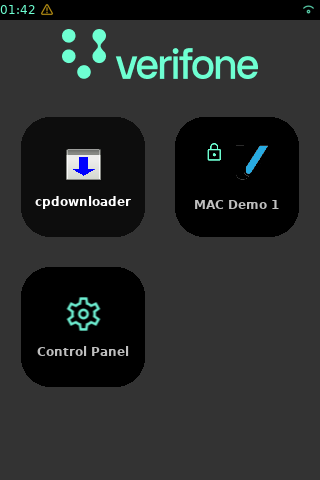
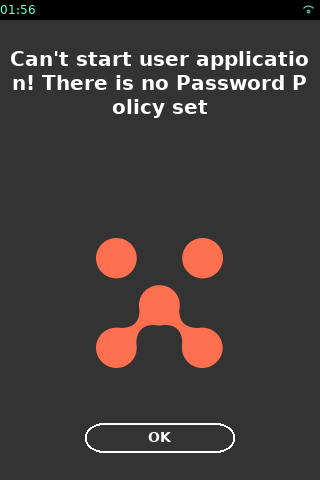
The user application couldn't start if there is no user-signed Password Policy or at least one password value from this policy is not set.
Otherwise, you will see the ''lock'' icon over the application:
And when you tap on the application icon, the system will show an appropriate message:
{% columns %}
{% column width="41.66666666666667%" %}
{% endcolumn %}
{% column width="16.666666666666664%" valign="middle" %}
or
{% endcolumn %}
{% column width="41.66666666666664%" %}
{% endcolumn %}
{% endcolumns %}
The second message appears if a password value is not set.
**The control panel operation is not available**
The CP operation is not available in the following cases:
* The operation is tied to an access\_group which is not mentioned in the user-signed configuration. In this case, the system will show an appropriate message "Access group XXX isn't configured. Please contact administrator.".
* The operation is protected by a password in the Passwords Policy file, but the end user didn't log in to the appropriate user. In this case, the user will be prompted for the password.
**I don't know what user-signed Password Policy is loaded on the device**
To check the actual user-signed Password Policy, it could be downloaded from the device by the "Transfer Logs" operation: **../config/authman/**.
## FAQ
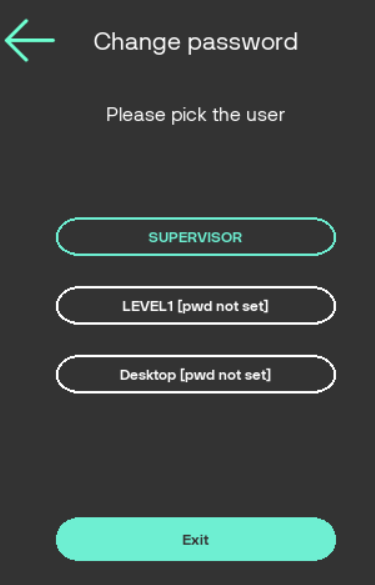
### How could I know what password values are set on my device?
Open the MAC Security Control Panel, choose Password Manager → Change password. The \[pwd not set] is displayed next to the password if not set:
---
# Agent Instructions
This documentation is published with GitBook. GitBook is the documentation platform designed so that both humans and AI agents can read, navigate, and reason over technical content effectively. Learn more at gitbook.com.
## Querying This Documentation
If you need additional information that is not directly available in this page, you can query the documentation dynamically by asking a question.
Perform an HTTP GET request on the current page URL with the `ask` query parameter, and the optional `goal` query parameter:
```
GET https://docs.verifone.com/adk-os-platform/readme/vos3-password-management.md?ask=&goal=
```
`ask` is the immediate question: it should be specific, self-contained, and written in natural language.
`goal` is optional and describes the broader end goal you are ultimately trying to accomplish on behalf of the user. GitBook uses it to tailor the answer towards what is most useful for that goal.
The response will contain a direct answer to the question and relevant excerpts and sources from the documentation.
Use this mechanism when the answer is not explicitly present in the current page, you need clarification or additional context, or you want to retrieve related documentation sections.