| ‘PPU Decimal Position’ Configuration | PPU Display | Range |
|---|---|---|
| 3 (U.S. default) | X.XXX | 0.001 – 9.999 |
| 2 | XX.XX | 00.01 – 99.99 |
| 1 | XXX.X | 000.1 – 999.1 |
| 0 | XXXX | 0001 - 9999 |
| ‘Total Decimal Position’ Configuration | Total Amount Display 5-digit Display (U.S. and other) | Total Amount Display 6-digit Display |
|---|---|---|
| 2 (U.S. default) | XXX.XX (000.01 – 999.99) | XXXX.XX (0000.01 – 9999.99) |
| 1 | XXXX.X (0000.1 – 9999.9) | XXXXX.X (00000.1 – 99999.9) |
| 0 | XXXXX (00001 – 99999) | XXXXXX (000001 – 999999) |
| Field/Button | Allowable Value/Function |
|---|---|
| Unit of Measure | Select Gallons (USG) or Liters. |
| Halt Mode | This parameter applies to Tokheim dispensers. All others automatically use the soft halt. Select one of the following: Hard Halt — A fuel sale that is stopped with the [STOP] key on the terminal cannot be restarted with the [APPROVE] key. It will become due when the nozzle is replaced (or the lever put down) at the dispenser. Soft Halt — A fuel sale that is stopped with the [STOP] key on the terminal can be restarted with the [APPROVE] key, as long as the nozzle was not replaced (or the lever put down) at the dispenser. |
| PPU Decimal Position [0-3] | Select a value to define the position of the decimal point whenever a fuel price is displayed on the terminal or printed (0 - 3). Note: For sites in the US, this value should be set to 3. |
Total Decimal Position [0-2] | Select a value to define the position of the decimal point on the pump’s total sales display (0 - 2). Terminal receipts and displays always use two decimal point positions for fuel sale amounts. 0 — The terminal appends .00 to all fuel sale amounts. 1 — The terminal appends .x0 to all fuel sale amounts. For sites in the US, this should be set to 2. |
| Autodisapproval Delay [0-10] | Select the number of minutes of inactivity that must pass before a pump is automatically disapproved (0.0 - 10.0 minutes, in half minute increments). For example, entering 7.5 will result in automatic disapproval after 7 minutes and 30 seconds. This parameter works with ‘Autodisapproval’ in Pump Configuration- Pump Attributes. |
| Multi-Grade Timeout | Enter the minutes before the pump timeout after fueling the first grade in a multi-grade transaction. Refer to the Fleet Cards feature reference documentation for information on this feature. |
| Ignore MOP Conflict | When this parameter is checked, sales can be tendered using any MOP regardless of the original fuel price level of the sale. When this parameter is not checked, the MOP entered must match the fuel price level and if it does not an error message will be given indicating MOP conflict. |
| Force .9 cents Per Gallon | Select to force the last digit of the fuel price to 9 on the price entered at Fuel > Fuel Prices. For example, if price entered is $3.47/gallon, the price is forced to be $3.479/gallon |
| Approve All Enabled | Select to allow the cashier to press [APPROVE] to approve all calling pumps. (If not selected, the cashier must identify the pump that is requesting approval, press that pump number, and then press [APPROVE]. |
| Recall Autocollect Inside | Select to allow autocollect sales to be recalled on the terminal if an attendant is collecting fuel sale payments outside. |
| Gilbarco Six Digits Money Display | This is a site-wide parameter used with Gilbarco pumps at some non-US sites that require 6 digits as opposed to 5 for the money display. This is required for some non-US countries that have currencies that require large money amount values. Note that the pumps must also be programmed to run in 6 digit money display mode. |
| Require Attendant Card | Enable for the enhanced FSA feature. Refer to the Full Service Attendant feature reference documentation for information on this feature. |
| Collect Additional Data | Enable to collect the following additional data in the NAXML journal report and Tlog:
|
| Enter the number of seconds before the offline fuel prompt is displayed |
| Real Time Sales Data – Notification Frequency (milliseconds) | This parameter controls how often fuel sales data (total sales amount) is updated on the fueling point icons, while fueling is in progress. This allows the user to watch the fuel sale amount roll off, in real-time. The number represents the amount of time (in milliseconds) between each update. A default value of 0, disables this feature. The minimum allowable value is 500, resulting in a reporting interval of two times per second. Configured values between 1 and 499 will automatically apply 500 millisecond intervals to the icons. A value of 2000 or greater will reduce load on the system making it more responsive. |
| Tier2 Schedule Settings - Start Tier 2 Pricing | Select the time (using the 24-hour clock) that tier 2 pricing begins (0 - 23). |
| Number of Tier Hours | Select the number of hours that Tier 2 prices will be in effect, starting at the time set in “Start Tier 2 Pricing”. Set values between 0 and 24 to use Tier 2 Pricing. The following special values can also be used: 0 — Tier 2 prices are not used. 24 — Tier 2 prices are always used. |
| Postpay Schedule Settings - Start Postpay Allowed | Select the time (using the 24-hour clock) that postpay fuel sales begin (0 - 23). |
| Number of Postpay Hours | Select the number of hours that postpay fuel sales are allowed, starting at the time set in “Start Postpay Allowed”. Set values between 0 and 24. The following special values can also be used: 0 — Postpay fuel sales are not allowed. 24 — Postpay fuel sales are always allowed. |
| Manual Approval Schedule Settings - Start Manual Approval Required | Select the time (using the 24-hour clock) after which every fuel sale must be approved by the cashier (0 - 23). |
| Number Manual Approval Hours | Select the number of hours that manual approval is required, starting at the time set in “Start Manual Approval Required” (0 - 24). 0 — Manual approval is not required at any time. 24 — Manual approval is always required. |
| Grade Restriction – Enforce Prompting Inside | Select to display the grade restriction prompt that lists allowable grade selections inside at the POS. |
| Prompt Restriction Outside | Select to display the grade restriction prompt that lists allowable grade selections on the DCR. |
| Alert Cashier | The Alert Cashier parameter alerts the cashier that there is an outstanding Commercial Fleet transaction (Comdata and Wex/Exxon commercial Fleet cards) that came due inside and needs to be completed. The driver might choose to send the fuel sale from the DCR inside so that they can add products or cash advance. Refer to the Commercial Fleet User Reference documentation for information on this feature. |
| Field/Button | Allowable Value/Function |
|---|---|
| Secondary Product | Select to fuel a primary product as a secondary product with a different name. For example, Tractor and Reefer are dispensed from the diesel hose and is Diesel but named as Tractor and Reefer. Tank and Price for the secondary products is same as Primary product. Secondary Product has its own product code. Refer to the Fleet Cards feature reference documentation for information on this feature. |
| Product Name | Enter the product name (alphanumeric, up to six characters). |
| Primary Product | When a product is enabled as secondary, select the primary product that is used as the secondary product. For Example, Tractor and Reefer are dispensed from the diesel hose and is diesel but named as Tractor and Reefer. Tank and Price for the secondary products is same as Primary product. Secondary Product has its own product code. The advantage of using the primary product as a secondary product with a different name is that the product when used as a secondary product can save tax or/and can be eligible for a discount. Refer to the Fleet Cards feature reference documentation for information on this feature. |
| Low Feed Tank | From the drop-down menu, select the primary tank. |
| Low Feed Percentage | Enter a percent (0 - 100). |
| Service Level 1 Product Code | From the drop-down menu, select the product code for service level 1. |
| Service Level 2 Product Code | From the drop-down menu, select the product code for service level 2. |
| Department | From the drop-down menu, select the department. |
| Fuel Grade ID | It is a ‘1 - 4’ digit-value that maps Verifone product sysIDs to a NAXML equivalent. It is used as part of generating the NAXML POSJournal. |
| Minimum Street Price | Fuel prices cannot be set below this amount. A security level is required to change this amount. Discounts from POP and Loyalty can reduce the customer's price per gallon below this value. |
| Field/Button | Allowable Value/Function |
|---|---|
| Position | Select the fueling point. |
| Duplicate Fueling Position | Select a group of fueling positions from the Position list to mark for duplication. Select the position from the Duplicate Fueling Position drop-down menu to set the position to be duplicated. Click Duplicate. |
| Allow Access | Select to allow the pump to be accessed by the terminal. |
| Default MOP | Select Cash, Credit, or Check as the default MOP for this pump. |
| Default Service Level | Select Self, Full, or Mini as the default service level. |
| Blend Type | Type of the blend to use in fueling positions. Select None, MECH, ELEC, VARI, SC82, or FIX of the blend type. |
| Slow Flow Offset | Determines the point at which the pump will slow the fuel as it approaches a preset amount (2 - 9999). Enter the slow flow amount without leading zeros. |
Hose Product Settings: Hose 1 Product Hose 2 Product Hose 3 Product Hose 4 Product Hose 5 Product Hose 6 Product Hose 7 Product |
Assign a fuel product to be dispensed from each hose for each pump that has been set up. One to seven hoses can be defined for each pump. Assign 'NONE' to hoses that do not exist or are not used. |
Fueling Limit Settings: Currency Limit
Volume Limit
Minimum PPU
Auto Collect |
Enter the maximum amount that the pump dispenses in one sale (0.00 - 999.99).
Enter the maximum volume that the pump dispenses in one sale (0.00 - 999.999).
This is the minimum Price Per Unit that the dispenser will be allowed to drop to (typically due to a discount). Select to disable Auto Collect or to allow an employee outside to collect cash or any type of MOP payment directly from the customer at the pump. None: Disabled. Payments are only collected inside at the terminal. Cash: Only cash payments may be collected at this pump. All: Any type of MOP payment may be collected at this pump. |
| Options | |
| Preset Prepay | Select to allow preset/prepay fuel sales at the pump. The default value is checked. |
| Preset Postpay | Select to allow preset/postpay sales at the pump. The default value is checked. |
| Stacking | Select to allow one fuel sale to remain uncollected while a second fuel sale is dispensed and completed. The default value is checked. |
| First In First Out | Select to ensure that the first sale that becomes due on this pump is cashed out first. (If not selected, either sale may be cashed out first.) “Stacking” must also be selected. |
| Full Service Preset | Select to allow a customer or attendant to preset an amount outside at the DCR before fueling. |
| Handle Up Calling | Select to make the pump call for approval to dispense fuel when the customer lifts the handle. |
| Auto Approval | Select to allow automatic approval for dispensing. If not selected, the pump must be approved by the cashier by pressing the [APPROVE] key. The first sale must be cashed out before another sale can be autoapproved.
Select this parameter if using Autocollect. |
| Auto Disapproval | Select to disapprove a dispenser if it remains inactive for the period of time set in “Delay Autodisapproval” on Fuel > Site Parameters > Fuel Site Parameters. (If not selected, the pump remains approved until manually changed.) In DCR transactions, the pump disapproves after a maximum of three minutes regardless of this setting or that of “Delay Autodisapproval.” Prepaid sales never time out. |
| DCR In Dispenser | Select if the dispenser has a card reader. |
| View Buzzer Off | In a postpay situation, the customer lifts the handle, leaves the nozzle off the pump, and comes inside to pay. Select to allow the [VIEW] key to stop the beeping at the terminal. If not selected, the beeping continues until the customer has paid. |
| Commercial | Select to convert a fueling position to commercial. Select for each pump that needs to be enabled as commercial. Refer to the Fleet Cards feature reference documentation for information on this feature. |
| Ignore Pump Error | Select to allow a pump to resume service after an authorization failure. The terminal continues to approve the transaction on the pump without the cashier pressing [APPROVE]. If not selected, a cashier must press [APPROVE] to start the next transaction on the pump after an authorization failure. For this feature to work, do the following:
|
| Pay At Pump Only | Select if customers are required to pay outside at the DCR and may not pay inside. If not selected, customers are able to pay outside at the DCR as well as inside. |
| Prepay Only | Select if only prepaid fuel sales are allowed. If not selected, fuel sales can be paid for either before or after the customer dispenses fuel. |
Multi Product Settings
Allow Multiple Products
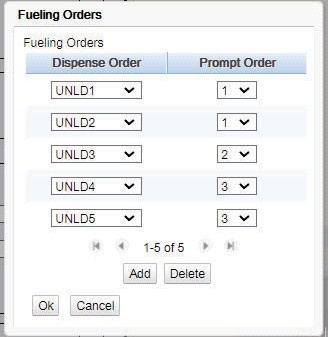
Configure Fueling Order | Refer to the Fleet Cards feature reference documentation for information on this feature. To enable a fueling position to dispense multiple products in a in single transaction, the pump should be enabled for multi-grade fueling. Click Configure Fueling Orders to configure the order in which the multi-grade fuel products appear on DCR menu and on the fuel selection menu during preauthorization of the card. The Host Product Settings section in the Fuel Configuration form only allows Primary Products to be assigned to hoses. Fueling Orders form helps configure primary and secondary products dispensing order. Configure the order in which the products are to be presented to the customer to choose.
If you assign two products to the same prompt order, it will allow either or both. The example above would prompt “UNLD1, UNLD2 or Both”, then “UNLD3 Y/N”, and finally “UNLD4, UNLD5, or Both”. |