| Field/Button | Allowable Value/Function |
|---|---|
| Add | Clicking Add allows a new menu record to be created. |
| Delete | Selecting the delete check box and then Save will delete the menu record. |
| Search menus | The search menus field is a context sensitive search field that allows menus presented in the menu selector to be easily searched. |
| Menu Selector | The menu selector displays the Menu ID number, Menu Name, and any Notes when used. The menu selector displays a list of existing menus sorted in the order of their Menu ID number. |
| # Menus Available | Displays the number of menus that are available for use. |
| ID | The record number assigned to each menu. This field is required and can be used to group menus that are similar. |
| Name | The name of the menu that will be displayed on the POS and Self-Checkout. |
| Note | The note field is used to add additional information about the menu for configuration use only. The note is displayed in only in areas of the configuration such as menu configuration, touchscreen configuration, self-checkout configuration, etc. |
| Type | Allows the type of menu to be selected. See the previous section for descriptions on menu types. |
| Parked | Allows the menu to be used in the parked menu panel of the POS screen. This option is not available for menu chains and order menus. |
| Limit | From Verifone Commander release 55.02, Menu Configuration has a limit field. The Limit field is greyed out when Multiselect Menu is not selected. The limit is intended to restrict customers and cashiers from selecting more than the limited number of items from the menu. If the Limit is set at 0, then the multiselect menu will function as it did previously, where the maximum number of selections that can be made from the menu is the total number of PLU's present. If the limit exceeds the number of PLUs within the menu, then it will work the same as if it has no limit. When a limit is entered that is greater than 0 and less than the total number of PLU's present in the menu, then the customer or cashier can only select the number of items specified by the limit. For example, if 10 PLUs appear in the menu and the multiselect menu limit is set to 5, then the customer/cashier can only select up to 5 items from the menu. The multiselect menu instructions on the POS and SCO indicate the number of items a customer can select. The message shows 'Pick multiple items' when no limit is set and shows 'Pick up to x items' where X is the value of the limit, when limit is set. Refer to the Self-Checkout feature reference documentation for information on this feature. |
| Duplicate | Creates a duplicate of the existing record but requires a new menu ID to be entered. |
| Display No | The display number is the order in which the item appears in the menu. The order can be changed by clicking and dragging on and item and moving it to a new location. |
| PLU | When creating an Expanded, Multi-select, or Express Menu this section will display the PLU number once it is added to the form. |
| Display Name | Expanded, Multiselect, and Express menus allow the description of the PLU to be imported, and then modified in the Menu configuration if a more user-friendly description is needed. Selecting the display name next to the PLU allows the name to be modified. |
| Image | The image form is supported on self-checkout only. Selecting the button space will open a dialogue box that allows an image to be selected from the pop up. Images are added under Tools > Image Upload. |
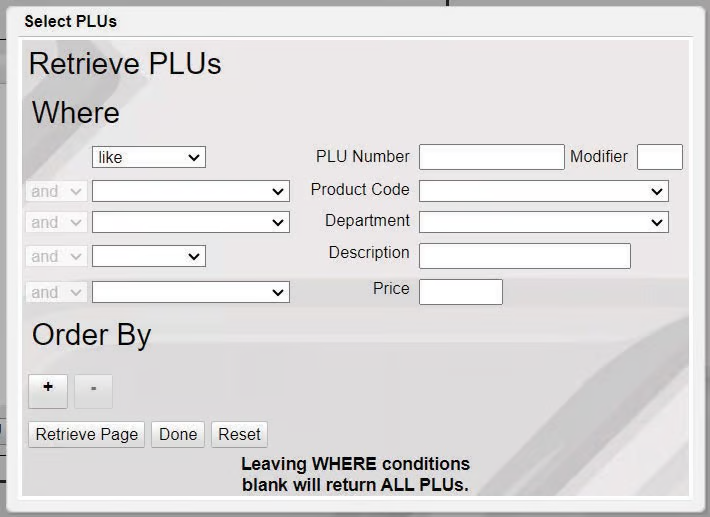
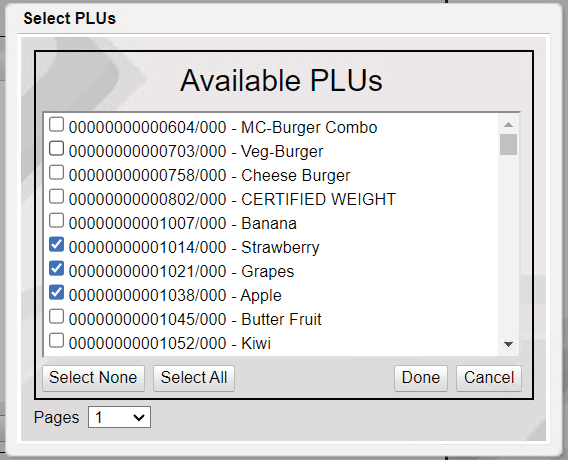
| Add PLU | The Add PLU button allows users to search for existing PLU using a variety of search methods including number, product code, department, description, and price. Selecting Retrieve page on the search form will display all the available results. Multiple PLUs can be selected from the search box to be added to the menu at one time. 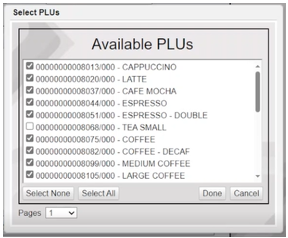 |
| Modify a PLU | Selecting the PLU number will allow the PLU to be modified by using the search window that appears. When using the modify function, only one PLU can be selected from the available PLU list. |
| Remove | Selecting a Display No. from the Menu items list, allows the user to remove a specific PLU from the form. |
| Remove All | Removes all PLUs in the form. Changes only take place once a Save occurs. Selecting Cancel will undo the ‘Remove All’ action. |
| Field/Button | Allowable Value/Function |
|---|---|
| Add | Clicking Add allows a new menu record to be created. |
| Delete | Selecting the delete check box and then Save will delete the menu record. |
| Search menus | The search menus field is a context sensitive search field that allows menus presented in the menu selector to be easily searched. |
| Menu Selector | The menu selector displays the Menu ID number, Menu Name, and any Notes when used. The menu selector displays a list of existing menus sorted in the order of their Menu ID number. |
| # Menus Available | Displays the number of menus that are available for use. |
| ID | The record number assigned to each menu. This field is required and can be used to group menus that are similar. |
| Name | The name of the menu that will be displayed on the POS and Self-Checkout. |
| Note | The note field is used to add additional information about the menu for configuration use only. The note is displayed in only in areas of the configuration such as menu configuration, touchscreen configuration, self-checkout configuration, etc. Notes appear in parenthesis to the right of the description. 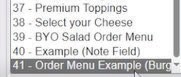 |
| Type | Allows the type of menu to be selected. See the previous section for descriptions on menu types. |
| Parked | Allows the menu to be used in the parked menu panel of the POS screen. This option is not available for menu chains and order menus. |
| Duplicate | Creates a duplicate of the existing record but requires a new menu ID to be entered. |
| Display No | The display number is the order in which the item appears in the menu. The order can be changed by clicking and dragging on and item and moving it to a new location. |
| Menu ID | The Menu ID number for the assigned expanded or multi-select menu. |
| Description | The description of the menu. This will also display the note field if used. |
| Menu Type | Displays the type of menu assigned to the menu chain or order menu |
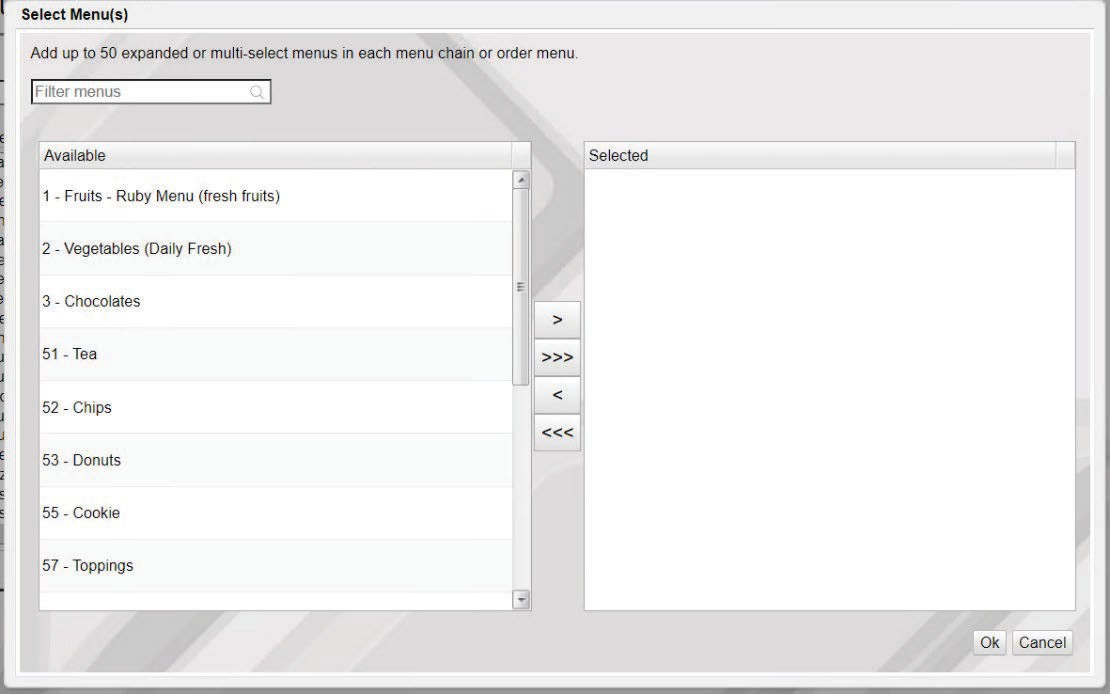
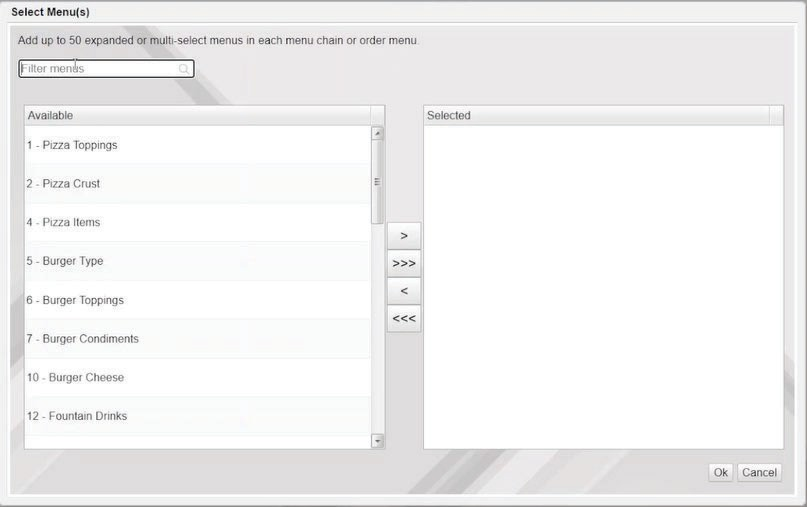
| Add Menu | When selecting the Add menu button a pop up will appear to allow existing menus to be added to the menu.
 |
| Modify a Menu | Click on the Menu ID or Description will allow the menu selection to be modified via a drop down. |
| Remove | Selecting the Display No. from the menu item list allows the user to remove a specific menu from the form. |
| Remove All | Removes all menus that have been added to the menu record. Changes only take place once a Save occurs. Selecting Cancel will undo the ‘Remove All’ action. |