> For the complete documentation index, see [llms.txt](https://docs.verifone.com/llms.txt). Markdown versions of documentation pages are available by appending `.md` to page URLs; this page is available as [Markdown](https://docs.verifone.com/cug-56.00/commander-user-reference-56.00/manual-discounts.md).
# Manual Discounts
Manual discount, unlike automatic discount, requires specific actions by the cashier.
## Overview
Manual discount, unlike automatic discount, requires specific actions by the cashier. Examples include any discount using a discount key or entering a discount amount.
## Using Manual Discounts
Use the following Manual Discount functions to give:
* Fixed Discount
* Percent Discount
* Amount Discount
{% hint style="info" %}
To access the **\[Disc]** function on Ruby2, a soft key needs to be programmed. Refer to store manager to program soft keys.
{% endhint %}
{% stepper %}
{% step %}
### Fixed Discount
After entering the product, press **\[DISC]**
The system applies the discount to the line item.
{% endstep %}
{% step %}
### Percent Discount
After entering the product, key the percent discount including two decimal places. Example: \[1]\[0]\[0]\[0] = 10% Discount
Press **\[DISC %]**
The system applies the discount percentage to the line item.
{% endstep %}
{% step %}
### Amount Discount
After entering the product, key the dollars and cents discount. Example: \[1]\[0] = 0.10 discount
Press **\[DISC]**
The system applies the discount amount to the line item.
{% endstep %}
{% endstepper %}
## Configuring Manual Discounts
| **Parameter** | **Path** | **Value** | **Description** |
| ----------------------- | ---------------------------------------------- | --------------- | ------------------------------------------------------------------------------------------------------------------------------------------------------------------------------------------------------------------------------------------ |
| Discount Security Level | Store Operations > Sales > Sales Configuration | 0 - 9 | The security level **1 - 9** an employee must have in order to use the \[**DISC**] key and approve discounts. **0** - Discounts do not require a security check. |
| Discount Type | Store Operations > Sales > Sales Configuration | Percent, Amount | Percent - The discount is calculated as a percentage of the price and then subtracted from the price of the item. Amount - The discount is directly subtracted as a dollar amount from the price of the item. |
| Fixed Discount Rate | Store Operations > Sales > Sales Configuration | Numeric | Percent or amount (set in “Discount Type”) automatically applied when the \[**DISC**] key is pressed. |
| Is Fixed Discount | Store Operations > Sales > Sales Configuration | Yes, No | Automatically enter discounts (set in “Discount Type” as a percent or amount) for the amount entered in **Fixed Discount Rate** when the \[**DISC**] key is pressed. If not selected, all discounts must be entered as individual amounts. |
| Maximum Discount | Store Operations > Sales > Sales Configuration | 0.00 – 99.99 | Maximum discount (either percent or dollar as set in “Discount Type”) that can be applied to an item when using the \[**DISC**] key. |
| Minimum Discount | Store Operations > Sales > Sales Configuration | 0.00 – 99.99 | Minimum discount (either percent or dollar as set in “Discount Type”) that can be applied to an item when using the \[**DISC**] key. |
## Reporting
### Report Details
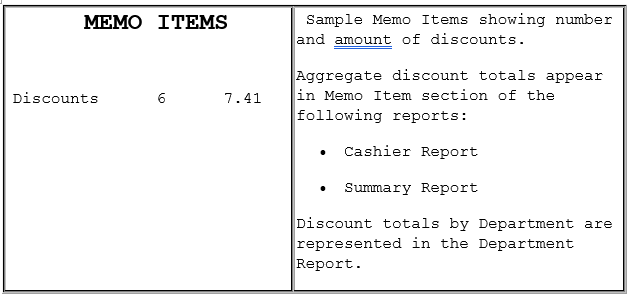
* **DISCOUNTS**: Number of times and total amount of discounts. This includes discounts from:
* Use of the **\[DISC]**, **\[DISC%]**, and **\[DISC AMT]** keys
* Combo, mix ’n match, fuel, and promotional discounts
## Troubleshooting
| # | Message | Description/Action |
| ----- | -------------------------------- | --------------------------------------------------------------------------------------------------------------------------------------------------------------------------------------- |
| E1121 | DISCOUNT TOO SMALL | The discount entered is less than the set minimum amount. |
| E1122 | DISCOUNT TOO LARGE | The discount entered is more than the set maximum amount. |
| E1273 | FUEL TAX NOT ALLOWED WITH % DISC | A discount using the \[**DISC**] key is attempted on an item that has a fuel tax exemption applied or a fuel tax exemption is attempted on an item that already has a discount applied. |
---
# Agent Instructions
This documentation is published with GitBook. GitBook is the documentation platform designed so that both humans and AI agents can read, navigate, and reason over technical content effectively. Learn more at gitbook.com.
## Querying This Documentation
If you need additional information that is not directly available in this page, you can query the documentation dynamically by asking a question.
Perform an HTTP GET request on the current page URL with the `ask` query parameter, and the optional `goal` query parameter:
```
GET https://docs.verifone.com/cug-56.00/commander-user-reference-56.00/manual-discounts.md?ask=&goal=
```
`ask` is the immediate question: it should be specific, self-contained, and written in natural language.
`goal` is optional and describes the broader end goal you are ultimately trying to accomplish on behalf of the user. GitBook uses it to tailor the answer towards what is most useful for that goal.
The response will contain a direct answer to the question and relevant excerpts and sources from the documentation.
Use this mechanism when the answer is not explicitly present in the current page, you need clarification or additional context, or you want to retrieve related documentation sections.