Security Tab
Security Tab
| Field/Button | Allowable Value/Function |
|---|---|
| Add | Click to add a new user. |
| Delete | Select an existing user and click Delete to remove the user from the Users list. |
| Name | Enter the name of the user (number of characters are unlimited). |
| Disallow Login | Select to disallow the selected user to login to Configuration Client. |
| Employee | Assign an employee type to the user by selecting from the Employee drop-down list. The employee types with security levels are created using Security > POS Security > Employees form. |
| Roles | Roles are set up on the Configure Roles tab. The roles assigned to the selected user are displayed in this box. |
| Edit | Click to display the available roles. Select one or more roles for the user and click Done. |
| Password Settings | |
| Min Length | Enter a minimum length for the user’s password (7 - 30). |
| Max Length | Enter a maximum length for the user’s password (8 -30). |
| # of Days to Expire | Enter the number of days until the password expires. The password should be changed before it expires. |
| Force Change on Next Login | Select to make the user change their password the next time they log in. |
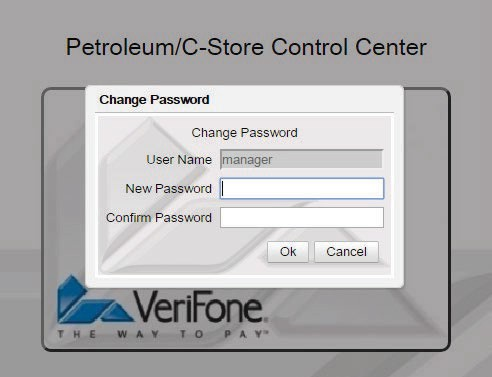
| New Password | Enter the user’s new password. The new password should meet the requirements of the password guideline. |
| Confirm New Password | Enter the password again to confirm. |
| Password Guidelines | Click to display password guidelines. |
Secure User Settings ‘Secure user’ is a user who can access PA-DSS sensitive Card Holder Data (CHD) in ‘EPS Secure Reports’ from POS via the Network Manager’ menu. POS prompts for secure employee ID and secure user password prior to processing this menu item. To avoid having to type username on POS keyboard, this feature allows associating a POS employee ID to a user. When POS prompts, secure user must enter their ‘secure employee ID’ and the PA-DSS compliant ‘user’ password. On successful validation, PA-DSS sensitive Card Holder Data (CHD) is exposed in the EPS reports. If validation fails, masked PAN is provided in the EPS Reports. Secure Admin is a ‘secure user’ who can manage ‘secure user’ as well as ‘secure admin’ accounts. The 'Secure User Administration' section is displayed when you log in as 'manager' (the default secure user admin account) or any user that is configured as a secure admin. | |
| Secure User ID | Enter the Secure User ID. |
| Secure User Administration | Enable if the user has secure user administration rights. |
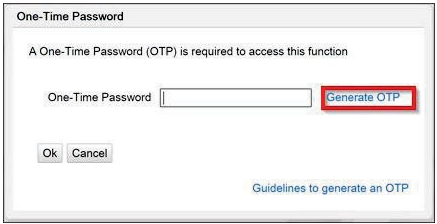
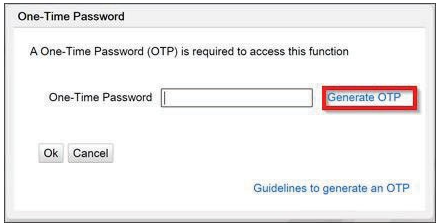
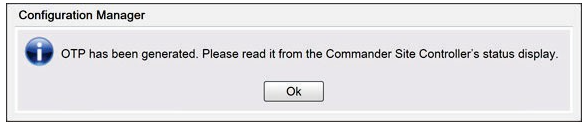
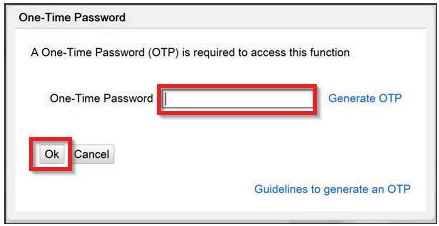
Verifone C-Site Management The Verifone C-Site Management application allows remote configuration of data for the POS system through the web. Without visiting each location changes and updates can be done remotely for any or all locations. These updates can be done selectively or all at once for all the POS devices from the web application. OTP is a one-time password generated by the Verifone Commander for accessing certain menus. Verifone C-Site Management now supports remote generation and retrieval of OTP. Passwords generated this way are sent to the email address associated with the Verifone C-Site Management user login. Refer to the Verifone C-Site Management User Reference documentation for more information on this feature. | |
| User ID | Add the same Verifone® C-Site Management Email address that was configured as part of OTP settings in the Verifone® C- Site Management application and Click Save. |
| Function | Description | Additional Info |
|---|---|---|
| allowAllCsrRpts | Allow all cashier reports view | Allow user to view all cashier reports that are available |
| allowOpenCsrRpts | Allow open cashier reports view | Allow user to view open cashier reports (current and/or reports with MOP amounts not yet filled) |
| allowRestricted | Allow Restricted Access | |
| bypassEmployeeId | Bypass employee id validation | Bypass employee id validation in POS security functions |
| cbeginupgrade | Request Auto Upgrade Engine to begin upgrade | |
| ccarwashdisable | Disable Car Wash | |
| ccarwashenable | Enable Car Wash | |
| cclosedaynow | Close Day Now | |
| ccwpaypointinit | Initialize Carwash Paypoint | |
| ccwpdclose | Carwash Paypoint Period Close | Performs Period Close On Carwash Paypoint |
| cdcrdriverinit | Initialize DCR Driver | |
| cdcrinit | Initialize DCR | Initialize DCRs |
| cdisablelogin | Disable Helpdesk Login | |
| cenablelogin | Enable Helpdesk Login | |
| cfeatureenablement | Update a feature | Update Licensed Features |
| cFPDinit | Init FP Display Config | |
| cfueldrvinit | Initialize Fuel Driver | |
| cfuelinit | Initialize Fuel | |
| cfuelprices | Download Fuel Prices | |
| changepasswd | Change Password | |
| cping | Pings a given destination. | |
| crefreshcfg | Refresh Configuration | |
| crefreshepsconfig | Refresh Eps Config | |
| cswupgradepkg | Update software | |
| diagdeleteclass | Delete Diagnostic Class | Delete a previously loaded dynamic diagnostic classfile |
| diagloadclass | Load Diagnostic Class | Load a classfile to be run as dynamic diagnostic |
| diagrunclass | Run Diagnostic Class | Execute a dynamic diagnostic class |
| findfilename | View report period filename | |
| getPLUsFromGempro | Send plu.dat to NEWPRO | Send plu.dat from GEMPRO to NEWPRO |
| notifyamber | Notify amber alert updates | Notify Controller of amber alert updates |
| releaseCredential | Release the credential | |
| repeatEvent | Repeat last event | Notify specified event listener of the last occurrence of the specified event |
| sendPLUsToGempro | Send plu.dat to GEMPRO | Send PLU data from NEWPRO to GEMPRO |
| uagevalidationcfg | Update age validation config | |
| ubannercfg | Update banner config | |
| ubluelawcfg | Update blue law config | |
| ucarwashcfg | Update carwash config | |
| ucashaccsite | Update cash acceptor config | |
| ucashierenddraweramts | Update Cashier End Drawer Amounts | |
| ucashierreportreviewstatus | Update Cashier Report Review Status | |
| ucashiertrackingcfg | Update cashier tracking configuration | |
| ucouponfamcfg | Update coupon family config | |
| ucurrencycfg | Update currency config | Update currency dataset configuration |
| ucwpaypointcfg | Update carwash paypoint config | |
| udatetime | Set Time and Date | Set the internal clock on Controller, including timezone and daylight savings time parameters |
| udcrheadercfg | Update DCR header config | |
| udcridlescreencfg | Update DCR Idle Screen config | Update DCR Idle Screen dataset configuration |
| udcrmessagecfg | Update DCR message config | |
| udcrtrailercfg | Update DCR trailer config | |
| udiscountdenomcfg | Update discount denom config | |
| uecheckcfg | Update Echeck Config | |
| uemvcfg | Update EMV Configuration | Update All EMV Configuration Settings |
| uemvinit | Update EMV Initialization | Update All EMV Initialization Settings |
| uepsprepaidcfg | Update EPS Prepaid Card Config | |
| uesafecfg | Update Esafe Config | |
| ufeecfg | Update fee config | Update fee dataset config |
| ufepcardcfg | Update Fep's card configuration parameters | Update Fep's card configuration parameters like various limits, enable/disable card |
| ufepcardtypecfg | Update Fep's card configuration parameters based on card Type | Update Fep's card configuration parameters based on card Type like limits, enable/Disbale etc. |
| ufepcfg | Update Fep's configuration parameters | Update Fep's configuration parameters like network, cashback etc |
| ufoodservicecfg | Update Food Service Config | |
| uFPDcfg | Update FP Display Config |
|
| ufuelcfg | Update Fuel Site Configuration | Update the fueling dispensers, products, mops, tanks, and prices for the site |
| ufuelprices | Update Fuel Prices | Update the fueling prices for the site |
| ufueltaxex | Update Fuel Tax Exemption Config | |
| ufunctionlist | Refresh function list | |
| ugrouplist | Update Group List Configuration | Update available report groups |
| uifsfcfg | Update IFSF Network Config | |
| uinhouseacctcfg | Update in-house account config | Update in-house account dataset config |
| ukioskorder | Commit kiosk order | |
| ulogocfg | Update logo config | Update logo dataset config |
| uloyaltycardcfg | Update Loyalty Card Configuration | |
| uloyaltycardtypecfg | Update Loyalty Card Type Configuration | |
| uloyaltyglobalcfg | Update Global Loyalty parameters | |
| uMaintenance | Update NAXML maintenance dataset | Update configuration datasets as NAXML maintenance documents |
| umaintfprht | Update maint fprht | |
| umaintpostal | Update maint postal | |
| umaintregistrationkey | Update maint registration key | |
| umainttelephone | Update maint telephone | |
| umainttotalizers | Update maint totalizers | |
| umanagedcfg | Update Managed Configuration | |
| umanagedmodulecfg | Update Configuration | Update Module Configuration |
| umanageradjustment | Update Manager Adjustments | |
| umanagercorrection | Update Manager Corrections | |
| umenucfg | Update menu config | Update menu dataset config |
| umobilecfg | Update Mobile Configuration | |
| umopcfg | Update MOP config | Update MOP dataset config |
| umwscashmovementreport | Update MWS Cash Movement Info | |
| unetposcfg | Update Network Configuration | Update POS related Network Configuration |
| unetworkcfg | Update Network Settings | Update Network Settings(IP, route, etc..) |
| unetworkpartcfg | Update network settings | |
| upaymentcfg | Update payment config | Update payment dataset config |
| upinpadmsgcfg | Update Pinpad Idle and Swipe messages | |
| uPLUCacheList | Update PLU cache list | Update the list of PLUs cached on POS |
| uplupromocfg | Update PLU Promo config | Update PLU Promo dataset config |
| uPLUs | Update PLU dataset | |
| upolicycfg | Update policy config | |
| upopcfg | Update pop config | |
| uposcfg | Update POS config | Update POS dataset config |
| upospaymentconfig | Update POS Payment Configuration | |
| upossecurity | Update POS security config | Update POS security dataset config |
| uprepaidcfg | Update Prepaid Card Config | |
| upscdcrcfg | Update DCR config | Update DCR dataset config |
| upscdcrkeycfg | Update DCR Key config | Update DCR Key dataset config |
| uregistercfg | Update register config | Update register specific dataset config |
| ureportcfg | Update Report Configuration | |
| ureportlist | Update Report List Configuration | Update the order of available reports |
| ureportstatus | Update Manager Review Status | |
| urestrictionscfg | Update restriction config | Update restriction dataset config |
| usalescfg | Update sales config | |
| usapphireprop | Update Controller system properties | |
| uscreencfg | Update POS Screen Configuration | |
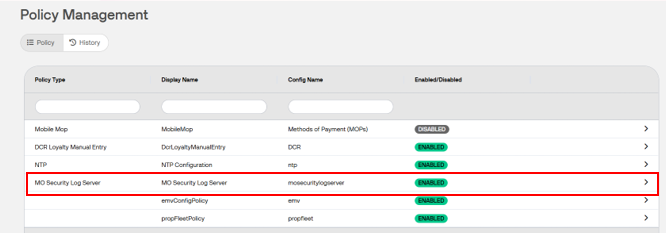
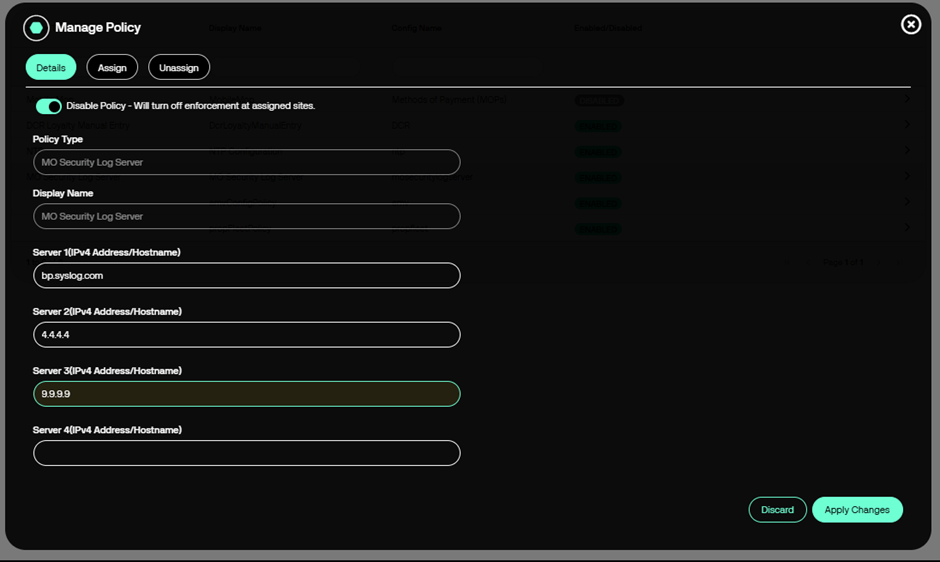
| usecuritylogservercfg | Update Security Log Server IP Address | |
| uslogancfg | Update slogan config | Update slogan dataset config |
| usoftkeycfg | Update softkey config | Update softkey dataset config |
| utaxratecfg | Update tax rate config | Update tax rate dataset config |
| utlssite | Update TLS config | |
| utriggerpullcfg | Update Trigger Pull Configuration | Update All Trigger Pull Configuration Settings |
| uuseradmin | User Administration | User admin update |
| uvendingmachinecfg | Update Vending Machine config | Update Vending Machine dataset config |
| uvipercfg | Update Viper's site level Config | Update Viper's site level Config like various limits, and pop configuration |
| vagevalidationcfg | View age validation config | |
| validate | Validate the credential | |
| vappcfg | View App Specific Config | |
| vAppInfo | View App Info | View App Version Info |
| vappmodules | View App Module Names | View the list of Application noted module names. |
| vbannercfg | View banner config | |
| vbluelawcfg | View blue law config | |
| vcarwashcfg | View carwash config | |
| vcashaccsite | View cash acceptor config | |
| vcashierpdlist | View cashier report period list | View list of cashier report periods available |
| vcashierrept | Cashier Reports | View the cashier period reports |
| vcashiertrackingcfg | View cashier tracking configuration | |
| vcashiertrackingrept | View cashier tracking report | |
| vcouponfamcfg | View coupon family config | |
| vcurrencycfg | View currency config | View currency dataset config |
| vcwpaypointcfg | View carwash paypoint config | |
| vcwpaypointpdlist | View cw paypoint period list | View list of cw paypoint periods available |
| vcwpaypointpdrept | View cw paypoint period report | |
| vdatetime | Get Time and Date | View the Controller internal time |
| vdcrheadercfg | View DCR header config | |
| vdcridlescreencfg | View DCR Idle Screen config | View DCR Idle Screen dataset config |
| vdcrmessagecfg | View DCR message config | |
| vdcrtrailercfg | View DCR trailer config | |
| vdiscountdenomcfg | View discount denom config | |
| vecheckcfg | View Echeck Config | |
| vemvcfg | View EMV Configuration | View All EMV Configuration Settings |
| vemvinit | View EMV Initialization | View All EMV Initialization Settings |
| vepsprepaidcfg | View EPS Prepaid Card Config | |
| vepssiteassetdata | View Site Asset Data of EPS | |
| vesafecashierrept | ESafe Cashier Reports | View the cashier period reports |
| vesafecfg | View Esafe Config | |
| veventset | Register event listener | Register {alias, url} pair as event listener for a specific event type |
| veventunset | Unregister event listener | Unregister the specified event listener for a specific event type |
| vfeaturelist | View feature list | View list of installed features |
| vfeecfg | View fee config | View fee dataset config |
| vfepcardcfg | View Fep's card configuration parameters | View Fep's card configuration parameters like various limits, enable/disable card |
| vfepcardtypecfg | View Fep's card configuration parameters based on card Type | View Fep's card configuration parameters based on card Type like limits, enable/Disbale etc |
| vfepcfg | View Fep's configuration parameters | View Fep's configuration parameters like network, cashback etc |
| vfepdetails | View Basic Fep Details | View Basic Fep Details like the available commands, enabled, is primary etc |
| vfoodservicecfg | View Food Service Config | |
| vFPDcfg | View FP Display Config | |
| vfuelcfg | Update Fuel Site Configuration | Update the fueling dispensers, products, mops, tanks, and prices for the site |
| vfuelposstat | View fueling position status | |
| vfuelprices | View In-effect Fuel Prices | View the in-effect fueling prices for the site |
| vfuelrtcfg | In-effect Fuel Site Configuration | View the in-efectfueling dispensers, products, mops, tanks, and prices for the site |
| vfuelrtprices | View In-effect Fuel Prices | View the in-effect fueling prices for the site |
| vfueltaxex | View Fuel Tax Exemption Config | |
| vfueltotals | Fuel Totals Report | View the electronic dispenser report for a given period |
| vfueltotalsz | Compressed Fuel Totals Report | View the electronic dispenser report for a given period (gzip) |
| vgrouplist | View Group List Configuration | Review available report groups |
| vifsfcfg | View IFSF Network Config | |
| vinhouseacctcfg | View in-house account config | View in-house account dataset config |
| vlogocfg | View logo config | View logo dataset config |
| vloyaltycardcfg | View Loyalty Card Configuration | |
| vloyaltycardtypecfg | View Loyalty Card Type Configuration | |
| vloyaltyglobalcfg | View Global Loyalty parameters | |
| vMaintenance | View NAXML maintenance datasets | View configuration datasets as NAXML maintenance documents |
| vmaintfprht | View maint fueling point running hose totals | |
| vmaintpostal | View maint postal code | |
| vmaintregistration | View maint registration | |
| vmainttelephone | View maint telephone number | |
| vmainttotalizers | View maint totalizers | |
| vmanagedcfgstatus | View Managed Update Status | |
| vmanagedmodulecfg | View Configuration | View Current Module Configurations |
| vmenucfg | View menu config | View menu dataset config |
| vmobilecfg | View Mobile Configuration | |
| vmobilehostlist | View Hosts List | View Mobile Hosts List |
| vmobilereport | View Mobile Report | |
| vmobilereportlist | View Reports List | View Mobile Reports List |
| vmoddescmap | View Module/Descriptions map | View mapping of module names to their descriptions. |
| vmodulecfg | View a Module Configuration | View Configuration of a given named module. |
| vmodulecfgref | View Module Referentials | |
| vmopcfg | View MOP config | View MOP dataset config |
| vMovement | View NAXML movement reports | View reports as NAXML movement documents |
| vmwscashierdraweramts | View Cashier Drawer Amounts | |
| vmwscashmovementreport | View MWS Cash Movement Report | |
| vmwslog | Manager workstation event logs | Report to indicate Manager workstation event logs |
| vmwsposjournal | View manager work station event in POSJournal reports | View manager workstation related posjournal reports |
| vnetposcfg | View Network Configuration | View POS related Network Configuration |
| vnetworkcfg | View Network Settings | View Network Settings(IP, route, etc..) |
| vnetworkmenu | View Network Menu xml | |
| vpaymentcfg | View payment config | View payment dataset config |
| vpayrollpdlist | View payroll period list | View list of payroll periods available |
| vpayrollpdlist2 | View payroll period list | View list of payroll periods available |
| vpayrollrept | Payroll Reports | View the payroll period reports |
| vpayrollrept2 | Payroll Reports (new format) | View the payroll period reports (new format) |
| vpendmdlcfg | View Pending Configurations | |
| vperiodlist | View period list | View list of periods for which reports are available |
| vpinpadmsgcfg | View Pinpad Idle and Swipe messages | |
| vPLUCacheList | View PLU cache list | View the list of PLUs cached on POS |
| vplupromocfg | View PLU Promo config | View PLU Promo dataset config |
| vPLUs | View PLU dataset | |
| vPLUUpdateStatus | View PLU Update status | View PLU Update status info |
| vpolicycfg | View policy config | |
| vpopcfg | View pop config | |
| vposcfg | View POS config | View POS dataset config |
| vposjournal | View NAXML POSJournal reports | |
| vpospaymentconfig | View POS Payment Configuration | |
| vpossecurity | View POS security config | View POS security dataset config |
| vprepaidcfg | View Prepaid Card Config | |
| vproprietarynetworkmenu | View Proprietary Network Menu xml | |
| vpscdcrcfg | View DCR config | View DCR dataset config |
| vpscdcrkeycfg | View DCR Key config | View DCR Key dataset config |
| vpsinfo | View process table - Text | View process table and thread specific process table - Text |
| vrefinteg | View support doc | View referential integrity support document |
| vregistercfg | View register config | View register specific dataset config |
| vreportcfg | View Report Configuration | |
| vreportlist | View Report List Configuration | Review the available reports |
| vreportpdlist | View report period list | View list of report periods available |
| vreportstatus | View Manager Review Status | |
| vrestrictionscfg | View restriction config | View restriction dataset config |
| vrubyrept | Ruby Reports | View the processed reports for the site organized by period |
| vsalescfg | View sales config | |
| vsalesnetworkmenu | View Sales Network Menu xml | |
| vsapphireprop | View Controller system properties | |
| vscreencfg | View POS Screen Configuration | |
| vsecuritylogservercfg | View Current Security Log Server IP Address | |
| vsiteassetdata | View Site Asset Data | |
| vslogancfg | View slogan config | View slogan dataset config |
| vsoftkeycfg | View softkey config | View softkey dataset config |
| vsyslog | View system log - Text | View system log (syslogd)- Text |
| vsysresourcesmap | View System Resource Mappings | |
| vtaxratecfg | View tax rate config | View tax rate dataset config |
| vthemecfg | View Screen Themes | |
| vtilleventreport | View Till Event Reports | |
| vtlogpdlist | View T-Log period list | View list of periods for which reports are available |
| vtlssite | View TLS config | |
| vtransset | Period Reports with fully masked card holder data | Review reports for the site - fully masked card holder data |
| vtranssetz | Compressed Period Reports with fully masked card holder data | Review reports for the site (gzip) - fully masked card holder data |
| vtriggerpullcfg | View Trigger Pull Configuration | View All Trigger Pull Configuration Settings |
| vupgradesummary | View Upgrade Summary Report | |
| vuseradmin | View User configuration | User admin view |
| vvendingmachinecfg | View Vending Machine config | View Vending Machine dataset config |
| vvipercfg | View Viper's site level Config | View Viper's site level Config like various limits, and pop configuration |
| vviperpdlist | Allow Viper period list view | View available periods on Viper |
| vviperrept | Viper reports | View network reports from Viper |
| Field/Button | Allowable Value/Function |
|---|---|
| Name | Assign a name for employee. Alphanumeric, 1 - 30 characters. |
| Employee Number | Assign a unique employee number, such as a company assigned ID, to identify the employee for internal and payroll purposes. Alphanumeric, 1 - 15 characters. The Employee Number is used for the Employee Number Login functionality and for security validation when a cashier does not have a high enough security level to complete a function such as applying a discount. |
| Security Level | Select the employee’s security level. The employee has access to all functions that have a security level less than or equal to the security level assigned. |
| Can Cashier | Select to allow the employee to perform cashier functions when in Sales mode. |
| New Password | Enter the password that the employee must use to clock in or out. Alphanumeric, 1 - 8 characters. To pick up a draggable item, press the space bar. While dragging, use the arrow keys to move the item. Press space again to drop the item in its new position, or press escape to cancel. To pick up a draggable item, press the space bar. While dragging, use the arrow keys to move the item. Press space again to drop the item in its new position, or press escape to cancel. |
| Confirm New Password | Enter the password again to confirm. |
| Delete | Select to delete the selected employee information. To pick up a draggable item, press the space bar. While dragging, use the arrow keys to move the item. Press space again to drop the item in its new position, or press escape to cancel. To pick up a draggable item, press the space bar. While dragging, use the arrow keys to move the item. Press space again to drop the item in its new position, or press escape to cancel. |