| What the Site Configured | What Was Sent to the Host |
| Product 001 price set to $11.29 (correct, 2-decimal format) | Price Change Notification reported $1.129 — a tenfold error |
| Product 002 price set to $11.89 | Reported as $1.189 |
| Product 003 price set to $12.29 | Reported as $1.229 |
| Change | What It Means for Your Site |
|---|---|
| Price data is now stored consistently | Fuel prices are now always stored internally using a fixed, consistent format regardless of the site's PPU decimal setting. This means the price-change reporting used for Chevron (and similar hosts) now always reflects the correct price — for example, $11.29 is now correctly reported as such, not as $1.129. |
| Fuel Prices Init is now blocked after a PPU format change — until a Fuel Init is done | If you change the PPU decimal setting and then try to run a Fuel Prices Init before running a full Fuel Init, the system will now block the action and show a message telling you to perform a Fuel Init first. This prevents prices from being pushed out in a way that would create a mismatch between the pump, the POS, and the host. |
| 1 | Plan for forecourt downtime | Changing the PPU decimal format requires every dispenser to be reprogrammed. Expect the forecourt to be closed for at least an hour, possibly longer depending on the number of dispensers. |
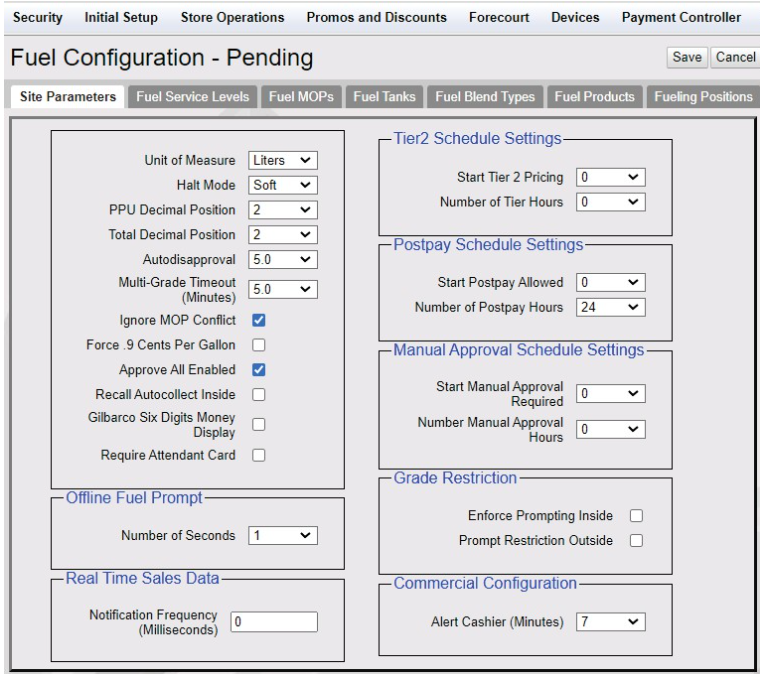
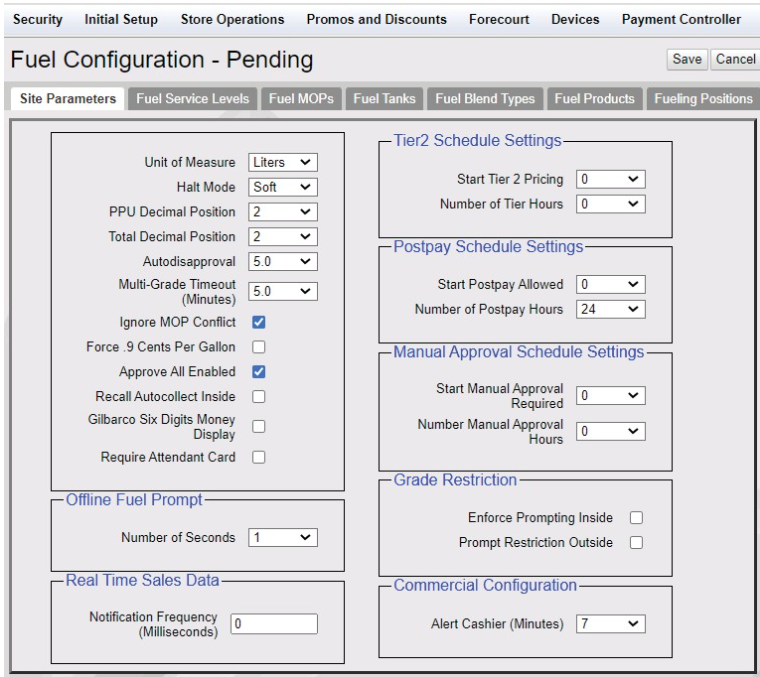
| 2 | Update the PPU decimal setting | Change the PPU decimal configuration (e.g. from 3 to 2 decimals) in the site configuration. |
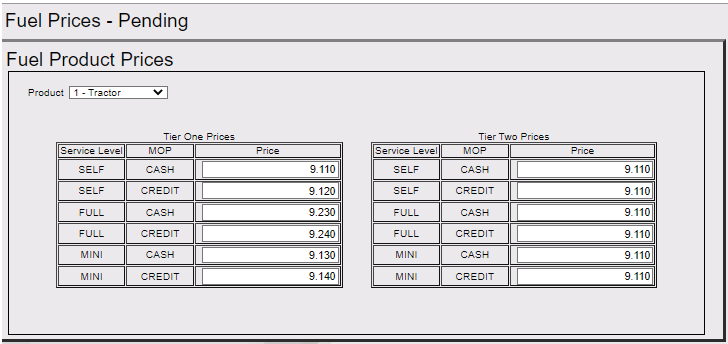
| 3 | Update fuel prices to the new format | Set your new fuel prices in the format that matches the new decimal setting (e.g. $11.29 instead of $1.129). |
| 4 | Run a Fuel Init (Full Init) — not a Fuel Prices Init | This is the critical step. A Full Init reprograms every dispenser with the new price format and synchronises the POS, the pump display, and the price data sent to your host, all at once. |
| 5 | Verify prices at each dispenser | As each pump is reprogrammed, visually confirm it displays the correct price in the new format before reopening that pump to customers. |
| 6 | Reopen the forecourt | Once all dispensers show the correct price and format, reopen the forecourt for business. |
| 7 | Future price changes | After the Full Init above has completed successfully, you may go back to using the normal Fuel Prices Init for any subsequent price changes, as usual — no Full Init is needed for routine price updates that don't involve a PPU format change. |
| If You... | What Happens |
|---|---|
| Run a Full Fuel Init after changing the PPU decimal setting (correct) | Every dispenser is reprogrammed with the new price format. The POS, the pump display, and the price data sent to the host all stay in sync and show the correct price. |
| Try a Fuel Prices Init only, after changing the PPU decimal setting (blocked) | The system now blocks this action and displays the warning message, because a Prices Init alone does not reprogram the dispenser's price format — this would leave the pump showing the old format while the POS shows the new one, and could send incorrect price data to the host. |
| Run routine price changes without changing the PPU format | A normal Fuel Prices Init works exactly as before — no Full Init is required for everyday price changes that do not involve a format change. |
| What You May Notice | Explanation |
|---|---|
| A warning message appears when trying to update prices after a PPU format change | This is expected. It means a Full Fuel Init is needed first. Follow the on-screen instruction. |
| Prices reported to the host now match what customers are charged | This was the core of the fix — price-change data sent to Chevron (or similar hosts) now correctly reflects the actual price, in any PPU decimal format. |
| No change to everyday price updates | If you are not changing the PPU decimal format, price updates continue to work exactly as before — no extra steps needed. |
| The forecourt must close briefly whenever the PPU format itself is changed | This is a hardware requirement — every dispenser must be reprogrammed. This is not new behaviour caused by this fix, but it is the reason the Full Init step exists. |
| Question | Answer |
|---|---|
| Why do I need to change the PPU decimal format at all? | Some fuel products now cost $10.00 or more. The traditional 3-decimal display ($X.XXX) can't correctly show prices of $10.00 and above at the pump, so sites move to a 2-decimal format ($XX.XX) to display these prices correctly. |
| What happens if I try to update prices right after changing the PPU format, without a Full Init? | The system will block the action and show a message asking you to perform a Full Fuel Init first. This is intentional — it prevents incorrect pricing data from reaching the pump display or your host. |
| Do I need to do a Full Init every time I change a fuel price? | No. A Full Init is only required the first time after you change the PPU decimal format. After that, routine price changes go back to using the normal Fuel Prices Init. |
| Will customers see the wrong price at the pump if I don't follow these steps? | If you skip the required Full Init after a PPU format change, the pump could continue showing the old price format until a Full Init is completed — which is why the system now blocks Fuel Prices Init in this situation until you do it correctly. |
| Does this affect prices at the register (POS) too, or just the host report? | The core defect was in the data reported to the host. Prices at the POS were already showing correctly. However, following the correct Full Init procedure after any PPU format change keeps the pump, POS, and host completely in sync. |
| Is this specific to Chevron sites? | The defect was reported by Chevron and the price-reporting fix directly affects the Chevron host interface. The underlying storage fix and the Full-Init requirement apply more broadly and were also validated on Buypass-connected sites. |
| What should I do if I already changed the PPU format before this fix was installed and the host prices look wrong? | Performing a clean Full Fuel Init corrects the situation going forward — once completed, subsequent price changes will report correctly to the host. |
| Who do I contact if I'm not sure whether my site needs this Full Init step? | Contact your VeriFone service representative or help desk before changing the PPU decimal format — they can confirm the correct sequence of steps for your site and base version. |
| Topic | Summary |
|---|---|
| What this fix addresses | Price Change Notifications sent to the host (e.g. Chevron) now correctly reflect the site's fuel prices, in any PPU decimal format. |
| Golden rule | After changing the PPU decimal format, ALWAYS run a Full Fuel Init before any Fuel Prices Init. |
| What's blocked | Fuel Prices Init is blocked if the PPU decimal setting differs between what's configured and what's currently running — until a Full Init is done. |
| Warning message (English) | “Cannot update prices. PPU decimal format has changed. Please perform a Full Fuel Init.” |
| Warning message (Spanish) | “No se pueden cambiar los precios. El formato decimal del PPU ha cambiado. Realice una inicialización de combustible completa.” |
| Routine price changes | Unaffected — continue using Fuel Prices Init as normal when the PPU format is not changing. |
| Forecourt impact | Expect the forecourt to close temporarily whenever the PPU decimal format itself is changed, so every dispenser can be reprogrammed. |
| Available from | Base 057.01.00, Base 056.03.02, Base 057.00.02. |
These are the text lines that the user would like to appear on a Non-Graphic DCR’s Idle Screen.
If the “Graphics Enabled” is selected, the Graphic Idle Screen configuration opens. The Left and Right keys allow the user to configure what is displayed on each of the keys. The middle lines provide the user the option of displaying some lines in the middle for the top two rows and use the bottom 2 rows for the keys. If the Middle Text Line is configured, the keys on those lines are not displayed on the DCR. On clicking each of the key buttons, the following pop-up to configure the key is displayed.
| Field/Button | Allowable Value/Function |
|---|---|
| Disable If Cheated | Select to turn off a cash acceptor when someone tries to cheat it. |
| Disable If Paper Low | Select to turn off a cash acceptor if the receipt tape is running out. |
| Disable If No Printer | Select to turn off a cash acceptor if the printer is not working. |
| Prompt ‘insert cash’ | Select to have the phrase “OR INSERT CASH” appear at the end of the idle prompt. |
| $1 Bill Enabled | Select to allow acceptance of one-dollar bills. |
| $2 Bill Enabled | Select to allow acceptance of two-dollar bills. |
| $5 Bill Enabled | Select to allow acceptance of five-dollar bills. |
| $10 Bill Enabled | Select to allow acceptance of ten-dollar bills. |
| $20 Bill Enabled | Select to allow acceptance of twenty-dollar bills. |
| $50 Bill Enabled | Select to allow acceptance of fifty-dollar bills. |
| $100 Bill Enabled | Select to allow acceptance of one hundred-dollar bills. |
| Bill Orientation | This parameter does not apply to Tokheim dispensers. Select to require that bills are inserted face-up with the black-seal end first. (If not selected, bills can be inserted face-up in either direction.) Note: The black seal appears on the front of the bill to the left of the face. |
| Timeout [Seconds 10-99] | Enter the time (in seconds) between when a customer inserts a bill and when the pump shuts off if no fuel has been pumped (10 - 99). |
Cash Acceptor Attributes - Cash Acceptor |
Select the number of the fueling point. |
| Duplicate Acceptor | Click to copy the current cash acceptor’s attributes to any number of other cash acceptors. In the Duplicating Acceptor form, select the cash acceptor(s) to which you want to copy and click Done Duplicating. |
| Cash Acceptor In Dispenser | Select to indicate that the fuel pump has a cash acceptor. |
| Reset Printer Error | Note: This parameter is not currently supported. Note: Select to enable the printer after the cash acceptor has been disabled and brought back online. |
| Print Totals Now | Note: This parameter is not currently supported. Note: Select to print the amount of money in the cash acceptor. |