| Topic | Summary |
|---|---|
| What this feature does | Order menu sub-items now count towards NAXML combo and mix & match deals. |
| Applies to | POS, self-checkout (SCO), and Vista devices. |
| Configuration needed | None — existing deals automatically include sub-items after the upgrade. |
| Sub-item quantity | Sub-items follow the main item's quantity (2 burgers → 2 sides). |
| Trigger items | A sub-item can trigger a deal on another item in the basket. |
| Deal priority | Mix & Match is applied over Combo when both could apply (unchanged). |
| Department sales | NEVER included in deals — only PLU/UPC items count. A $5.00 fountain-drink department sale will not contribute to a combo meal. |
| Tax Rebate option | Available on both Combo and Mix & Match config screens; taxes the discounted deal price when enabled. Set per your local tax rules. |
| Cashier action required | None. Deal evaluation is automatic. |
| Available from | Base 057.01.00. |
| Term | What It Means |
|---|---|
| Term | What It Means |
| NAXML Deal | An industry-standard promotion configured on Commander. There are two types: Combo deals and Mix & Match deals. Both give the customer a special price when a qualifying combination of items is purchased together. |
| Combo Deal | A deal made up of different items purchased together — for example, a burger, a side, and a drink for one combo price. Each part of the combo can be a different product. |
| Mix & Match Deal | A deal based on quantity of similar items — for example, 'buy one soda, get one free' (BOGO), or 2 candy bars for $3. The customer can mix any qualifying items to reach the deal quantity. |
| Order Menu | A guided menu flow on the POS used for made-to-order food — the cashier (or customer, on self-checkout) selects a main item and then chooses sub-items such as toppings, sides, and drinks. Everything ordered stays grouped together for kitchen prep. |
| Sub-Item | An item added through an order menu underneath a main item — for example, the fries and drink added when building a sandwich meal. Sub-items appear indented under the main item on the receipt and kitchen ticket. |
| Department Sale | A sale rung to a department at an open price instead of scanning or selecting a specific product — for example, keying $5.00 into the 'Fountain Drinks' department. There is no PLU or UPC identifying the exact product. |
| PLU / UPC | The unique product codes that identify a specific item — a PLU (Price Look-Up) number or a scanned UPC barcode. NAXML deals are always defined in terms of specific PLUs/UPCs. |
| Tax Rebate | A configuration option on a deal that adjusts the tax calculation so the customer's tax is based on the discounted deal price rather than the full item prices, where required by local tax rules. |
| Behaviour | Details |
|---|---|
| Combo deals apply to order menus | If the items required by a combo deal are met using sub-items from an order menu, the combo discount is applied — exactly as it would be if the items were rung up individually. Example: a 'build a burger' order menu where the customer adds a side and a drink now triggers the burger combo discount. |
| Mix & match deals apply to order menus | Quantity-based deals such as BOGO also count order menu sub-items. Example: a drink added as a sub-item counts towards a 'buy 1 soda, get 1 free' promotion. |
| Sub-items can be trigger items | A sub-item can be the item that triggers a deal for something else in the basket. Example: a drink purchased as a sub-item of a meal triggers a discount on a can of oil elsewhere in the transaction. |
| Sub-items follow the main item's quantity | If the cashier changes the quantity of the main item, the sub-items follow. Example: changing the burger quantity to 2 also makes it 2 sides — and the deal evaluation counts them accordingly. |
| Vista devices are included | Deals formed with order menu sub-items are reflected on Vista devices as well — the transaction totals returned to Vista include any combo or mix & match discounts earned through sub-items. |
| Mix & match wins over combo | Unchanged behaviour, worth restating: when a set of items could qualify for both a mix & match deal and a combo deal, the mix & match deal is applied. |
| 1 | Deal configured | The site has a combo deal: burger + any side + any drink = $7.99 (normally $10.47 separately). The deal is defined using the PLUs of the qualifying items. |
| 2 | Customer orders | The customer orders through the sandwich order menu: the cashier selects the burger, adds toppings, then adds fries and a medium soda as sub-items. |
| 3 | Deal applies automatically | Commander recognises that the burger, fries, and soda — even though they are order menu sub-items — meet the combo criteria. The $7.99 combo price is applied. |
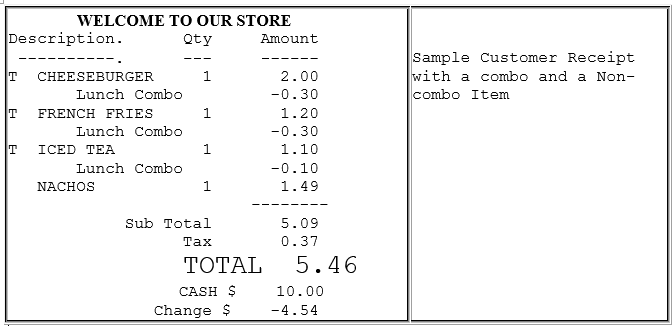
| 4 | Receipt and kitchen ticket | The receipt shows the combo discount, and the order stays grouped as one order menu item for kitchen prep. No workaround (such as menu chains) is needed. |
| ✔ Counts Towards a Deal | ✘ Does NOT Count Towards a Deal |
|---|---|
| Items rung by PLU (Price Look-Up number) | Open-price sales rung to a department |
| Items scanned by UPC barcode | Any sale where no specific product code identifies the item |
| Order menu sub-items (from Base 057.01.00) |
| Item | Details |
|---|---|
| Where to find it | In the Commander configuration client, open the deal maintenance screens: Promos and Discounts → NAXML Deal. The Tax Rebate option appears on both the Combo deal and Mix & Match deal configuration screens. |
| What it does when ON | Tax is charged on the discounted (deal) price. Example: a $10.47 combo sold at $7.99 is taxed on $7.99. |
| What it does when OFF | Tax is charged on the full item prices before the deal discount. Example: the same combo is taxed on $10.47 even though the customer pays $7.99 plus tax. |
| Set per deal | The option is set individually on each deal, so different deals at the same site can be treated differently if your tax rules require it. |
| Who decides | Consult your tax advisor or head office to determine the correct setting for your jurisdiction before changing it. |
| What You May Notice | Explanation |
|---|---|
| Combo/meal deals now apply on order menu sales | Orders built through order menus receive the same deal pricing as items rung individually. Customers who previously missed out on the deal when ordering food through the menu now get it automatically. |
| No more menu-chain workaround needed | Some sites used menu chains instead of order menus to force deals to apply, at the cost of losing the grouped sub-item layout on kitchen tickets. That workaround is no longer necessary — order menus can be used as intended. |
| Receipts show deal discounts on menu orders | The combo or mix & match discount line appears on the receipt for order menu transactions, just as it does for individually rung items. |
| Deals still won't apply to department sales | Nothing changed here — an open-price department sale never counts towards a deal. Ring the specific PLU or scan the UPC if the customer should receive the deal. |
| No cashier action needed | There is nothing new for cashiers to do. Deal evaluation is automatic. |
| Question | Answer |
|---|---|
| Do I need to reconfigure my existing deals? | No. Existing combo and mix & match deals automatically start counting order menu sub-items once the site is on Base 057.01.00. Deals are still defined by PLU/UPC exactly as before. |
| Why didn't a deal apply when the cashier rang a department sale? | Department sales are never included in NAXML deals — only items identified by a specific PLU or UPC are considered. For example, a $5.00 fountain drink rung to the department will not contribute to a combo meal deal. Ring the drink by its PLU instead. |
| Does this work on self-checkout and Vista? | Yes. Deals formed with order menu sub-items apply at the POS, self-checkout (SCO), and are reflected in transaction responses to Vista devices. |
| What happens if items qualify for both a combo and a mix & match deal? | The mix & match deal is applied. This is the existing behaviour and has not changed. |
| If the cashier changes the quantity of the main item, what happens to sub-items? | Sub-items inherit the main item's quantity. Changing a burger quantity to 2 makes it 2 sides and 2 drinks as well, and the deal evaluation counts them all. |
| Can a sub-item trigger a deal on a different item in the basket? | Yes. A sub-item counts as a regular item for deal purposes, so it can act as the trigger item — for example, a drink sub-item triggering a discount on a can of oil in the same transaction. |
| What is the Tax Rebate option and should I turn it on? | It controls whether tax is calculated on the discounted deal price (option on) or the full pre-discount prices (option off). The correct setting depends on your local tax rules — check with your tax advisor or head office before changing it. It is available on both the Combo and Mix & Match configuration screens. |
| My site is on an earlier base version — what behaviour will I see? | On versions before Base 057.01.00, order menu sub-items do not count towards deals. The same items rung individually will trigger the deal, but the same order through an order menu will not. Upgrading to Base 057.01.00 resolves this. |
| Field/Button | Allowable Value/Function |
|---|---|
| Item List ID | |
| Add | Select the “Add New” button to create an entry with an Item ID which is equal to the highest numbered Item ID + 1. The Item ID field can be edited. Saved Item lists display their Item ID and description in the Item List window. |
| Item List ID | This number is system-defined and is used to locate the appropriate Item List. Saved Item lists display their Item ID and description in the bottom left window. |
| Description | Give the item list a name specific enough to pick it out correctly from all the item list names shown at the bottom left side of the form. Although the system allows more, it is recommended that ItemList descriptions be 17 characters or less. |
| List Type: PLU | Select PLU list type if:
As new items are added to the promotion, the list must be updated with the new items. |
| List Type: Department | Select Department list only if every item assigned to that department should be included in the list and every item that is assigned to the department in the future will also be in the promotion. Any items that are assigned to that department are automatically included in the promotion. |
| Delete | From the list on the bottom of the Item List ID form select the list item you wish to delete, check the “Delete” box and “Save”. |
| Item List | |
| Add New | Use this function to add entries to an Item List. For PLU type lists:
For Department type lists:
The entry will be displayed in the Item List. |
| Remove | Use this function to delete entries from an existing item list. Highlight the appropriate entry and click “Remove”. Entry will be deleted from the displayed list. Entries must be removed one at a time. |
| Save | Use this function to save any additions or changes to Item Lists. |
| Field | Allowable Value/Function |
|---|---|
| Add | Select the “Add New” button to create an entry with a Combo ID which is equal to the highest numbered Combo ID + 1. The Combo ID field can be edited. Saved Combos display their Combo ID and description in the bottom left window. |
| Combo ID | This number is system-defined and is used to locate the appropriate Combo. |
| Description | Enter a description for this combo to identify it from among all the combos listed at the bottom of the form. This description is used for printing on receipt and POS display. |
| Start Date Time | This field is used to define the date and time the promotion starts. You can either type in the information or use the drop down arrows or select from a calendar representation.
|
| End Date Time | This field is used to define the date and time the promotion ends. You can either type in this information or use the drop down arrows or select from a calendar representation. |
| Week day availability | This part of the configuration allows you to run promotions within the start and end date parameters defined above but that are effective only during a specific time frame on specific days of the week; perhaps to increase sales volume during an otherwise slow sales period. An active day with zero start and end times denotes a promotion that is effective for the entire day. |
| Priority | To configure promotions in a particular order of priority. The priority setting allows certain promotions to take precedence over others that share many of the same items. Priority of promotions is particularly useful when programs give discounts as more items are added in combination. For example:
Without the ability to set priority, promo 2 and 3 will never be realized, as the soda and chips will always form Promo1. Default setting is medium. Any promotion that does not specifically identify the priority will be assumed “medium” by the system. |
| Delete | From the list on the bottom of the Item List ID form select the list item you wish to delete, check the “Delete” box and “Save”. |
| Combo Item List | Click Edit to add items to a selected or new combo. Select items from the Item List and click Done. |
| Item List Qty | Enter the quantity of each item taking part in the combo. |
| Save | Use this function to save any additions or changes to Item Lists. |
| Price By Combo: Select to assign the price of the combo | |
| Price | Enter the price of the combo |
| Weighted | The discount is distributed across the items forming the combo weighted by the item price of the items. |
| Percentage | Select to control the discount distribution for the items of the combo. For example, one item in the combo can attribute for 60% discount and the other for 40% of the discount. |
| Price By Combo Items: Select to individually assign the price of combo items | |
| New Price | Select to enter a new price for the combo item. |
| Disc by amount | Select to enter a discount amount for the combo item. |
| Disc by percent | Select to enter a discount percent for the combo item |
| Trigger item | Select to make the combo item a trigger to form the combo. |
| Field/Button | Allowable Value/Function |
|---|---|
| Mix Match ID List | |
| Add New | Select the “Add New” button to create an entry with an Item ID which is equal to the highest numbered Item ID + 1. The Item ID field can be edited. Saved Item lists display their Item ID and description in the bottom left window. |
| Mix Match ID | This number is system-defined and is used to locate the appropriate Mix Match. |
| Description | Enter a description for this mix and match to identify it from among all the mix and matches listed at the bottom of the form. This description also appears on the receipts and POS display. |
| Start Date Time | This field is used to define the date and time the promotion starts. You can either type in the information or use the drop-down arrows or select from a calendar representation. |
| End Date Time | This field is used to define the date and time the promotion ends. You can either type in this information or use the drop-down arrows or select from a calendar representation. |
| Week day availability | This part of the configuration allows you to run promotions within the start and end date parameters defined above but that are effective only during a specific time frame on specific days of the week; perhaps to increase sales volume during an otherwise slow sales period. An active day with zero start and end times denotes a promotion that is effective for the entire day. |
| Delete | From the list select the mix and match item you wish to delete, check the “Delete” box and “Save”. |
| Save | Use this function to save any additions or changes to Item Lists. |
| Mix Match Item List and Entries | |
| Packaging Price configuration: Add New | Click the “Add New” button to create mix and match packages for the new or selected mix and match item. A number of packages can be included for each mix and match item. |
| Item List | A drop-down list of all the configured item lists to select before clicking Add New. |
| Quantity | Enter the total quantity of the contents in the selected item list that forms the package. |
| Total Package Price | Select to enter a new price for the package. |
| Amount Off Package Price | Select to enter the amount off the total package price. |
| Percent Off Package Price | Select to enter the percent off the total package price. |
 Note: The system explicitly allows you to save a promotion whose start date is less than its end date. Such a promotion is seen by the system as “inactive”. This is advantageous when the same promotion is run for a month and then again several months later.