For the complete documentation index, see llms.txt. This page is also available as Markdown.

Taxes

Taxes are determined by government entities based on the location of the retail site; each having their own unique requirements as to what it and is not taxable.

Overview

Taxes are determined by government entities based on the location of the retail site; each having their own unique requirements as to what it and is not taxable. Because multiple governing entities may collect tax for a specific area, multiple taxes may apply specific items within a transaction.

For each tax that applies to a given transaction the system keeps a separate subtotal of taxable sales and applies the tax at the transaction level.

Tax Rate - Support for Up to 4 Decimal Places

From Verifone Commander Release 57.01, Tax rate precision is increased from 3 decimal places to 4 decimal places to support jurisdictions with 4 decimal places, for example 9.0625%. A user can configure a tax rate up to 4 decimal positions. This feature ensures the full configured rate is used across tax calculation, price-includes-tax scenarios, taxable rebates, and tax reports.

VeriFone has enhanced the Commander and C-Site to support tax rates with up to four decimal places — for example, 9.0625% or 8.6875%. Previously, the system was limited to three decimal places, which caused rounding errors in certain US jurisdictions, particularly counties in New Mexico where local tax laws require fractional rates at this level of precision.

This enhancement ensures that the tax rate you configure is the tax rate that gets used — in every calculation, on every receipt, and in every tax report. No more rounding to three decimal places; no more small discrepancies between what the law requires and what the register charges.

Note: This feature is available from Base 057.01.00 (PCS v1.26.0) onwards. It was delivered specifically to help operators comply with local tax laws in jurisdictions such as New Mexico counties.

Why This Matters

Tax rates in some US counties go beyond the standard two or three decimal places. For example:

Jurisdiction Example
New Tax Rate
What Happened Before This Fix

New Mexico county (general)

9.0625%

Rounded to 9.063% — small but incorrect

New Mexico county (variant)

8.6875%

Rounded to 8.688% — tax slightly over-charged

Standard rate (no change)

5.5000%

Works exactly as before — no impact

Standard rate (no change)

9.9990%

Now captured fully — was truncated before

Over hundreds or thousands of transactions, even a small rounding error in tax can add up to a compliance problem. This enhancement removes that risk by using the full configured rate in every calculation.

What Has Changed

The following areas of the system now fully support four decimal place tax rates. Each is described in plain terms below.

Tax Configuration in C-Site

You can now enter a tax rate with up to four decimal places when setting up or editing a tax code in C-Site and Configuration client. The system accepts, stores, and displays the full four-decimal rate. If you enter fewer than four decimal places (for example, 5.5%), the system automatically pads it to 5.5000% internally so that all calculations are consistent.

Before
After

Maximum tax rate precision: 3 decimal places (e.g. 9.063%)

Maximum tax rate precision: 4 decimal places (e.g. 9.0625%)

Entering 8.6875% would be saved as 8.688%

Entering 8.6875% is saved and used exactly as 8.6875%

Entering 5.5% was stored as 5.500%

Entering 5.5% is stored as 5.5000% — no change in behaviour

Tax Calculation

The full four-decimal tax rate is now used in every tax calculation the system performs. This includes:

  • Standard taxable items — the rate applied to the sale price is the full configured rate, not a rounded version.

  • Price-includes-tax items — when an item's price already includes tax, the back-calculation now uses the full four-decimal rate to correctly split out the tax portion.

  • Taxable rebates — when a discount or rebate is taxable, the tax on that rebate is now calculated at the full four-decimal rate. Previously, taxable rebates and items were rounded separately and then added together; now they are combined first and tax is applied once, which is the correct and more accurate approach.

Receipts

If your receipt is configured to print the tax rate, it will now print up to four decimal places. Receipts for existing transactions with standard 2 or 3 decimal rates are unchanged in appearance — the extra decimal places only show where they are meaningful.

Receipt Before
Receipt After

Tax Rate: 9.063%

Tax: $2.29

Tax Rate: 9.0625%

Tax: $2.27

Tax Reports

The two tax reports that operators use to review and reconcile tax collections have been updated to display the full configured tax rate:

Report
What Changed

Tax Report

The tax rate column now displays up to 4 decimal places. The tax amounts shown reflect calculations performed at the full precision rate.

Tax Rebate Report

The tax rate applied to rebates is shown at full 4-decimal precision. Rebate tax amounts are now calculated more accurately (combined with item totals before rounding, rather than rounded separately).

Configuring a Tax Rate

See Configuring Taxes below to see the complete configuration.

Setting up a four-decimal tax rate in C-Site works the same way as configuring any other tax rate — the only change is that you can now enter more decimal places.

Where to Configure

Tax rates are configured in C-Site under the Tax Configuration section. Navigate to the tax code you wish to create or edit, then enter the rate in the tax rate field.

Entering the Rate

Simply type the rate you need, including the decimal places required by your jurisdiction:

What You Enter
How It Is Stored
Notes

9.0625

9.0625%

Full 4-decimal precision — used exactly as entered

8.6875

8.6875%

Full 4-decimal precision — used exactly as entered

5.5

5.5000%

Automatically padded to 4 decimal places — no change in behaviour

7.25

7.2500%

Automatically padded — standard rate, no change in behaviour

10

10.0000%

Whole number rates padded to 4 decimal places internally

ℹ Note: If you are configuring a tax rate that comes from a back-office system via the Conexxus NAXML standard, the standard currently supports up to 3 decimal places. If a 3-decimal rate is received, the system automatically appends a zero to make it 4 decimal places (e.g. 9.063% becomes 9.0630%). This is handled automatically with no action needed from you.

Where the 4-Decimal Rate Is Applied

Once you have configured a 4-decimal tax rate, the full precision rate is automatically used everywhere that tax is calculated or displayed. The table below gives you a quick reference:

Area
Supported?
Details

Standard taxable item sale

✔ Yes

Full 4-decimal rate used in tax calculation

Price-includes-tax items

✔ Yes

Tax portion correctly back-calculated using full rate

Taxable rebates / discounts

✔ Yes

Combined with item totals before rounding for accuracy

Receipt — tax rate printed

✔ Yes

Prints up to 4 decimal places where configured

Tax Report

✔ Yes

Full rate displayed; amounts calculated at full precision

Tax Rebate Report

✔ Yes

Full rate displayed; rebate tax at full precision

C-Site — configure tax rate

✔ Yes

Accept and display up to 4 decimal places

C-Site — view tax rate

✔ Yes

Displayed at full 4-decimal precision

Back-office / NAXML (3 decimal)

✔ Auto

3-decimal rates received are padded to 4 (e.g. 9.063 → 9.0630)

Calculation Examples

The following examples show how the 4-decimal tax rate works in practice. All calculations use the full configured rate.

Example 1 — Standard Taxable Sale

Detail
Value

Item price

$25.00

Configured tax rate

9.0625%

Tax calculated

$2.27 (25.00 × 0.090625)

Total charged

$27.27

Example 2 — Price Includes Tax

Detail
Value

Shelf price (tax included)

$10.00

Configured tax rate

8.6875%

Tax extracted (correct)

$0.80 (10.00 × 0.086875 ÷ 1.086875)

Net item price

$9.20

Example 3 — Taxable Rebate

A customer buys $20.00 of items and receives a $2.00 taxable rebate. Tax rate is 9.0625%.

Detail
Value

Item total

$20.00

Taxable rebate

–$2.00

Net taxable amount

$18.00

Tax at 9.0625% on $18.00

$1.63

ℹ Note: Previously, tax on items ($1.81) and tax on the rebate (–$0.18) were rounded separately before being combined, which could introduce a 1-cent discrepancy. The new approach combines first and rounds once, which is correct.

Frequently Asked Questions

Question

Answer

Do I need to do anything to existing tax rates?

No. Existing tax rates are automatically padded to 4 decimal places internally (e.g. 5.5% becomes 5.5000%). There is no change in their calculated value or behaviour.

Will my receipts look different?

Only if the receipt is configured to print the tax rate AND the rate you have configured has more than 3 meaningful decimal places. Standard rates like 5.5% or 7.25% will print as before.

Will my existing reports change?

Tax Report and Tax Rebate Report will display 4 decimal places in the rate column. Tax amounts may be very slightly different for 4-decimal rates due to increased precision — this is correct.

My back-office sends tax rates via NAXML. Does this work?

Yes. NAXML supports up to 3 decimal places. If your back-office sends 3 decimal places, the system automatically appends a zero to make it 4. You cannot send a 4th decimal via NAXML — that would require a direct C-Site configuration.

I only use 2-decimal tax rates. Is anything different for me?

Nothing changes for you. Standard rates are padded internally to 4 decimal places but the calculated values are identical. You will notice no difference in receipts, reports, or transaction amounts.

Which software version includes this feature?

Base 057.01.00 / PCS v1.26.0 and later.

Quick Reference Summary

Topic
Summary

What changed

Tax rates now support up to 4 decimal places (was 3)

Who benefits

Operators in jurisdictions with fractional tax rates (e.g. New Mexico counties)

Maximum precision

4 decimal places — e.g. 9.0625%, 8.6875%

Existing rates

Unchanged in behaviour — padded to 4 decimal places internally

Receipts

Print full 4-decimal rate where the rate is shown

Tax Report

Displays full 4-decimal rate; amounts at full precision

Tax Rebate Report

Displays full 4-decimal rate; rebate tax more accurately calculated

Price-includes-tax items

Back-calculation uses full 4-decimal rate

NAXML back-office input

Up to 3 decimal places supported; padded to 4 automatically

Available from

Base 057.01.00 / PCS v1.26.0

Using Taxes

In the POS, taxes for a given department or PLU item are already configured and normally require no special handling on the part of the cashier. The system may automatically treat certain taxed items as non-taxed items when items flagged as food-stamp eligible the configuration are purchased with food stamps.

Tax Exemption

There may be circumstances when items normally taxed in a transaction should be sold as tax exempt: sales to tax exempt organizations or purchase for resale. Each situation has its own requirements and cashiers should follow in-store policies and procedures before tax exempting any purchases.

In order to legally increase the tax basis of the transaction without increasing the before-tax subtotal, use of this feature may involve additional requirements such as on-site signage. Compliance with those additional requirements is the responsibility of the merchant and/or enterprise.

From Verifone Commander Release 56.00, POS Sales Functions security settings configured in Configuration Client > Security > POS Security > Sales Function Security > Tax Exempt (TEX) are applied for this function.

  1. Touch the line item that is to be exempted from tax

  2. Touch Add Tax Exempt to exclude the line item when calculating taxability for this transaction

When the security setting for Tax Exempt is changed, do a refresh configuration from Configuration Client > Tools > Refresh Configuration for the new security setting to take effect.

Configuring Taxes

Tax Rates

From Verifone Commander Release 57.01, Tax rate precision is increased from 3 decimal places to 4 decimal places to support jurisdictions with 4 decimal place rates such as 9.0625%. A user can configure a tax rate up to 4 decimal positions.

Use Store Operations > Payment > Tax Rates in Configuration Client and Store Operations > Tax Rates in Verifone Central to define up to eight tax rates.

Field/Button
Allowable Value/Function

Name

Enter the name of the tax. This name appears in reports.

Delete

Click to delete the selected tax.

Adjust Break Points

Click to Adjust Break Points. See “Break Point Table.” Adjust Break Point appears only if “Use Break Point Table” is selected.

Indicator

From the drop-down menu, select the character that prints on receipts to indicate that this tax was applied.

Tax Rate

Enter the tax percentage for this tax if the Break Point Table is not being used.

Percent Start

Enter the minimum dollar amount that may be taxed (0.00 – 99999.99).

From Verifone Commander Release 57.01, Tax rate precision is increased from 3 decimal places to 4 decimal places to support jurisdictions with 4 decimal places, for example 9.0625%. A user can configure a tax rate up to 4 decimal positions. This feature ensures the full configured rate is used across tax calculation, price-includes-tax scenarios, taxable rebates, and tax reports.

Options

Prices Include Tax

Select if the price of an item already includes this tax.

Prompt for Exemption

Select to make a prompt appear that requests cashier verification when the [TAX EXEMPT] key is pressed.

(If not selected, the terminal automatically removes this tax when the cashier presses [TAX EXEMPT])

Use Canadian GST

Canadian GST Settings Reg Number Options

Fuel Includes Tax

Select to use Canadian GST.

Enter the registration number.

Select to include tax for fuel.

Use Break Point Table

Select to use the Break Point Table and click Adjust Break Points. See “Break Point Table.”

Break Point Table

Use the Break Point Table form to define tax break points for sales amounts when a flat sales tax does not apply. The amount of tax charged depends on where in the table the taxable amount falls.

Before setting up the Break Point Table in SMS, obtain the state, county, or local tax table for which you want to create a break point definition. By entering data from that table into a worksheet you can determine the following:

  • The starting point.

  • The tax break points and the repeating pattern.

  • The limit of the tax table, if there is one.

In addition, you need to know the tax rate to apply to sales above the break point tax limit (if there is a limit).

Example Worksheet

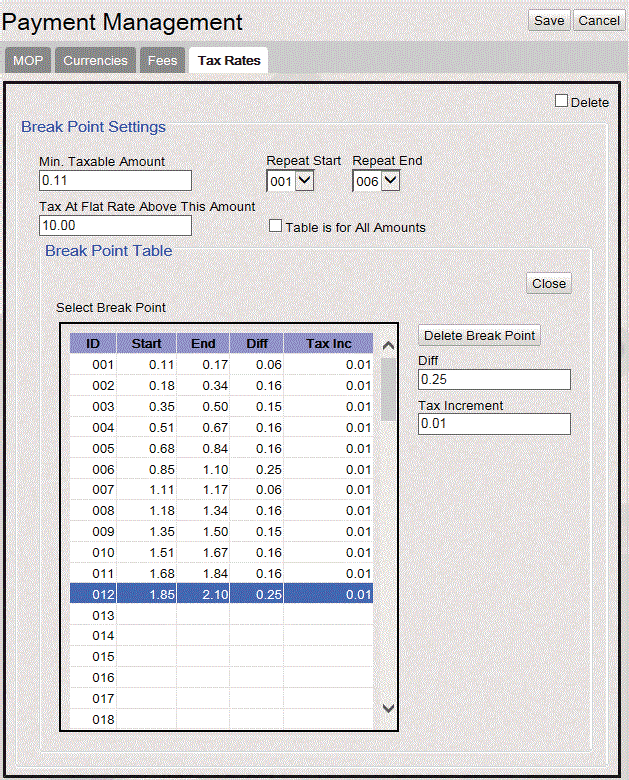
Following is a worksheet used to determine the information above for our example Break Point Table. You can see that the pattern repeats every six increments.

Number
Start
End
Difference
Increment

1

.11

.17

6

1

2

.18

.34

16

1

3

.35

.50

15

1

4

.51

.67

16

1

5

.68

.84

16

1

6

.85

1.10

25

1

7

1.11

1.17

6

1

8

1.18

1.34

16

1

9

1.35

1.50

15

1

10

1.51

1.67

16

1

11

1.68

1.84

16

1

12

1.85

2.10

25

1

To define the Break Point Table:

1

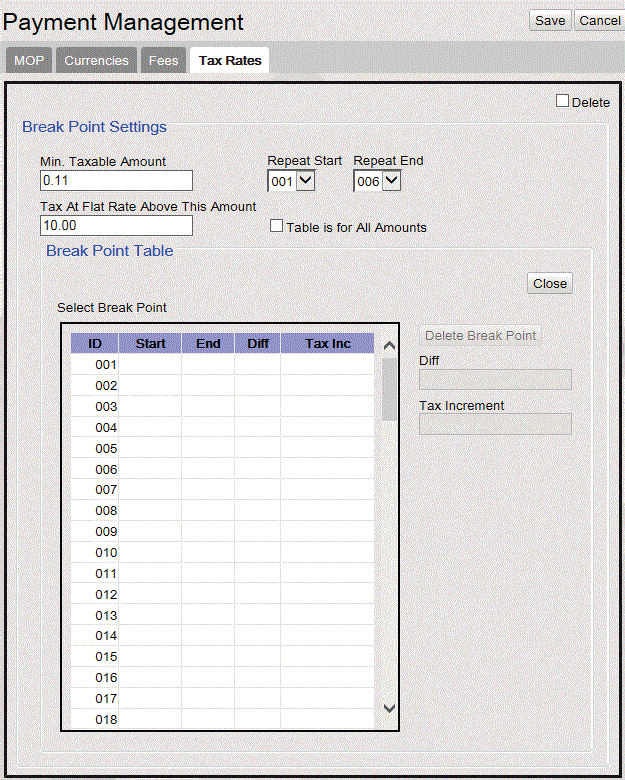
On the Tax Rates tab, select a Tax Rate Nameand select Use Break Point Table.

2

Click Adjust Break Pointsto open the Break Point Settings Table.

3

In Min. Taxable Amount, enter the starting point that you previously determined. For this example, .11 is the starting point.

4

In Repeat Start drop-down menu, select the desired repeat start point.

5

In Repeat End drop-downmenu, select the desired repeat end point.

6

In Options, check Table is for All Amountsif the break point table covers all sales amounts and taxes never revert to a flat tax and do not enter an amount in “Tax at Flat Rate above this Amount.”

7

In Break Point Table ID, select and click the Break Point Table IDto enable to add a new or modify existing Diff and Tax Inc.

8

In the Break Point box (lower right), enter the difference (Diff) between the start and end of break point #1 prices. For example, enter .06. The table automatically computes .17 as the end of the break point.

9

In Tax Inc, enter the tax increment, such as .01 (The tax percentage usually increases by .01 cent per break point).

10

Click Delete Break Point to delete the selected break point.

11

Click Accept Changes to accept the changes made.

12

Click Cancel Changes to cancel the changes made.

13

Repeat steps 2 through 9 until you reach the point at which the pattern repeats, that is, the point where the difference and the increment begin again (See the Difference column in the “Example Worksheet.”)

14

Click Save.

Reporting

Tax Report

Report Details

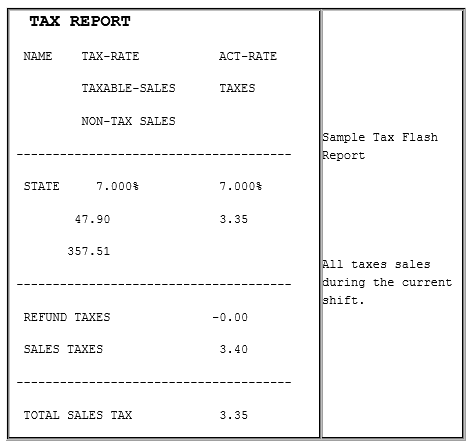
  • NAME: Name of the tax as assigned in the Tax Rate Form. Each of the following report items repeat for each tax defined in the Tax Rate Form.

  • TAX-RATE: Value entered in the ‘Percent’ parameter in the Tax Rate Form for the tax name.

  • ACT-RATE: Actual tax rate percentage collected against the total taxable sales for this tax name. The following equation is used to calculate the actual rate: Actual Rate = (Taxes ÷ Taxable Sales) x 100

  • TAXABLE-SALES: Sum of all item prices that were taxed by this tax name.

  • TAXES: Sum of all taxes collected for this tax name.

  • NON-TAX SALES: Sum of all item prices not taxed by this tax name.

  • REFUND TAXES: The total amount of taxes deducted due to refunds.

  • SALES TAXES: The total amount of taxes for all sales.

  • TOTAL SALES TAX: Net amount of taxes collected. This number is the total sales tax amount minus the total refunded tax amount.

Last updated

Was this helpful?