> For the complete documentation index, see [llms.txt](https://docs.verifone.com/llms.txt). Markdown versions of documentation pages are available by appending `.md` to page URLs; this page is available as [Markdown](https://docs.verifone.com/feature-references/features-and-products-references/eps-loyalty.md).
# EPS Loyalty
Electronic Payment System (EPS) Loyalty Sales allow the processing and redemption of loyalty transactions, both inside at the Point of Sale (POS) and outside at the Dispenser Card Readers (DCR).
## Revision History
| Date | Description |
| ---------- | --------------------------------------------------------------------------------------------------------------------------------------------------------------------------------------- |
| 09/25/2015 | Reformatted and revised to include the Verifone Commander. |
| 08/10/2016 | Updated Loyalty Card Configuration to include configuration for GS-128 loyalty cards. |
| 09/15/2016 | Updated Format. |
| 12/14/2016 | Updated PCI private IP addressing requirements. |
| 03/07/2018 | Updated Integrated Partners List link. |
| 06/15/2018 | Updated Loyalty Program Configuration to include new screenshot and configuration for the Enable Card Download from Host flag. |
| 10/08/2019 | Added loyalty network connectivity diagrams, added a phone number entry method configuration, and added notes to the various inside and outside transaction flows for multiple loyalty. |
| 03/21/2023 | Updated the PCATS01 graphic and removed references to Enhanced Zone Router (EZR). |
| 04/05/2024 | Added "Remote Loyalty Enable/Disable" feature. |
| 04/01/2025 | Added "Use Long Text For Indoor Prompts" and cashier option to cancel loyalty prompt. |
| 09/03/2025 | Updated with QR code for Loyalty Program Enrollment Inside |
| 12/24/2025 | Updated with QR code for Loyalty Program Enrollment Outside |
| 07/05/2026 | Shell Third Party Loyalty Stacking - Multiple Loyalty Discounts in a Single Fuel Transaction |
## Overview
### Feature Description
Electronic Payment System (EPS) Loyalty Sales allow the processing and redemption of loyalty transactions, both inside at the Point of Sale (POS) and outside at the Dispenser Card Readers (DCR).
Loyalty transactions are processed through the EPS. EPS Loyalty Sales include:
* Inside Loyalty Sales
* Outside Loyalty Sales
Multiple loyalty programs can be configured and multiple EPS Loyalty Discounts can be applied.
## Requirements
### Hardware Requirements
* Verifone Commander with C18/Topaz/Ruby2
* Verifone RubyCi with C18/Topaz/Ruby2
* Verifone Commander 16 with C18/Topaz/Ruby2
## Loyalty feature updates
### QR code for loyalty program enrollment
From Verifone Commander Release 56.02, QR code display for loyalty program enrollment feature has been implemented for inside transactions.
During a transaction, after it has been determined that a customer is not yet a loyalty customer of one of the available configured loyalty program(s) at the site, a QR code is displayed on the PIN pad that consumers can scan to sign up for Loyalty.
For Verifone Commander Release 56.02, this feature is available only for M400 PIN pads.

From Verifone Commander Release 57.00, a QR code for Loyalty sign-up is displayed on some DCR displays, such as Wayne or ixpay. Loyalty QR codes are also printed on receipts at sites using RP-700 printers.
## Loyalty connectivity diagram
### MNSP router
The loyalty is processed though the MNSP Edge Router.

## Configuration
### Before you start
Prior to configuring EPS Loyalty, the following information must be acquired:
* Loyalty host IP
* Port for IP communication with the loyalty host
* Custom reconciliation period for reporting
* Custom reconciliation period cut-off time
* Upper and lower limit ISO range for POS configuration
Refer to the Verifone Petroleum and C-Store Integrated Partners webpage for a list of approved Loyalty Partners and their contact information.
### Configuration Client setup
#### **POS Configuration**
1. From the Configuration Client, go to: Payment Controller > POS Configuration.

2. Select the **POS** tab.

3. Configure the Batch, Loyalty, and Misc parameters.
| Value | Description |
| ------------------ | ------------------------------------------------------------------------------------------------------------------ |
| **Batch** | |
| Batch Close Period |
Loyalty Enabled is selected and uneditable if any of the Loyalty Programs in Configuration Client > Payment Controller > EPS Configuration > PCATS Loyalty Configuration is enabled.
Loyalty Enabled is disabled and uneditable if none of the Loyalty Programs in Configuration Client > Payment Controller > EPS Configuration > PCATS Loyalty Configuration is enabled.
|
| Multiple Loyalty Discounts in same Transaction | Enables multiple loyalty discounts in the same transaction. |
| Auth on Total |
Enables loyalty messages to be sent to EPS when the \*\*\[Total]\*\*key is pressed.
If the \_Auth On Total\_option is enabled:
–The PCATS Loyalty Discount drops the item price down to $0.
–The system prompts for loyalty and authorizes it before the payment is tendered.
If the \_Auth on Total\_is not enabled:
–When an item is tendered with CASH, the system prompts for loyalty and determines the payment amount. The customer applies discount points for the item, and the sale total drops to $0 with an amount paid.
When \[TOTAL] is selected, the system prompts for loyalty and calculates the payment amount based on the loyalty response zero dollars. It does not require a tendered amount to complete the sale.
|
| Force Cash Receipt | Sets cash receipt to print. |
| EPS PPG precedes POS PPG: | Enables EPS Loyalty Price Per Gallon (PPG) discounts to be stacked before the POP PPG discount. |
| **Misc** | |
| Message Display Duration | Sets the maximum time (in seconds) an auto-hide message will remain on the screen. |
| Print Customer Copy | Enables printing a customer receipt from the original transaction. |
4. Select **Save** to accept, or **Cancel** to exit without saving.
5. To apply new settings, go to: Configuration Client > Tools > Refresh Configuration.
#### **EPS Global Configuration**
1. From the Configuration Client, go to: Payment Controller > EPS Configuration > EPS Global Configuration.

2. Select the **Loyalty** tab.

**Configure the Loyalty Configuration parameters:**
| Value | Description |
| ---------------------------------- | ------------------------------------------------------------------------------------------------------------------------------------------------------------------------------------------------------------ |
| Enable Alternate ID | Enables an Alternate ID. |
| Journal Loyalty ID to POS | Enables the Journal Loyalty ID to POS. |
| Use Long Text For Indoor Prompts | Enables the use of long text prompts at the DCR to more clearly provide prompts for newer programs.  |
| Prompt for Loyalty after Payment | Enables the prompt for loyalty after payment. |
| Send reward prompt to Cashier | Enables the cashier to answer the PIN pad prompt from the POS if the customer hands the cash and leaves without responding on the PIN pad. |
| Prompt for rewards only on fuel | Prompts for loyalty rewards only on fuel. |
| Display Host Messages | Enables the cashier to see loyalty messages from the host. |
| Reward Prompt Timeout (In Seconds) | Timeout value (seconds) for the prompt: “Reward customer? \[Yes/No].” |
Select **Save** to accept, or **Cancel** to exit without saving.
To apply new settings, go to: **Configuration Client > Tools > Refresh Configuration**.
#### **Loyalty Program Configuration**
From the Configuration Client, go to: Payment Controller > EPS Configuration > PCATS Loyalty Configuration.

The Loyalty Configuration form displays for the PCATS selected.
{% hint style="info" %}
Edits in PCATS Loyalty Configuration require a one-time password (OTP).
{% endhint %}
**Configure the Network, Communication and Reconciliation Period parameters:**
| Value | Description |
| -------------------------------------------------------------------------------------------------------------------------------------------------------------------------------------------------------------------------------------- | ----------------------------------------------------------------------------------------------------------------------------------- |
| Network | |
| FEP Enabled | Enables the loyalty program. |
| Dealer ID | Sets the Dealer ID provided by the network. |
| Program Name | Sets the Program ID for the loyalty program. |
| Loyalty Offline Receipt Message | Sets the loyalty offline receipt message |
| Enable Barcode Scan | Enables a Barcode Scanning for the related FEP. The flag default is disabled. |
|
Note: This flag must be enabled for Bar Code Scanning on the related FEP.
| |
| Enable Card Download from Host | Enables the Loyalty Card Table Download that allows the Loyalty Host to send down card table entries. The flag default is disabled. |
|
Note: If this flag is disabled at a later date, the loyalty cards that were downloaded from the Host will be removed.
| |
| Display Loyalty FEP Offline to Hybrid Cards | Enables Loyalty FEP Offline Prompt for Hybrid Cards. |
| Prompt for Inside Transactions | Enable for multiple PCATS Loyalty Programs to prompt inside. |
| Prompt for Outside Transactions | Enable for multiple PCATS Loyalty Programs to prompt outside. |
| Communication Options | |
| Mode | Select **\[IP]** as the communication mode. |
| IP Address (IPv4 Format) | Enter **\[IP Address]** of the Loyaly Host. |
|
Note: Contact the Loyalty Host to provide the host IP address and port.
| |
| Port | Enter the Primary Host **\[Port].** |
| Value | Description |
| ------------------------------------ | ----------------------------------------------------------------------------------------------------------------------------------------------------------- |
| Enable TLS | Enables the use of a secure Transport Layer Security (TLS) connection to the loyalty host. When TLS is used, data is encrypted over the communication line. |
| Heartbeat Timer | Sets the interval in seconds between network status checks from the EPS to the Loyalty Host. |
| Reconciliation Period | |
| Custom Reconciliation Period Enabled | Enables the custom reconciliation period for reporting. |
| Custom Reconciliation Period Time | Cut-off time for custom reconciliation periods. |
Select **Save** to accept, or **Cancel** to exit without saving.
To apply new settings, go to: **Configuration Client > Tools > Refresh Configuration**.
#### **Loyalty Card Configuration**
Loyalty cards include both *Mag-Stripe* (swiping) and *Bar Code* (scanning) for encoded account information.
| Value | Description |
| ----------------------------------------------------------------------------------------------------------------------------------------------------------------------------------------------------------------------------------------------------------------------------- | ---------------------------------------------------------------------------------------------- |
| Mag-Stripe | Account information is encoded in a magnetic stripe on the back of the loyalty card. |
| Standard Bar Code | Data is encoded in a bar code situated on the product (i.e., a coke can or candy bar wrapper). |
|
Note: The Enable Bar Code Scan flag must be selected for the related FEP to enable bar code scanning. See Loyalty Program Configuration for the related FEP.
| |
| Value | Description |
| ---------------------------------------------------------------------------------------------------------------------------------------------------------------------------------------------------------------------------------------------------------------------------------------------------------------------------------------------------------------------------------------------------- | -------------------------------------------------------------------------------------------------------------------------------------------------------------------------------------------------------------------------------------------------------------------------------------------------------------------------------------------------------------------------------------------------------------------------------------------------------------------------------------------------------------------------------------------------------------------------------------------------------------------------------------------------------------------------------------------------- |
| GS-128 Bar Codes |
Account information is encoded on \_both\_a magnetic stripe and a bar code on the back of the loyalty card. The loyalty card bar code is also encoded with 8018 in front of the account number.
The GS-128 loyalty card has both a \_mag-stripe\_and a bar code, and must have two entries in the Loyalty Card Configuration:
•once as mag-stripe entry
•once as bar code entry
|
|
Note: The Enable Bar Code Scan flag must be selected for the related FEP to enable barcode scanning. See Loyalty Program Configuration for the related FEP. See the parameter table below for Mag-Stripe, Standard Bar Code and GS-128 Bar Code loyalty card configuration details.
| |
From the Configuration Client, go to: **Payment Controller > EPS Configuration > Loyalty Card Configuration**.

Select the \[Loyalty Card Configuration] tab..

1. Select **\[Add]** to configure a Loyalty Card.
2. Configure the Loyalty Card Information parameters:
| Value | Definition | Mag Stripe | Standard Bar Code | GS-128 Bar Code |
| -------------------- | ---------------------------------------------------------------------------------------------------------------------------------------------------------------------------------------------- | -------------------------------------------- | -------------------------------------------- | -------------------------------------------------------------------------------------------------------------------------------------------------- |
| **Card Information** | | | | |
| Card Table Index | Index entry in the card table. | Yes | Yes | Yes |
| Card Abbreviation | Sets a two digit abbreviation for the card. | Yes | Yes | Yes |
| Card Name | Name given to identify this entry. | Yes | Yes | Yes |
| Lower ISO | Sets the lower value of the card (bin) range. The entered card number must be greater than or equal to this number to match the table entry. | The first six digits of the card number. | The first six digits of the bar code. | 8018 is a special application ID and is required as the first four digits of the Lower ISO range followed by the first two digits of the bar code. |
| Upper ISO | Sets the upper value of the card (bin) range. The entered card number must be less than or equal to this number to match the table entry. | Same as the lower ISO or ending range value. | Same as the lower ISO or ending range value. | Same as the lower ISO or ending range value. |
| Pan Length | Sets the number of digits to be used with the card. | 16 digits | 12 digits | 22 digits |
| Card Enabled | Enables the loyalty card. | Yes | Yes | Yes |
| Accept Track 1 |
Allows a Track 1 entry.
Note: Either track 1 or 2 needs to be selected.
| Required to accept track 1 data. | No | Not required for the bar code entry. Either track 1 or 2 (or both) for the mag- stripe entry. |
| Accept Track2 |
Allows a Track 2 entry.
Note: Either track 1 or 2 needs to be selected.
| Required to accept track 2 data. | No | Not required for the bar code entry. Either track 1 or 2 (or both) for the mag- stripe entry. |
| Value | Definition | Mag Stripe | Standard Bar Code | GS-128 Bar Code |
| ------------------- | ------------------------------- | ---------- | ----------------- | ------------------------------------------------------------------ |
| Accept Manual Entry | Sets manual entry for this card | Optional | Must be enabled. | Must be enabled for bar code entry. Optional for mag-stripe entry. |
| Hybrid Card | Sets the card as a hybrid card. | Optional | Optional | Optional for both bar code and mag-stripe. |
1. Click \[Edit] to select the supported FEPs. The Supported FEPs pop window displays.
2. Select the FEP(s) that should accept this loyalty card.
{% hint style="info" %}
One loyalty card can be configured to multiple FEPs.
{% endhint %}
3. Click **Done** to save or **Cancel** to exit without saving.
4. Select **Save** or **Cancel** to exit without saving changes.
5. To apply new settings, go to: **Configuration Client > Tools > Refresh Configuration**.
**Loyalty Card Configuration: Example #1**
*GS-128 Loyalty Card -* first entry configured for the **Bar Code** scan based on the sample below:
**Loyalty Card Configuration: Example #2**
GS-128 Loyalty Card - second entry configured for the **Mag-Stripe**swipe based on the sample below:

#### **Loyalty Card Configuration using a 10-Digit Phone Number**
This method configures the site if they are using a 10-digit phone number for loyalty rewards.
From the Configuration Client, go to: **Payment Controller > EPS Configuration > Loyalty Card Configuration**.

Select the **\[Loyalty Card Configuration]** tab.

Select **\[Add]** to configure a Loyalty Card.
Configure the Loyalty Card Information parameters for a 10-digit phone number:
| Value | Definition | 10-Digit Phone Number |
| -------------------- | --------------------------------------------- | --------------------- |
| **Card Information** | | |
| Card Table Index | Index entry in the card table. | Yes |
| Card Abbreviation | Sets a two-digit abbreviation for the card. | Yes |
| Card Name | Name given to identify this entry. | Yes |
| Lower ISO | Sets the lower value of the card (bin) range. | Enter ‘000’. |
| Upper ISO | Sets the upper value of the card (bin) range. | Enter ‘9999’. |
| Value | Definition | 10-Digit Phone Number |
| ------------------- | --------------------------------------------------- | ---------------------------------------- |
| Pan Length | Sets the number of digits to be used with the card. | 10-digits |
| Card Enabled | Enables the loyalty card. | Yes |
| Accept Track1 | Allows a Track 1 entry. | Not required for the phone number entry. |
| Accept Track2 | Allows a Track 2 entry. | Not required for the phone number entry. |
| Accept Manual Entry | Sets manual entry for this card | Must be enabled for phone number entry. |
| Hybrid Card | Sets the card as a hybrid card. | Not required for the phone number entry. |
1. Click **\[Edit]** to select the supported FEPs. The Supported FEPs pop window displays.
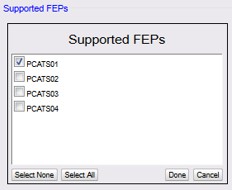
2. Select the FEP(s) that should accept this loyalty card.
{% hint style="info" %}
One loyalty card can be configured to multiple FEPs.
{% endhint %}
3. Click **Done** to save or **Cancel** to exit without saving.
4. Select **Save** or **Cancel** to exit without saving changes.
5. To apply new settings, go to: Configuration Client > Tools > Refresh Configuration.
### Shell Loyalty Stacking In Fuel Transaction
#### Quick Reference Summary
Topic
Summary
What this feature does
Enables loyalty stacking — multiple loyalty discounts in one fuel transaction — for Shell sites.
Shell Primary Loyalty
Fuel Rewards Network (FRN) — payment-based. Can be combined with ANY other discount.
Shell Secondary Loyalty
Third-party partner programme (e.g., Kroger, Jacksons) hosted by Shell EPS. One per transaction. Stacks with Fuel Rewards.
Local / Commander Loyalty
Site-managed loyalty (programme IDs 1001+). Can stack with Fuel Rewards but NOT with Shell secondary in the same transaction.
POP Discount
Site-level per-gallon promotion. Applied first, before any loyalty programme discount.
Priority order
1 — POP Discount 2 — Local loyalty 3 — Shell Secondary 4 — Shell Primary (Fuel Rewards)
Scenario 1
POP Discount + Local Loyalty + Shell Primary (Fuel Rewards) — no secondary programme.
None. Customers pay as normal. Stacking is automatic.
Cashier action required
None. Stacking is handled automatically by Commander and Shell EPS.
How to enable
Turn on 'Multiple Loyalty Enabled' in the Commander back-office. Only for sites with new Shell EPS.
Old Shell EPS sites
Leave 'Multiple Loyalty Enabled' off. Standard single-loyalty mode. No impact.
Reports
POS loyalty report shows each programme's discount separately per transaction.
Applies to
Outdoor pump (DCR/OPT), indoor POS, self-checkout (SCO), and VISTA devices.
Available from
Base 057.01.00.
Shell has enhanced its loyalty programme by introducing loyalty stacking — the ability to apply multiple loyalty discounts to a single fuel transaction. Commander now supports this capability, allowing Shell sites to reward customers through a combination of Shell's own Fuel Rewards programme and one or more third-party partner loyalty programmes in a single fill-up.
This feature is part of Shell's strategic initiative to broaden its loyalty offering and strengthen its partnership with retailers and loyalty providers. From a customer's perspective, it means they can save more at the pump by earning discounts from multiple programmes simultaneously — without needing to choose between them.
{% hint style="info" %}
ℹ Note: Shell Third Party Loyalty Stacking is available from Base 057.01.00. It applies to Shell-branded sites where loyalty stacking has been enabled through the back-office configuration. Sites running an older Shell EPS version continue to operate in standard single-loyalty mode.
{% endhint %}
#### Key Concepts — Understanding Loyalty Stacking
Before walking through how the feature works, here is a plain-English explanation of the loyalty programmes and terms involved:
Shell's flagship loyalty programme — Fuel Rewards Network (FRN). Customers earn cents-per-gallon savings by using a qualifying Shell credit card, gift card, or registered Fuel Rewards account. This discount is payment-based, meaning it is linked to how the customer pays, and it can be combined with any other discount in the same transaction.
A loyalty programme run by a third-party retailer or partner (for example, Kroger, Jacksons/Paytronix, or another partner) that has an agreement with Shell. Customers who belong to this partner programme earn a per-gallon discount at Shell stations. Only one secondary loyalty programme can be active in a single transaction.
Local / Commander Loyalty
Loyalty programmes managed directly by the Commander site controller — for example, a store-branded loyalty card or a site-specific points programme. These are separate from Shell's own loyalty programmes and are configured locally on Commander.
POP Discount (Point-of-Purchase)
A per-gallon discount applied at the time of the transaction, configured at the site level. Examples include a carwash discount, a site-specific promotional discount, or a daily special. POP discounts are site-driven and apply before loyalty programmes are calculated.
Loyalty Stacking
Combining multiple discounts — from different loyalty programmes and/or site discounts — in a single transaction. Instead of getting just one discount, the customer receives all applicable discounts applied in a defined order.
Shell EPS (Electronic Payment System)
Shell's payment and loyalty processing server. It communicates with Commander to authorise payments, deliver loyalty programme information, and calculate stacked discounts. The EPS hosts the third-party partner loyalty programmes (secondary loyalty).
Loyalty Stacking Enabled flag
A configuration setting in Commander's back-office that controls whether a site participates in Shell's loyalty stacking programme. Sites must have this setting enabled to receive stacked discounts from Shell EPS.
#### How Loyalty Stacking Works
When a customer fuels at a Shell site with loyalty stacking enabled, Commander and Shell EPS work together to identify all applicable loyalty discounts and apply them in the correct order — automatically. The customer does not need to do anything differently at the pump.
1
Customer initiates fuelling
The customer lifts the nozzle or starts a transaction at the pump or indoor POS. They may present a loyalty card, use a Shell gift card, swipe a Fuel Rewards-linked card, or use any other accepted payment method.
2
Commander contacts Shell EPS
Commander sends the transaction details to Shell EPS for payment authorisation. Because Commander is now registered as 'Multiple Loyalty Capable', Shell EPS knows it can send back more than one loyalty programme discount for this transaction.
3
Shell EPS identifies applicable discounts
Shell EPS checks what loyalty programmes apply to this customer and this transaction. It may identify the customer's Fuel Rewards discount (primary loyalty), a partner programme discount such as Kroger or Jacksons (secondary loyalty), or a combination of both — stacked together.
4
Discounts are applied in priority order
Commander receives the loyalty information from Shell EPS and applies all discounts in Shell's defined priority order (see next section). Each discount reduces the per-gallon price, and the final price the customer pays reflects all applicable savings combined.
5
Customer pays the discounted price
Fuel is dispensed at the fully discounted per-gallon price. The customer sees the savings on the pump display and on the receipt. All discounts are itemised separately on the transaction record.
6
Transaction is recorded in Commander
Commander records all loyalty programmes that contributed to the transaction, each identified separately by programme. Site loyalty reports show a breakdown of each programme's contribution.
{% hint style="success" %}
✔ Good to know: The customer experience at the pump is unchanged. Customers still make one loyalty programme selection (if prompted). The stacking of primary and secondary discounts happens automatically in the background between Commander and Shell EPS.
{% endhint %}
#### Discount Priority Order
When multiple discounts apply to a single transaction, they are applied in the following order. The order is defined by Shell and is applied consistently across all Shell sites with loyalty stacking enabled. Lower numbers are applied first.
Priority
Discount Type
Source
Example
1
POP Discount
Configured on-site in Commander
A carwash discount, daily site promotion, or any point-of-purchase per-gallon reduction set up in the site's back-office.
2
Local / Commander Loyalty
Commander loyalty programme
A store-branded loyalty card or site-specific points programme managed locally on Commander (programme IDs starting from 1001).
3
Shell Secondary Loyalty (Third-Party Partner)
Shell EPS — partner programme
Kroger loyalty, Jacksons/Paytronix, or another Shell partner programme. The customer earns a discount through the partner retailer's loyalty scheme, redeemable at Shell.
4
Shell Primary Loyalty (Fuel Rewards Network)
Shell EPS — Fuel Rewards
Shell Fuel Rewards (FRN) — earned via Shell gift card, Shell-branded credit card, or a registered Fuel Rewards account. Applied last because it is payment-based.
{% hint style="danger" %}
⚠ Important: Shell secondary loyalty (a third-party partner programme) and a local Commander loyalty programme cannot both be active in the same transaction. Only one of the two can apply per transaction. Shell primary loyalty (Fuel Rewards) can always be combined with any other discount.
{% endhint %}
#### The Two Stacking Scenarios
Shell defines two standard transaction scenarios where stacking applies. Your site will follow one or both depending on the loyalty programmes your customers hold and the promotions active at your site.
**Scenario 1 — POP Discount + Local Loyalty + Shell Primary (Fuel Rewards)**
This scenario applies when a customer has a Fuel Rewards account and your site has a POP discount active, and the customer also holds a local Commander loyalty card. No Shell secondary (third-party partner) programme is involved.
Discount 1 — Applied First
Discount 2 — Applied Second
Discount 3 — Applied Third
POP Discount (site-level promotion)
Local / Commander Loyalty (store loyalty card)
Shell Primary Loyalty (Fuel Rewards / Shell gift card)
Example: 5¢/gal carwash discount
Example: 3¢/gal store points reward
Example: 10¢/gal Fuel Rewards saving
In this example, the customer saves a combined 18¢ per gallon — all three discounts applied automatically in the correct order.
**Scenario 2 — POP Discount + Shell Secondary (Partner) + Shell Primary (Fuel Rewards)**
This scenario applies when a customer has both a Fuel Rewards account and a qualifying Shell partner loyalty programme (such as Kroger or Jacksons), and your site has a POP discount active. Both Shell programmes stack together.
Discount 1 — Applied First
Discount 2 — Applied Second
Discount 3 — Applied Third
POP Discount (site-level promotion)
Shell Secondary Loyalty (Kroger, Jacksons, or other partner)
Shell Primary Loyalty (Fuel Rewards / Shell gift card)
Example: 5¢/gal carwash discount
Example: 15¢/gal Kroger rewards
Example: 10¢/gal Fuel Rewards saving
In this example, the customer saves a combined 30¢ per gallon. Note: in Scenario 2, there is no local Commander loyalty — it is replaced by the Shell secondary partner programme.
#### Shell Loyalty Programmes — Reference
Shell EPS identifies each loyalty programme by a Programme ID number. Commander uses these IDs to determine which programmes are active in a transaction and how to apply them. The table below shows the current programme IDs in use:
Programme ID
Programme Name
Stacked combination
Behaviour
1 + 4
Stacking — Fuel Rewards + EPS Secondary
Stacked combination
Both programmes are active and applied together. The customer earns savings from both FRN and the partner programme in the same transaction.
2
Fuel Rewards Network (FRN)
Shell Primary
Shell's main loyalty programme. Applied when the customer pays with a Fuel Rewards-linked card or Shell gift card. Can be combined with any other discount.
3
Kroger loyalty
Shell Secondary
Discount earned through the Kroger loyalty programme at Shell stations. Stacks with Fuel Rewards (primary) when both are present.
4
EPS Secondary Programme
Shell Secondary
A Shell-hosted third-party loyalty programme. Stacks with Fuel Rewards (primary) when both are present.
1001+
Local / Commander Loyalty
Commander-managed
Loyalty programmes managed on Commander locally (not via Shell EPS). Can coexist with Shell primary loyalty but not with Shell secondary in the same transaction.
{% hint style="info" %}
ℹ Note: Programme IDs 1–999 are reserved for Shell EPS programmes. Programme IDs 1001 and above are Commander-managed local loyalty programmes. Additional Shell partner programme IDs may be added in the future as Shell expands its loyalty partner network.
{% endhint %}
#### Site Configuration — Enabling Loyalty Stacking
Loyalty stacking is not enabled by default. A configuration setting must be turned on in Commander's back-office for sites that want to participate in Shell's loyalty stacking programme. This is done once during site setup by your system administrator or VeriFone support team.
Configuration Item
Details
Multiple Loyalty Enabled
The on/off switch for loyalty stacking. When enabled, Commander tells Shell EPS it can receive and process multiple loyalty programme discounts. When disabled, Commander operates in standard single-loyalty mode — compatible with both old and new versions of Shell EPS.
Default setting
Off (disabled) by default for all Shell sites. Must be explicitly enabled for sites participating in Shell's loyalty stacking programme.
Where to configure
Commander back-office configuration screen. Your site administrator or VeriFone support representative can locate and enable this setting.
Old Shell EPS compatibility
Sites running an older version of Shell EPS (INFX) should leave this setting disabled. Older EPS versions do not support the multiple loyalty capability and will reject the login if it is enabled.
New Shell EPS compatibility
Sites running the new Shell EPS with stacking support can enable this setting to activate loyalty stacking. Both single-loyalty and stacked-loyalty scenarios are supported with the new EPS.
No code change required
Enabling or disabling loyalty stacking is a configuration-only change. No software update is needed after the initial upgrade to Base 057.01.00.
{% hint style="danger" %}
⚠ Important: Only enable the 'Multiple Loyalty Enabled' setting if your site has been confirmed as using the new Shell EPS version with stacking support. Enabling it on a site with the older Shell EPS will cause login errors between Commander and Shell EPS.
{% endhint %}
#### What Changed in Commander
The following is a plain-English summary of what was updated in Commander to support Shell loyalty stacking. No changes were made to the pump interface or the customer-facing payment experience.
Change
What It Means for Your Site
Commander registers as 'Multiple Loyalty Capable'
When Commander logs in to Shell EPS (at system start-up or after a restart), it now identifies itself as capable of handling multiple loyalty programmes. This tells Shell EPS that it can send back more than one loyalty programme discount for a transaction. This only happens when the Multiple Loyalty Enabled setting is turned on.
Discount stacking priority enforced
Commander now applies all incoming loyalty discounts in Shell's defined priority order (POP discount first, then local loyalty or secondary loyalty, then primary Fuel Rewards last). Previously, Commander applied discounts as they arrived, which could produce an incorrect total. The correct order is now enforced automatically.
Primary and secondary loyalty programmes tracked
Commander now identifies and distinguishes between Shell primary loyalty programmes (such as Fuel Rewards, programme IDs 1–999) and local Commander loyalty programmes (programme IDs 1001+). It uses this information to determine which combination of discounts is allowed in a given transaction.
Loyalty reports updated
The POS loyalty report now correctly identifies and categorises each loyalty programme separately — showing which discounts came from Fuel Rewards, which came from a partner programme, and which came from Commander-local programmes. No changes to report format were needed as Commander already distinguished programmes by their IDs.
Dynamic loyalty prompting blocked on secondary EPS
When Commander is acting as a secondary payment system (not the primary), it no longer shows the customer multiple loyalty programme selection prompts. A single programme selection is processed through the appropriate payment system. This prevents confusing or duplicate loyalty prompts from appearing on the pump or POS screen.
Compatibility with older Shell EPS preserved
Sites with an older Shell EPS version are protected — the multiple loyalty capability is only activated when the configuration flag is explicitly turned on. Older EPS sites continue to work exactly as before with standard single-loyalty mode.
#### What Cashiers and Site Operators Will Notice
For most day-to-day operations, cashiers will notice very little difference. The payment and loyalty flow at the pump and indoor POS works the same way it always has. The changes happen in the background between Commander and Shell EPS.
What You May Notice
Explanation
Customer receives a larger discount than before
If a customer qualifies for both Shell secondary loyalty (e.g., Kroger) and Fuel Rewards, they now receive both discounts applied together. The total saving shown on the pump and receipt will be higher than a single programme alone.
Receipts show multiple loyalty discounts
The customer's receipt (and the site transaction record) may now show two or more separate loyalty discount line items — one per programme applied. This is expected and correct behaviour.
Loyalty report shows programme breakdown
The POS loyalty report shows each loyalty programme that contributed to a transaction, listed separately. You can see the contribution of Fuel Rewards, a partner programme, and any local Commander loyalty independently.
No change to the pump screen prompts
Customers still see the same prompts at the pump. They make one loyalty programme selection as before. The stacking of additional programmes (such as Fuel Rewards from their Shell card) happens automatically without any extra customer action.
No cashier action needed for stacking
Cashiers do not need to do anything differently. Commander and Shell EPS handle the stacking automatically when a customer is eligible for multiple discounts.
## Using EPS loyalty
Loyalty sales allow the processing and redemption of loyalty transactions both inside, at the POS, and outside at the DCRs.
### EPS loyalty attributes
* Sites can enable both POP Discount and loyalty, but a customer can receive only one discount per transaction.
* After the loyalty card is swiped, VOID LINE and ERROR CORR cannot be used. Use VOID TICKET instead.
* If the network denies the request, a denial message displays. The transaction continues as usual.
* The POS updates loyalty report totals after each transaction.
### Loyalty sales functions
#### Inside EPS loyalty sales
* Inside Price Per Gallon Loyalty Sale (Pre-Pay)
* Inside Ticket-Level Loyalty Sale (Post-Pay)
* Loyalty Outside Pay Inside
* Merchandise Only Inside Loyalty Sale
#### Outside EPS loyalty sale
* Outside Price Per Gallon Loyalty Sale
* Outside Ticket-Level Loyalty Sale
#### **Inside EPS Loyalty Sales**
The customer or host may authorize a loyalty discount during an inside loyalty sales transaction. The customer can be given discounts as well as be prompted to accept a discount depending on the host settings.
**Inside Price Per Gallon (PPG) Loyalty Sale (Pre-Pay) Example**
The customer went inside the store, swiped their loyalty card, and prepaid for the purchase.
The dispenser was preset for the purchase amount at the discounted PPG. Fuel was dispensed for the prepaid value of fuel at the discounted PPG.
{% hint style="info" %}
The customer can authorize a discount during an inside loyalty sale if the loyalty host provides an optional discount prompt.
{% endhint %}
**Pre-Pay Steps**
{% hint style="info" %}
If Multiple Loyalty is configured, the customer may be prompted for additional cards. They can swipe the next card, select a program, or press **I’m Done**.
{% endhint %}
1. Enter the **amount**.
2. Select the **method of payment**.
3. Swipe/scan the loyalty card (or manually enter the loyalty account number).
4. Select the **fuel product**.
5. Tender and complete the sale.
6. The receipt prints showing the pre-pay amount and fueling point.
**Inside Ticket-Level Loyalty Sale (Post-Pay) Example**
The customer pulled up to a fueling position outside and pressed **Pay Inside** at the DCR. After fueling completed, the customer went inside and swiped their loyalty card, then paid.
Since this transaction began outside and was completed inside, the loyalty card was not swiped prior to fueling, and no PPG discount was given. However, the host did issue a transaction level EPS Loyalty Discount for the sale.
{% hint style="info" %}
*The information printed on their receipt may vary depending on the loyalty program in place.*
{% endhint %}
**Post-Pay Steps**
{% hint style="info" %}
If Multiple Loyalty is configured, the customer may be prompted for additional cards. They can swipe the next card, select a program, or press **I’m Done**.
{% endhint %}
1. Enter the sales item(s).
2. Press **Total**.
3. Swipe/scan the loyalty/payment card, or manually enter the card account number.
4. If the Auth on Total Key is enabled, the information is sent to the network and the discount is applied to adjust the ticket balance.
5. If the Auth on Total Key is not enabled, the discount is not applied until after the MOP is selected.
6. Tender and complete the sale.
7. The receipt prints displaying the loyalty discount amount applied to the ticket and any other messages from the Loyalty Host.
**Loyalty Outside Pay Inside Example**
The customer swiped the loyalty card at the DCR and received a PPG discount. The customer then selected to pay inside.
**Pay Inside Steps**
{% hint style="info" %}
If Multiple Loyalty is configured, the customer may be prompted for additional cards. They can swipe the next card, select a program, or press **I’m Done**.
{% endhint %}
1. Enter the sales item(s).
2. Press **Total**.
3. If the Auth on Total Key is enabled, the information is sent to the network and the discount is applied to adjust the ticket balance.
4. If the Auth on Total Key is not enabled, the discount is not applied until after the MOP is selected.
5. Tender and complete the sale.
6. The receipt prints displaying the loyalty discount amount applied to the ticket and any other messages from the Loyalty Host.
**Merchandise Only Inside Loyalty Sale Example**
The customer went inside and purchased several items. The customer swiped the loyalty card and received the appropriate line item or ticket level discount from the host.
{% hint style="info" %}
If Multiple Loyalty is configured, the customer may be prompted for additional cards. They can swipe the next card, select a program, or press **I’m Done**.
{% endhint %}
1. Enter the sales item(s).
2. Press **Total**.
3. If the Auth on Total Key is enabled, the information is sent to the network and the discount is applied to adjust the ticket balance.
4. If the Auth on Total Key is not enabled, the discount is not applied until after the MOP is selected.
5. Tender and complete the sale.
6. The receipt prints displaying the loyalty discount amount applied to the ticket and any other messages from the Loyalty Host.
**Outside EPS Loyalty Sales**
The customer can authorize a loyalty discount during an outside loyalty sale. If needed, loyalty account numbers can be entered manually at the DCR by selecting the **Loyalty** softkey.
**Outside Price Per Gallon Loyalty Sale Example**
The customer pulled to a fueling position outside, swiped their loyalty card, chose to use an available PPG discount and pay outside at the DCR. The dispenser adjusted the PPG to the discounted amount. Fuel was dispensed and paid for at the discounted PPG.
{% hint style="info" %}
*The information printed on their receipt may vary depending on the loyalty program in place.*
{% endhint %}
{% hint style="info" %}
If Multiple Loyalty is configured, the customer may be prompted for additional cards. They can swipe the next card, select a program, or press **I’m Done**.
{% endhint %}
1. The customer swipes the loyalty card at the DCR.
2. The loyalty network asks the customer if they want the discount.
3. The loyalty transaction is sent to the loyalty network.
4. The loyalty network replies with a text message from the host and a price per gallon discount off the purchase.
5. The customer swipes the payment card.
6. The receipt prints showing the discounted PPG amount and any host message.
**Outside Ticket-Level Loyalty Sale Example**
The customer pulled up to a fueling position and pressed **Pay Outside** at the DCR. After fueling completed, the customer swiped their loyalty card and then completed payment.
{% hint style="info" %}
*The information printed on their receipt may vary depending on the loyalty program in place.*
{% endhint %}
{% hint style="info" %}
If Multiple Loyalty is configured, the customer may be prompted for additional cards. They can swipe the next card, select a program, or press **I’m Done**.
{% endhint %}
1. The customer swipes the loyalty card at the DCR.
2. The loyalty transaction is sent to the loyalty network.
3. The loyalty network replies with a host message and a ticket-level discount.
4. The customer swipes the payment card.
5. The receipt prints displaying the ticket-level discount.
#### Cashier Option to Cancel Out of Loyalty Prompt
From Verifone Commander Release 56.01, added **YES**and **NO**keys to the Loyalty Auth prompt. Pressing the NO prompt will abort the PIN pad prompt.
This feature is focused on addressing the issue of cashier control over the PIN pad when a site is in customer-facing mode. This solves scenarios where customers walk in, inform the cashier of their pump number, drop money on the counter, and leave. These customers are unaware of any necessary actions on the PIN pad. Cashiers need to reach over to cancel loyalty prompts or even walk around to the PIN pad. This inconvenience causes a significant challenge and lacks intuitiveness.

## Reporting
### EPS Reports from the POS Terminal
To access EPS Reports from the POS Terminal, go to: **CSR Func > Network Menu**.
{% hint style="warning" %}
Some reports contain sensitive information. Set POS security levels to limit report access.
{% endhint %}
Select the Report Types from the POS Network Menu:
#### EPS Network and Secure Reports
The EPS Network Reports are specific to a particular host network and can vary across customer implementations.
**EPS Loyalty Reports**
Below are samples of the EPS Loyalty Reports.
Based on the parameter file settings, the account number may be masked.
{% hint style="warning" %}
*Because of the sensitive nature of the data included in Loyalty Detail Reports, it is critical that proper security levels be set for report access.*
{% endhint %}
**Terminal Batch Loyalty Detail Report**
The Terminal Batch Loyalty Detail Report is requested by terminal batch number.
**Report Details:**
**TITLE: Terminal Batch Loyalty Detail Report**
• DLR #: Dealer identification number.
• PRINTED: Date and time the report printed.
– MM/DD/YY: Date in month, date year format.
–HH:MM:SS: Time in hour, minutes, and seconds.
• WORKSTATION ID: Workstation identification number.
• TERMINAL BATCH: Terminal batch number.
• LOYALTY HOST: Loyalty host name.
–ACCOUNT NO: Account number.
–TOTAL: Total transaction amount.
–DISCOUNT: Transaction discount applied to the transaction.
• SUMMARY DISCOUNTS FOR ALL
LOYALTY HOSTS: Displays the summary of discounts applied for all loyalty hosts in a batch transaction.
–TICKET TOTAL: Total amount in a batch transaction.
–DISCOUNT TOTAL: Total discount in a batch transaction.
**Loyalty Discounts by Type Report**
The Loyalty Discounts by Type Report contains a summary, and grand totals for all PPG, transaction-level, and item-level discounts given during the selected terminal batch period.
**Report Details:**
**TITLE: Loyalty Discounts By Type Report**
• DLR #: Dealer identification number.
• PRINTED: Date and time the report printed.
–MM/DD/YY: Date in month, date year format.
–HH:MM:SS: Time in hour, minutes, and seconds.
• TERMINAL BATCH: Terminal batch number.
• PPU DISC: PPU Discount in a transaction.
• TICKET DISC: Total discount in a transaction.
• ITEM DISC: Discount by item.
• TOTAL $: Total amount in dollars.
**Loyalty PPU Totals by Grade Report**
The Loyalty PPU Totals by Grade Report provides the total of network loyalty discounts taken by fuel grade through the EPS. The report is requested by terminal batch number.
The total number of discounted fuel transactions are included in the report.
For fuel sales with loyalty, the report will contain a list of fuel product codes sold, along with the total volume by product code and the total dollar amount of discounts by product code.
**Report Details:**
**TITLE: Loyalty PPU Totals By Grade Report**
• DLR #: Dealer identification number.
• PRINTED: Date and time the report printed
–MM/DD/YY: date in month, date year format.
–HH:MM:SS: Time in hour, minutes, and seconds.
• TERMINAL BATCH: Terminal batch number.
• GRADE: Type of fuel grade.
• COUNT: Count.
• VOLUME: Total volume of fuel dispensed.
• DISCOUNT $: Discount in dollars.
**Loyalty PPU Transaction Detail Report**
The Loyalty PPU Transaction Detail Report contains information about the entire fuel sale with a Loyalty PPU discount. This report is sorted on transaction date and time and is requested by Terminal Batch Number.
For each sale, the report contains the date and time, fueling position, grade, original price as reported by POS, PPU discount amount, volume, total dollar amount of the discount, total amount of the fuel sale, and the loyalty card number.
**Report Details:**
**TITLE: Loyalty PPU Transaction Detail Report**
• DLR #: Dealer identification number.
• PRINTED: Report print date and time.
–MM/DD/YY: Date in month, date year format.
–HH:MM:SS: Time in hour, minutes, and seconds.
• TERMINAL BATCH: Terminal batch number.
**Heading**
–DATE: Transaction date.
–TIME: Transaction time.
–MEMBER ID: Loyalty card number.
–PUMP#: Pump number.
–GRADE: Fuel grade.
–STREET-PRICE: Original fuel price.
–FUELED PRICE: Discount fuel price.
–PPU DISC: PPU discount.
–VOLUME: Volume of fuel dispensed.
–TOTAL DISC: Total discounts applied.
–TOTAL SALE: Total transaction amount.
• TRANSACTIONS APPROVED BY FIRST LOYALTY HOST: List of individual transactions for the first loyalty host; data for each transaction.
• TOTAL VOLUME: Total volume of fuel sales for all transactions approved by this loyalty host in this terminal batch.
• TOTAL DISCOUNT: Total ticket discount for all transactions approved by this loyalty host in this terminal batch.
• TOTAL SALE AMOUNT: Total sale amount for all transactions approved by this loyalty host in this terminal batch.
**Loyalty Transactions Approved by Hosts (Terminal Batch Period) Report**
The Loyalty Transactions Approved by Host Report prints all loyalty transactions within a given terminal batch. To account for sites with multiple loyalty hosts, transactions are organized by the approving host
If a transaction is approved by multiple loyalty hosts, it will be included in each host’s list of transactions.
**Report Details:**
**TITLE: Loyalty Transactions Approved by Loyalty Hosts**
• DLR #: Dealer identification number.
• PRINTED: Date and time the report was printed.
– MM/DD/YY: Date in month, date year format.
– HH:MM:SS: Time in hour, minutes, and seconds.
• TERMINAL BATCH: Terminal batch number.
**Headings:**
–STAN: System traced audit number (Transaction ID), a unique key for a transaction.
–DATE/TIME: Date and time of transaction.
–LOYACT#: Last four digits of loyalty. account
–FUEL: Cost of fuel products purchased.
–VOLUME: Volume of fuel products purchased. Includes all fuel-specific discounts.
–NONFUEL: Includes any non-fuel transaction item, such as tax.
–TKT DISC: Total ticket level discount on transaction. Does not include line item or price per gallon discounts.
–SALEAMT: Total transaction as reported to user. Contains only ticket level discounts applied to this transaction.
–TRACE NUMBER: Sequence number assigned by loyalty host. If the sequence number is greater than 40 characters long, only the last 40 will be returned.
• FIRST LOYALTY HOST NAME: Program name of the loyalty host which displays the receipt.
• FIRST LOYALTY HOST DEALER NUMBER: Dealer ID for this site as reported to the First loyalty host.
•TRANSACTIONS APPROVED BY FIRST LOYALTY HOST: List of individual transactions for the first loyalty host; data for each transaction.
• TOTAL FUEL SALES: Total cost of fuel sales for all transactions approved by this loyalty host in this terminal batch.
• TOTAL FUEL VOLUME: Total volume of fuel sales for all transactions approved by this loyalty host in this terminal batch.
• TOTAL NONFUEL SALES: Total cost of non-fuel sales for all transactions approved by this loyalty host in this terminal batch.
• TOTAL TICKET DISCOUNT: Total ticket discount for all transactions approved by this loyalty host in this terminal batch.
• TOTAL SALE AMOUNT: Total sale amount for all transactions approved by this loyalty host in this terminal batch.
• Lines #13 - 20: Are the same as lines 5-12, but for a second possible loyalty host.
–As noted above, if a transaction is approved by more than one loyalty host, it will appear in this report for all hosts that approved it.
–The only difference between each of these entries is the sequence number provided by the loyalty host.
**Loyalty Transactions Approved by Host (Configured Period) Report**
The Loyalty Transactions Approved by Host Report prints all approved transactions within the reconciliation window. The report prints one host’s transactions at a time because in a multiple-loyalty environment, each loyalty host can be configured with its own reconciliation period.
Reporting one host at a time resolves any conflicts resulting from multiple reconciliation periods. The reconciliation period is not related to the terminal batch period, and is configured on a per-host basis.
When this report is generated, the POS will prompt the user for the host name to run the report on, and an index. This index refers to the period for which the report should be generated. Zero will represent the most recent period, one the period before that, and so on.
This report only details a single host; that host’s program name and dealer number will appear at the top of the report. The fields for ticket-level discount and sequence number will be added to each transaction, as well as appropriate headings.
The data contained in this report is similar to the Loyalty Transactions Approved by Hosts (Terminal Batch Period) Report. However, this report only contains data for a single loyalty host’s reconciliation period. The user will be prompted to select which host, and which reconciliation period index, prior to printing the report.
{% hint style="info" %}
*The total ticket discount amount in this report includes ticket level discounts from all sources, not just the selected loyalty host.*
{% endhint %}
**Report Details:**
**TITLE: Loyalty Transactions Approved by Host**
• DLR #: Dealer identification number.
• PRINTED: Date and time the report was printed.
–MM/DD/YY: Date in month, date year format.
–HH:MM:SS: Time in hour, minutes, and seconds.
• FIRST LOYALTY HOST NAME: Program name of the loyalty host which displays the receipt.
• FIRST LOYALTY HOST DEALER NUMBER: Dealer ID for this site as reported to the first loyalty host.
• RECONCILIATION PERIOD: Reconciliation period start/end date.
**Headings**
–STAN: System traced audit number (Transaction ID).
–DATE/TIME: Date and time of transaction.
–LOYACT#: Last four digits of loyalty account.
–FUEL: Cost of fuel products purchased.
–VOLUME: Includes all fuel-specific discounts and the volume of fuel products purchased.
–NONFUEL: Includes any non-fuel transaction item, such as tax.
–TKT DISC: Total ticket level discount on transaction. Does not include line item or price per gallon discounts.
–SALEAMT: Total transaction as reported to user. Contains only ticket level discounts applied to this transaction.
–TRACE NUMBER: Sequence number assigned by loyalty host. If the sequence number is greater than 40 characters long, only the last 40 will be returned.
•TRANSACTIONS APPROVED BY FIRST LOYALTY HOST: List of individual transactions for the first loyalty host; data for each transaction.
• TOTAL FUEL SALES: Total cost of fuel sales for all transactions approved by this loyalty host in this terminal batch.
• TOTAL FUEL VOLUME: Total volume of fuel sales for all transactions approved by this loyalty host in this terminal batch.
• TOTAL NONFUEL SALES: Total cost of non-fuel sales for all transactions approved by this loyalty host in this terminal batch.
• TOTAL TICKET DISCOUNT: Total ticket discount for all transactions approved by this loyalty host in this terminal batch.
• TOTAL SALE AMOUNT: Total sale amount for all transactions approved by this loyalty host in this terminal batch.
**Loyalty Discounts/Redemptions Report**
The Loyalty Discounts and Redemptions Report contains transactions with a ticket level discount granted by a loyalty host that falls within the selected reconciliation period.
This report will be changed to be printed on a per-host basis. The host program name and dealer number will be added to the report header. In addition, the sequence number assigned by the loyalty host will be added to each transaction entry.
**Report Details:**
• TITLE: Loyalty Discounts/ Redemptions.
• DLR #: Dealer identification number.
• PRINTED: Date and time the report was printed.
–MM/DD/YY: Date in month, date year format.
–HH:MM:SS: Time in hour, minutes, and seconds.
• FIRST LOYALTY HOST NAME:
Program name of the loyalty host which displays the receipt.
• FIRST LOYALTY HOST DEALER
NUMBER: Dealer ID for this site as reported to the First loyalty host.
• RECONCILIATION PERIOD: Reconciliation period start /end date.
**HEADINGS:**
– STAN: System traced audit number (Transaction ID), a unique key for a transaction.
–DATE/TIME: Date and time of the transaction.
–DISC: Ticket-level discount on transaction from this loyalty host.
–LOYACT#: Last four digits of loyalty account.
–TRACE NUMBER: Sequence number for this transaction assigned by the selected loyalty host.
• TRANSACTIONS APPROVED BY FIRST LOYALTY HOST: List of individual transactions for the first loyalty host; data for each transaction.
• TOTAL DISCOUNT: Total discount for all transactions in this reconciliation period.
## Glossary
The following terms and definitions will assist the reader with understanding the content of the Feature Reference.
| Term | Definition |
| ------------------- | --------------------------------------------------------------------------------------------------------------------------------------------------------------------------------------------------------------------------------------------------- |
| Bar Code | Data is encoded in a bar code situated on the product (for example, a candy wrapper). |
| DCR | Dispenser Card Reader. |
| EPS | Electronic Payment System. |
| FEP | Front End Processor. |
| GS-128 Loyalty Card | Account information is encoded on both a magnetic stripe and a bar code. The bar code is encoded with **8018** in front of the account number. GS-128 requires two Loyalty Card Configuration entries: one mag-stripe entry and one bar code entry. |
| IFSF | International Forecourt Standards Forum. |
| Loyalty Transaction | Any transaction approved by a loyalty host, including earn transactions and discount redemptions. |
| Mag-Stripe | Magnetic stripe on the back of the loyalty card encoded with account information. |
| MOP | Method of Payment. |
| PCATS | Petroleum Convenience Alliance for Technology Standards. |
| POP | Point of Purchase. |
| POS System | Includes POS terminals, site controller, and the EPS. |
| PPG | Price Per Gallon. |
| PPU | Price Per Unit. |
---
# Agent Instructions
This documentation is published with GitBook. GitBook is the documentation platform designed so that both humans and AI agents can read, navigate, and reason over technical content effectively. Learn more at gitbook.com.
## Querying This Documentation
If you need additional information that is not directly available in this page, you can query the documentation by asking a question.
Perform an HTTP GET request on the following URL with the `ask` and `goal` query parameters:
```
GET https://docs.verifone.com/feature-references/features-and-products-references/eps-loyalty.md?ask=&goal=
```
`ask` is the immediate question: it should be specific, self-contained, and written in natural language.
`goal` is what the user is ultimately trying to achieve, the reason they need the answer. Sharing it helps GitBook give you a better, more relevant answer. A goal is most helpful when it describes the outcome the user wants rather than restating the question. For example, with `ask=how do I create an API token`, a goal like `automate deployments from our CI pipeline` lets GitBook tailor the answer to that use case.
The response will contain a direct answer to the question and relevant excerpts and sources from the documentation.
Use this mechanism when the answer is not explicitly present in the current page, you need clarification or additional context, or you want to retrieve related documentation sections.


