> For the complete documentation index, see [llms.txt](https://docs.verifone.com/llms.txt). Markdown versions of documentation pages are available by appending `.md` to page URLs; this page is available as [Markdown](https://docs.verifone.com/feature-references/features-and-products-references/self-checkout/using-self-checkout/cashier-functions.md).
# Cashier Functions
{% stepper %}
{% step %}
## On SCO mode hold the Help iconfor two seconds to get the cashier login.
{% hint style="info" %}
*Employees can either login to the SCO from the Help button or by scanning their employee barcode.*
{% endhint %}
{% endstep %}
{% step %}
## The SCO screen loads with the following cashier functions:
**Price Check**
Checks the price of an item without ringing it into a transaction.
**Recall**
Recalls a suspended transaction.
**Reprint**
Reprints Receipts.
**CSR Functions**
Goes to the CSR Functions menu.
{% hint style="info" %}
*Refer to the “Verifone Commander User Reference” for more information on these functions.*
{% endhint %}
{% endstep %}
{% step %}
## When items are added for sale, the cashier SCO screen loads with the following cashier functions:
**Price Check**
Checks the price of an item without ringing it into a transaction.
**Susp Trans**
Suspends the transaction
**Void Line**
Voids a line in the transaction
**Void Ticket**
Voids the ticket
**Error Correct**
Removes last entry or partial payment entered in a transaction.
{% hint style="info" %}
Refer to the “**Verifone Commander User Reference**” for more information on these functions.
{% endhint %}
{% endstep %}
{% step %}
## *There are three ways of getting out of cashier mode. By completing the transaction using Pay Now or by clicking Void Ticket or by clicking the X button.*
{% endstep %}
{% endstepper %}
## Touch-To-Modify
Customers are not allowed to change quantity or modify the line items.
In cashier mode, touch a line item to get the Touch-To-Modify menu items.

## Close Lane
Use this function to close a lane so the SCO cannot be used for sales.
{% stepper %}
{% step %}
## On the Cashier screen of SCO, go to CSR Functions
{% endstep %}
{% step %}
## Go To Maintenance menu in CSR Functions.
{% endstep %}
{% step %}
## Select Close Lane.
{% endstep %}
{% endstepper %}
## Open Lane
{% stepper %}
{% step %}
## Double tap on the upper left-hand corner of the “Lane Closed” screen to get the “Do you want to Open Lane” screen.
{% endstep %}
{% step %}
## Click “Open Lane” and login.
{% endstep %}
{% endstepper %}
## Self Checkout Monitoring
Device monitoring is a feature to monitor configured devices from monitoring devices such as Cashier operated POS, Attendant handheld device or any remote machine. Self Checkout devices can be configured to be monitored through the Touch Screen configuration form from Configuration Client.
**Self Checkout Monitoring Buttons**
Self Checkout device can be configured to be monitored from the POS using self check-out monitoring buttons. From Verifone Commander Release 55.02, clicking on the self checkout monitoring icon on the POS sales screen opens a self checkout detailed view pop-up.

The following buttons represent self checkout device status:
| **Icon** | **Description** |
| --------------------------------------------------------------------------------------------------------------------------------------------------------------------------------------------------------------------------------------------------------- | --------------------------------------------------------------------------------------------------------------------------------------------------------------------------- |
|  | SCO is offline. |
|  | SCO is in Non Sales mode. |
|  | SCO lane closed. |
|  | SCO is in Idle mode. |
|  | Last transaction was suspended either because customer choose to pay at counter or because cashier suspended the transaction. The SCO is moved to idle state. |
|  | Customer checked in to the SCO. |
|  | Customer added items to cart on the SCO device. The monitoring button shows the number of items added and the total amount. |
|  | Customer is making a payment. |
|  | Customer payment failed. |
|  | Cashier logged in and payment failed.**Note**: All the images with a white dot on the top left corner indicates a cashier has logged in to the SCO device. |
|  | Customer requested help before adding items. |
|  | Customer requested help after adding items. |
|  | Customer requested help and is proceeding with sale. |
|  | Customer requested help and is proceeding with payment. |
|  | Cashier logged in and is proceeding with payment.**Note**: All the images with a white dot on the top left corner indicate a cashier has logged in to the SCO device. |
|  | Customer requested help; but, proceeded with payment and payment failed. |
|  | Cashier logged in while SCO is in Idle mode.**Note**: All the images with a white dot on the top left corner indicate a cashier has logged in to the SCO device. |
|  | Cashier logged in to SCO from customer checked in mode.**Note**: All the images with a white dot on the top left corner indicate a cashier has logged in to the SCO device. |
|  | Cashier logged in to SCO during sales.**Note**: All the images with a white dot on the top left corner indicate a cashier has logged in to the SCO device. |
| | Customer added age restricted item. |
## Self Checkout Monitoring Using Light Pole
From Verifone Commander Release 55.02, an LED light pole can be integrated to the C18 Self Checkout device.
The light pole:
* Visually notifies the store personnel that a customer using the Self Checkout may need assistance
* Allows to monitor from far what the customer might be doing at the Self Checkout even when not viewing the Self Checkout monitoring buttons on the POS.
The light pole is a plug n play device and does not require any configuration changes using the Verifone configuration client. Customers just need to install the light tower and reboot the C18. The light pole can only be added to C18 Self Checkout device. The light ring on C18 changes color accordingly.
The following are the colors of the light pole based on what is happening at the Self Checkout:
**Non Sales Screen: No light**
No light when SCO is in Close Lane mode, CSR functions screen, or when SCO is offline.
**Self Checkout Ready to Use: Green**
Green solid light when SCO is checked in without adding any items.
**Self Checkout In Use: White**
White solid light when SCO is in use.
**User Requires Assistance or Age Verification Item Scanned: Red**
Red slow flashing light when the user requires assistance or an age verification item is scanned.
**Cashier Logs in to Assist Customer: Blue**
Blue solid light when cashier logs in to Self Checkout to assist customer.
**Suspend Transaction: Yellow**
Yellow slow flashing light when the customer selects "Pay at Counter" or when the cashier logs in and suspends a transaction.
## Void Ticket
From Commander Release 56.00, the remote cashier action "Void Ticket" has been implemented into Self-Checkout Monitoring Detailed View. A cashier logged into a POS that has the appropriate security can see this option available between the time an item is added to the SCO basket up until the customer is ready to checkout and pay. If the cashier voids the ticket, the SCO voids the transaction and returns to the Welcome screen. The detailed view on the POS returns to idle.
## Void Line
From Commander Release 56.01, the remote cashier action "Void Line" has been implemented into Self-Checkout Monitoring Detailed View. A cashier can void line SCO items remotely from their POS if they have the right security level. To get the "Void Line" option the cashier has to tap on the line item they want to void.

**From the detail view, select the item that has to be voided, to get the Void Line option.**

**Click the Void Line.**

**Click YES.**

## Buypass ID Check
From Verifone Commander Release 56.02, cashiers with appropriate security level can bypass the DOB entry from their SCO Monitoring POS.
For this feature to work, Buypass ID Check should be enabled in **Store Operations > Restrictions > ID Checks**.
Buypass ID button becomes available in the detailed SCO Monitoring view when an age restricted item is present in the SCO transaction that allows bypass ID check.
The cashier can press the button and answer Yes to the cashier confirmation prompt. Then the DOB will be bypassed for that item and the customer can checkout without waiting for a cashier to come over to the SCO. After the ID check has been bypassed
with the bypass ID functionality, the button goes away from the SCO Monitoring detailed view.
After the bypass ID action is executed the following ID Check indicators through various methods are removed:
* on the SCO
* on the SCO monitoring pole
* on the SCO monitoring button
When an age restricted item is added to the transaction, a SCO user gets the following message:

If Buypass ID Check is enabled for the age restricted item, the detailed view of the SCO monitoring button on the POS for the cashier who has the appropriate security level gets the Buypass ID button.


The following pop-up message appears on the SCO while the cashier is performing the Buypass ID and clears when the Buypass ID check has been done.

The age restricted item shows on the SCO monitoring button detailed view and on the SCO screen without need for age verification by cashier. The SCO monitoring pole light turns from red to white.


## Cash Recycler Administration
The Cash Recycler Admin menu is under the Maintenance Menu on the POS at **CSR Func > Maintenance > Cash Recycler Admin.**
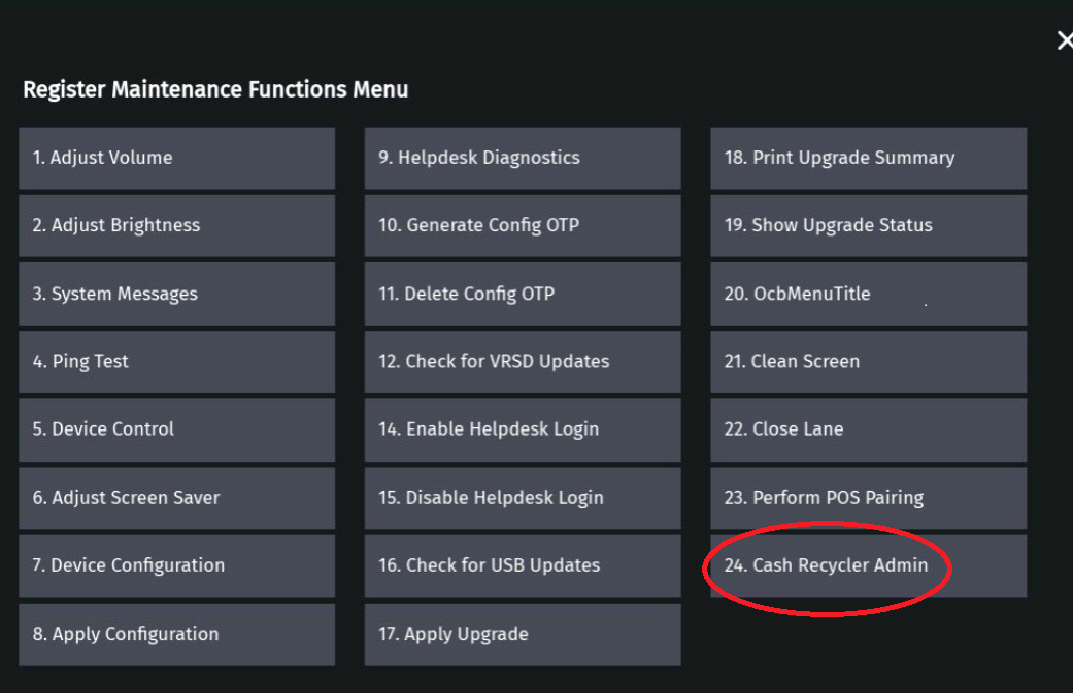
Selecting of Cash Recycler Admin opens the menu with all the Glory Cash Recyclers configured from configuration client.

When a Cash Recycler is selected, the Glory Admin Tool appears in the POS in an iframe. Cashier Preferences icons are disabled while on the Cash Recycler Admin Menu page and on the Cash Recycler Admin Tool.The frame only has the Exit button.
{% hint style="info" %}
*From Verifone Commander Release 56.02, both Glory and Crane Admin Tool can be accessed from C-18 POS. The Crane device needs to have at least uAPI version 3.5 or higher.*
{% endhint %}

{% hint style="info" %}
*Refer to the Glory Recycler documentation for more information on the functions supported from the Glory Recycler Admin Tool.*
{% endhint %}
Journal entries are created with the Cash Recycler name when the user enters & exits the admin tool.
**Entry Journal**

**Exit Journal**

{% hint style="info" %}
*SCO timeout is increased to 5 minutes when in the Glory Recycler Admin UI.*
{% endhint %}
**Cash Recycler Alarm Messages**
When cash recycler is offline or low on cash, alarm messages appear on all POSs.
**SCO Mode Alarms**
In Self Checkout the alarms only appear in the cashier mode, in the CSR Func screen.

**Glory Cash Recycler Does Not Have Enough Cash To Dispense Change**
When the Glory Recycler does not have enough cash to dispense the change after a transaction, the following message appears:

**Crane Cash Recycler Does Not Have Enough Cash To Dispense Change**
When the Crane Recycler does not have enough cash to dispense the change after a transaction, the following message appears:

---
# Agent Instructions
This documentation is published with GitBook. GitBook is the documentation platform designed so that both humans and AI agents can read, navigate, and reason over technical content effectively. Learn more at gitbook.com.
## Querying This Documentation
If you need additional information that is not directly available in this page, you can query the documentation by asking a question.
Perform an HTTP GET request on the following URL with the `ask` and `goal` query parameters:
```
GET https://docs.verifone.com/feature-references/features-and-products-references/self-checkout/using-self-checkout/cashier-functions.md?ask=&goal=
```
`ask` is the immediate question: it should be specific, self-contained, and written in natural language.
`goal` is what the user is ultimately trying to achieve, the reason they need the answer. Sharing it helps GitBook give you a better, more relevant answer. A goal is most helpful when it describes the outcome the user wants rather than restating the question. For example, with `ask=how do I create an API token`, a goal like `automate deployments from our CI pipeline` lets GitBook tailor the answer to that use case.
The response will contain a direct answer to the question and relevant excerpts and sources from the documentation.
Use this mechanism when the answer is not explicitly present in the current page, you need clarification or additional context, or you want to retrieve related documentation sections.


 | Customer added age restricted item. |
## Self Checkout Monitoring Using Light Pole
From Verifone Commander Release 55.02, an LED light pole can be integrated to the C18 Self Checkout device.
The light pole:
* Visually notifies the store personnel that a customer using the Self Checkout may need assistance
* Allows to monitor from far what the customer might be doing at the Self Checkout even when not viewing the Self Checkout monitoring buttons on the POS.
The light pole is a plug n play device and does not require any configuration changes using the Verifone configuration client. Customers just need to install the light tower and reboot the C18. The light pole can only be added to C18 Self Checkout device. The light ring on C18 changes color accordingly.
The following are the colors of the light pole based on what is happening at the Self Checkout:
**Non Sales Screen: No light**
No light when SCO is in Close Lane mode, CSR functions screen, or when SCO is offline.
**Self Checkout Ready to Use: Green**
Green solid light when SCO is checked in without adding any items.
**Self Checkout In Use: White**
White solid light when SCO is in use.
**User Requires Assistance or Age Verification Item Scanned: Red**
Red slow flashing light when the user requires assistance or an age verification item is scanned.
**Cashier Logs in to Assist Customer: Blue**
Blue solid light when cashier logs in to Self Checkout to assist customer.
**Suspend Transaction: Yellow**
Yellow slow flashing light when the customer selects "Pay at Counter" or when the cashier logs in and suspends a transaction.
## Void Ticket
From Commander Release 56.00, the remote cashier action "Void Ticket" has been implemented into Self-Checkout Monitoring Detailed View. A cashier logged into a POS that has the appropriate security can see this option available between the time an item is added to the SCO basket up until the customer is ready to checkout and pay. If the cashier voids the ticket, the SCO voids the transaction and returns to the Welcome screen. The detailed view on the POS returns to idle.


