> For the complete documentation index, see [llms.txt](https://docs.verifone.com/llms.txt). Markdown versions of documentation pages are available by appending `.md` to page URLs; this page is available as [Markdown](https://docs.verifone.com/online-payments/advanced-payment-methods-apms/swish.md).
# Swish
Swish is a Swedish payment method that allows shoppers to accept online payments in-app. It has more than 7 million users and is owned by the largest banks in Sweden using account-to-account payments. By offering Swish to your shoppers as an online payment option for online web shops, both on desktop, tablets, and smartphone devices, you can make your business more attractive to customers in Sweden.
## Availability
Swish is available to shoppers in Sweden who use Swedish krona (SEK) to pay online.
## Benefits
* Increased conversion and buying as Swish is the preferred payment method in Sweden.
* Attracting a larger customer pool that prefers using Swish to pay for online purchases.
* Simplified payment acceptance across different sales channels.
* Swish has a year-on-year growth of 53%.
## Workflow
### Swish Checkout (HPP) Flow
To use Swish during the checkout flow, the shopper needs to download the Swish app on their phone, sign into their internet bank, and connect their phone number to a bank account. Shoppers also are required to download the Mobile BankID app for identification purposes.
The checkout process is performed as follows:
1. The shopper initiates an online payment from either the desktop/laptop browser or on their mobile phone and proceeds to the checkout by choosing to pay via Swish.
2. The shopper proceeds to checkout, inputs their phone number, and clicks on the **Continue with Swish** button.
3. On the Swish app, the shopper must include in the Phone number field only numbers. **For example**: 9483982222
Swish phone number field does not support symbols or letters.
**Swish Desktop View**
\
**Swish mobile view**
4. The shopper is then prompted with the message "**Check your Swish app for a payment request**".
5. The shopper opens the Swish app to approve the payment.\
**Swish desktop flow**
\
**Swish mobile flow**
6. The payment is approved and signed with BankID app.
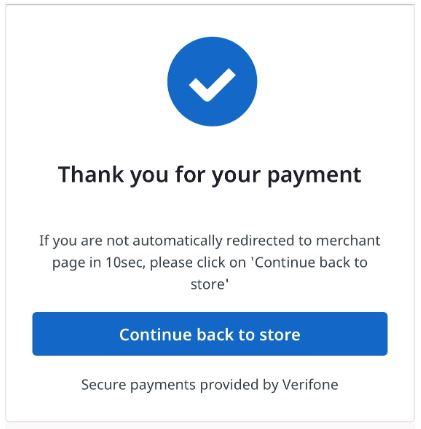
7. The shopper sees on the Swish app and HPP page that the payment was successfully approved. \
**Swish desktop view**
\
**Swish mobile view**
8. The shopper can check in the *Transaction History* section in the Swish app that the payment was successfully finalized.
## Activate Swish
### Merchant onboarding on the Swish side
1. The merchant contacts their bank to register for Swish online. Swish is offered by the largest banks in Sweden. Each bank is responsible for offers, terms, and eventual charges for the service provided to their customers. For information regarding the terms and conditions for using Swish, merchants need to visit their bank website.
2. The bank will connect the merchant's Swish number with Verifone, as a technical supplier, also known as Partner, and helps merchants integrate with Swish.
### Merchant Onboarding on the Verifone side
1. A Verifone admin helps you with your new settings in Verifone Central.
2. The Verifone admin creates and enables a Payment Provider Contract (PPC) for you, which is associated with the Organization.
3. The PPC should include the following information for Swish eComm:
* Service provider - Swish
* Sales channel - eCommerce
* Merchant ID - Swish number is mandatory (string, numeric 10 digits, starting with "123..." for merchants)
* Currencies - only Swedish Krona (SEK) can be selected for this payment method
* Payment Types - Swish is prefilled
4. You will then receive the onboarding email notifications that inform you about the creation of your account and the setting of a username and password so that you can access Verifone Central.
{% hint style="warning" %}
A merchant can only use 1 Swish PPC per organization. If the merchant has POS and E-commerce set as channels, both will be configured under the same PPC from the channel field.
{% endhint %}
## Integrate Swish as a payment method
You can accept payments through Swish by using:
1. [Checkout](/online-payments/checkout/accepting-payments/swish.md) (Hosted Payments Page - HPP)
2. [Pay by Link](/online-payments/pay-by-link.md)
3. [Verifone's eComm API](broken://spaces/OiXbo96Og9EN7rz2U44K/pages/OnU159hHWJkJp14gc6AP) (payment modification only)
## Payment actions
By using Swish with automatic capture, refund and cancelation will be made by the system if the sale is in the sale-initiated status and if there are timeouts or system issues.
You can perform the following [payment actions](/online-payments/payment-actions.md) using Swish, either via Verifone Central or via the Verifone eComm API:
* [Capturing authorizations](/online-payments/payment-actions/capturing-an-authorization.md)
* [Canceling captures](/online-payments/payment-actions/void.md)
* [Refunding transactions](/online-payments/payment-actions/refunds.md)
---
# Agent Instructions
This documentation is published with GitBook. GitBook is the documentation platform designed so that both humans and AI agents can read, navigate, and reason over technical content effectively. Learn more at gitbook.com.
## Querying This Documentation
If you need additional information that is not directly available in this page, you can query the documentation by asking a question.
Perform an HTTP GET request on the following URL with the `ask` and `goal` query parameters:
```
GET https://docs.verifone.com/online-payments/advanced-payment-methods-apms/swish.md?ask=&goal=
```
`ask` is the immediate question: it should be specific, self-contained, and written in natural language.
`goal` is what the user is ultimately trying to achieve, the reason they need the answer. Sharing it helps GitBook give you a better, more relevant answer. A goal is most helpful when it describes the outcome the user wants rather than restating the question. For example, with `ask=how do I create an API token`, a goal like `automate deployments from our CI pipeline` lets GitBook tailor the answer to that use case.
The response will contain a direct answer to the question and relevant excerpts and sources from the documentation.
Use this mechanism when the answer is not explicitly present in the current page, you need clarification or additional context, or you want to retrieve related documentation sections.