> For the complete documentation index, see [llms.txt](https://docs.verifone.com/llms.txt). Markdown versions of documentation pages are available by appending `.md` to page URLs; this page is available as [Markdown](https://docs.verifone.com/support-denmark/p400-2-delt/vejledninger/sadan-opsaetter-du-wi-fi.md).
# Sådan opsætter du Wi-Fi
Tilslut din P400 2-DELT til dit Wi-Fi-netværk, og ret en forkert Wi-Fi-adgangskode.
{% hint style="info" %}
**Brug dette, når** du vil forbinde din terminal til dit Wi-Fi-netværk i stedet for at bruge et netværkskabel.
{% endhint %}
## Før du begynder
{% hint style="warning" %}
* Hav dit **Wi-Fi-netværksnavn** og **Wi-Fi-adgangskode** klar.
* Begge enheder skal være forbundet til **samme netværk**.
{% endhint %}
Du kan forbinde dine to enheder på en af følgende måder:
* **Begge enheder på Wi-Fi**
* **Én enhed på Wi-Fi** og **én enhed med et netværkskabel (Ethernet/LAN)**
* **Begge enheder med et netværkskabel (Ethernet/LAN)** — se [Sådan tilslutter du kablerne](/support-denmark/p400-2-delt/vejledninger/sadan-tilslutter-du-kablerne.md)
Følg trinnene nedenfor på **hver enhed, du vil forbinde til Wi-Fi**.
For at åbne menuen:
* **Ekspedient del:** tryk **#**. Der kræves ingen adgangskode.
* **Kundeenhed:** tryk **4** og **6** samtidig, og derefter indtaste adgangskode **1234** og trykke på **den grønne knap**.
## Forbind til Wi-Fi
{% stepper %}
{% step %}
### Åbn Wi-Fi-indstillingerne
1. Åbn menuen.
2. Vælg **Administration > Indstillinger > Kommunikation**.
3. Vælg **Wi-Fi > Konfiguration**.
{% endstep %}
{% step %}
### Søg efter dit netværk
Tryk på **WiFi-scanning**.
{% endstep %}
{% step %}
### Vælg dit netværk
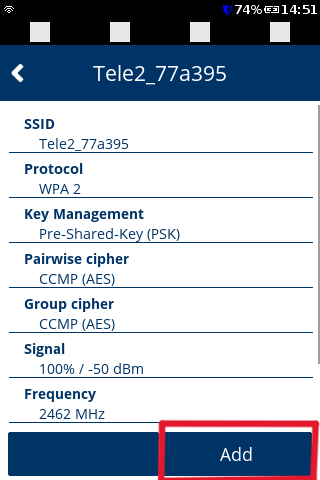
Dit Wi-Fi-netværk bør vises på listen. Tryk på det, og tryk derefter på **TILFØJ**.
{% endstep %}
{% step %}
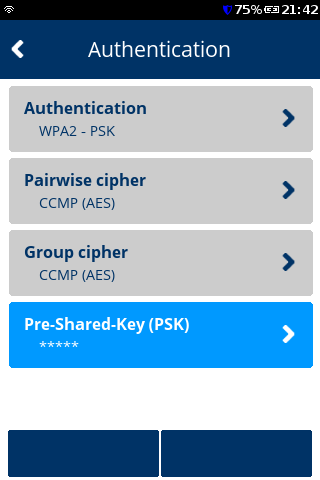
### Indtast din Wi-Fi-adgangskode
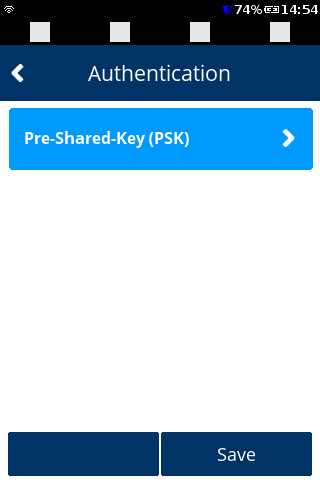
1. Tryk på **Pre-Shared-Key (PSK)**.
2. Indtast din Wi-Fi-adgangskode, og tryk derefter på **OK**.
{% hint style="info" %}
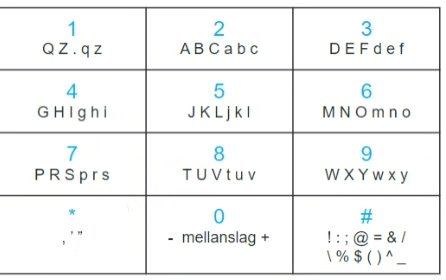
For at skrive bogstaver og symboler skal du bruge taltasterne — tryk gentagne gange på en tast for at gennemgå dens bogstaver.
{% endhint %}
{% endstep %}
{% step %}
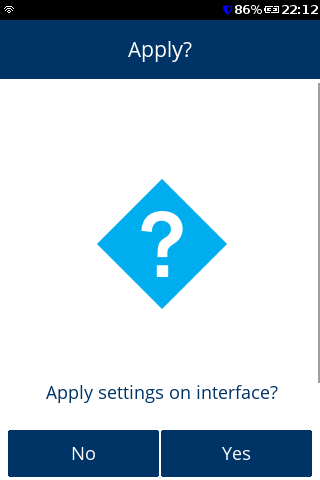
### Gem indstillingerne
1. Tryk på **Gem**.
2. Tryk på **OK**.
3. Tryk på **Ja**.
{% endstep %}
{% step %}
### Tjek forbindelsen
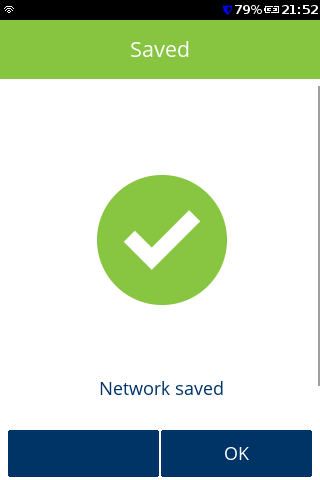
Skærmen bør vise **"Netværk startet"** med et **grønt flueben**.
✅ **Netværket er startet — du er forbundet.** ❌ **Ikke forbundet — se fejlfindingsafsnittet nedenfor.**
{% endstep %}
{% endstepper %}
## Hvis Wi-Fi-adgangskoden var forkert
Hvis terminalen siger, at oplysningerne (legitimationsoplysningerne) er forkerte, blev Wi-Fi-adgangskoden indtastet forkert. For at rette det:
{% stepper %}
{% step %}
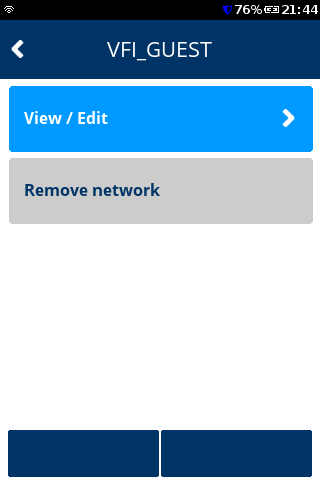
### Åbn dit gemte netværk
1. Åbn menuen, og gå til **Administration > Indstillinger > Kommunikation > Wi-Fi > Konfiguration**.
2. Tryk på dit Wi-Fi-netværk.
{% endstep %}
{% step %}
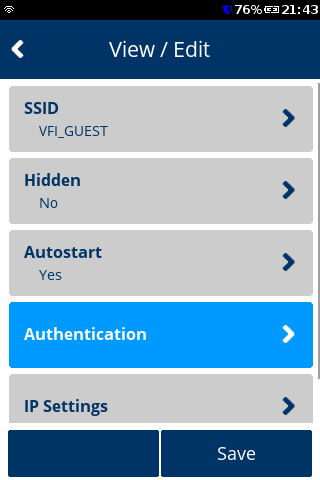
### Åbn adgangskodeindstillingerne
1. Tryk på **Vis/rediger**.
2. Tryk på **Godkendelse**.
3. Tryk på **Pre-Shared-Key (PSK)**.
{% endstep %}
{% step %}
### Indtast den korrekte adgangskode
1. Slet den gamle adgangskode ved hjælp af **den gule knap**.
2. Indtast den korrekte Wi-Fi-adgangskode, og tryk derefter på **Gem**.
{% endstep %}
{% step %}
### Gem og kontroller forbindelsen
1. Tryk på **tilbagepil**.
2. Tryk på **Gem**, og derefter **OK**, og derefter **Ja**.
Skærmen bør vise **"Netværk startet"** med et **grønt flueben**.
{% endstep %}
{% endstepper %}
## Forbinder den stadig ikke?
* **Kontrollér, at dit Wi-Fi-netværk fungerer.** Prøv at forbinde en anden enhed, f.eks. din telefon, til det samme Wi-Fi.
* **Intet andet internet tilgængeligt?** Du kan teste terminalen ved hjælp af din mobiltelefons **personlige hotspot**, ved at forbinde terminalen til den på samme måde.
* Virker det stadig ikke? Kontakt Verifone Support — vi bliver måske nødt til at kontrollere terminalens Wi-Fi-sikkerhedsindstillinger.
Nøgleord
Også kaldet: opsæt Wi-Fi, forbind Wi-Fi, trådløs opsætning, tilslut netværk, WiFi-opsætning, forkert Wi-Fi-adgangskode, netværk startet. Søgeord: wifi, wi-fi, trådløs, netværk, forbinde, adgangskode, PSK, Pre-Shared-Key, forud-delt nøgle, scanning, hotspot.
---
# Agent Instructions
This documentation is published with GitBook. GitBook is the documentation platform designed so that both humans and AI agents can read, navigate, and reason over technical content effectively. Learn more at gitbook.com.
## Querying This Documentation
If you need additional information that is not directly available in this page, you can query the documentation by asking a question.
Perform an HTTP GET request on the following URL with the `ask` and `goal` query parameters:
```
GET https://docs.verifone.com/support-denmark/p400-2-delt/vejledninger/sadan-opsaetter-du-wi-fi.md?ask=&goal=
```
`ask` is the immediate question: it should be specific, self-contained, and written in natural language.
`goal` is what the user is ultimately trying to achieve, the reason they need the answer. Sharing it helps GitBook give you a better, more relevant answer. A goal is most helpful when it describes the outcome the user wants rather than restating the question. For example, with `ask=how do I create an API token`, a goal like `automate deployments from our CI pipeline` lets GitBook tailor the answer to that use case.
The response will contain a direct answer to the question and relevant excerpts and sources from the documentation.
Use this mechanism when the answer is not explicitly present in the current page, you need clarification or additional context, or you want to retrieve related documentation sections.