> For the complete documentation index, see [llms.txt](https://docs.verifone.com/llms.txt). Markdown versions of documentation pages are available by appending `.md` to page URLs; this page is available as [Markdown](https://docs.verifone.com/support-emea/tcs-client/getting-started/first-time-logging-into-tcs.md).
# First time logging into TCS
Log in to TCS for the first time, find your login details, and create your own password.
{% hint style="info" %}
**Use this when** you're logging in to the TCS (Verifone Pay) reporting service for the **first time** and need to set up your own password.
{% endhint %}
{% hint style="warning" %}
**Sweden only.** This guide applies to TCS customers in **Sweden**.
{% endhint %}
{% hint style="danger" %}
**Do NOT use this when** you've already logged in to TCS before and set your own password. See [How to Log In to TCS](https://docs.verifone.com/support-emea/tcs-client/getting-started/how-to-log-in-to-tcs.md) instead, or [How to Reset a Forgotten Password](https://docs.verifone.com/support-emea/tcs-client/getting-started/how-to-reset-a-forgotten-password.md) if you can't remember it.
{% endhint %}
The first time you log in, you use the login details Verifone sends you by email. TCS then asks you to replace the fixed password with a new password of your own.
## Before you start
* Have your **mobile phone** to hand. TCS sends a **one-time password** by SMS to your registered mobile number every time you log in.
* Find the email from Verifone with your login details (see Step 1). If you can't find it, contact Verifone Support and we'll send you your login details.
## Log in for the first time
{% stepper %}
{% step %}
### Find your login email
Look for an email from **Verifone TCS Management** () with the subject **TCS-användarkontoinformation**. Your login details are in the attached **PDF**.

{% hint style="info" %}
**Can't find the email?** Check your **junk** or **spam** folder, or search your inbox for **TCS-användarkontoinformation**.
{% endhint %}
{% endstep %}
{% step %}
### Open the PDF
Open the attached PDF. You'll find your:
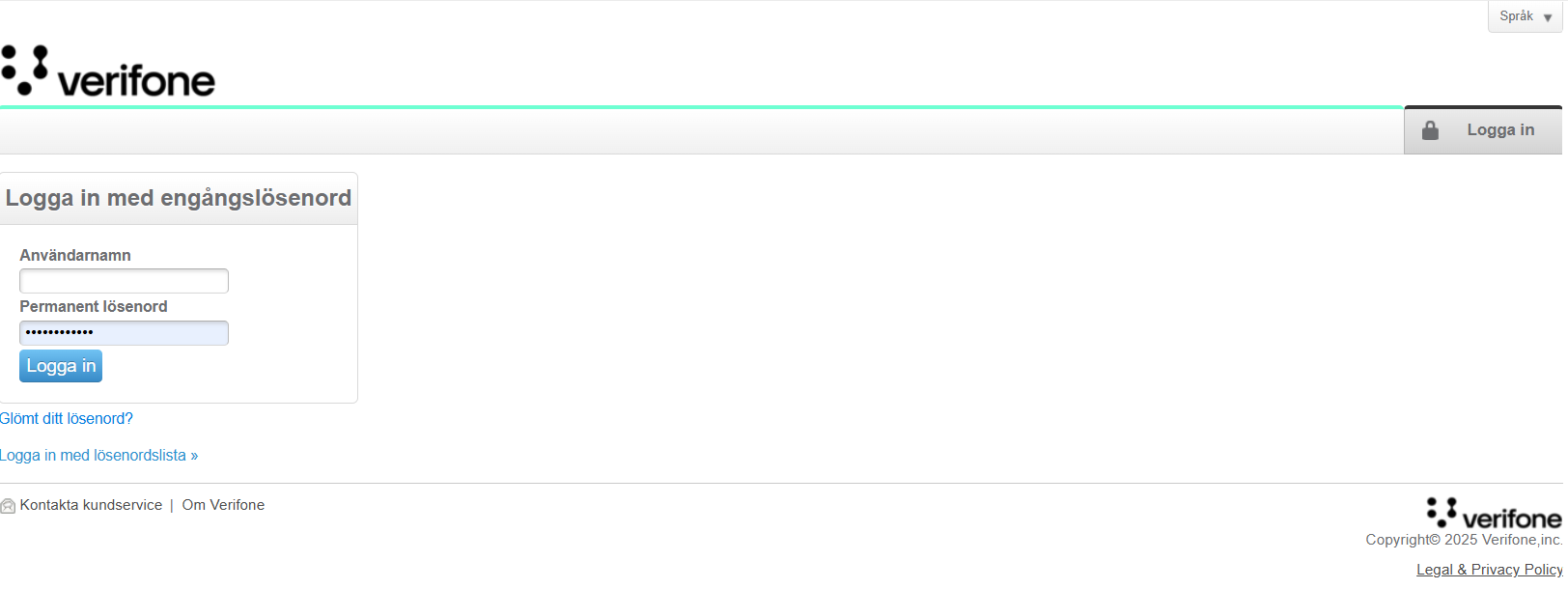
* **Username** — shown as **Användarnamn**
* **Fixed password** — shown as **Permanent lösenord**

{% hint style="warning" %}
Keep this PDF safe and don't share it. It contains your personal login details.
{% endhint %}
{% endstep %}
{% step %}
### Go to the TCS website
Go to .
{% hint style="info" %}
TCS is available in several languages. Choose your language under **Language** (**Språk**) at the top of the page before you log in.
{% endhint %}
{% endstep %}
{% step %}
### Enter your username and fixed password
Enter the **username** and **fixed password** from the PDF, then click **Log in**.
{% endstep %}
{% step %}
### Create your new password
TCS tells you that your initial password hasn't been changed yet. Enter:
1. Your **old password** (the fixed password from the PDF).
2. Your **new password**.
3. Your **new password again**.
Then click **Log in**.

{% hint style="warning" %}
**Your new password must:**
* Be **12–32 characters** long
* Contain both **upper and lower case letters**
* Contain **numbers**
* Contain **special characters**
* Not be the same as any of your **last 16 passwords**
{% endhint %}
{% endstep %}
{% step %}
### Log in with your new password
Enter the **username** from the PDF and the **new password** you just created, then click **Log in**.
{% hint style="info" %}
From now on, use this **new password** every time you log in to TCS.
{% endhint %}
{% endstep %}
{% step %}
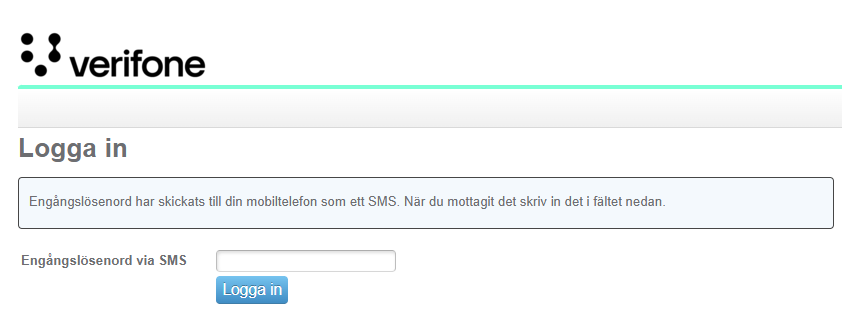
### Enter your SMS code
Enter the **one-time password** you received by SMS, then click **Log in**.
{% hint style="success" %}
**Done!** You're now logged in to TCS. Next time, follow [How to Log In to TCS](https://docs.verifone.com/support-emea/tcs-client/getting-started/how-to-log-in-to-tcs.md).
{% endhint %}
{% endstep %}
{% endstepper %}
## Related guides
* [How to Log In to TCS](https://docs.verifone.com/support-emea/tcs-client/getting-started/how-to-log-in-to-tcs.md)
* [How to Change Your Password](https://docs.verifone.com/support-emea/tcs-client/getting-started/how-to-change-your-password.md)
* [How to Reset a Forgotten Password](https://docs.verifone.com/support-emea/tcs-client/getting-started/how-to-reset-a-forgotten-password.md)
* [Using the TCS Home Page](https://docs.verifone.com/support-emea/tcs-client/getting-started/using-the-tcs-home-page.md)
Keywords
Also called: first login, first time login, new TCS user, initial password, set up password, TCS login details, TCS-användarkontoinformation, welcome email. Search terms: first time, first login, TCS, Verifone Pay, initial password, fixed password, permanent lösenord, användarnamn, change password, password rules, SMS, one-time password, login email, PDF.
---
# Agent Instructions
This documentation is published with GitBook. GitBook is the documentation platform designed so that both humans and AI agents can read, navigate, and reason over technical content effectively. Learn more at gitbook.com.
## Querying This Documentation
If you need additional information that is not directly available in this page, you can query the documentation by asking a question.
Perform an HTTP GET request on the following URL with the `ask` and `goal` query parameters:
```
GET https://docs.verifone.com/support-emea/tcs-client/getting-started/first-time-logging-into-tcs.md?ask=&goal=
```
`ask` is the immediate question: it should be specific, self-contained, and written in natural language.
`goal` is what the user is ultimately trying to achieve, the reason they need the answer. Sharing it helps GitBook give you a better, more relevant answer. A goal is most helpful when it describes the outcome the user wants rather than restating the question. For example, with `ask=how do I create an API token`, a goal like `automate deployments from our CI pipeline` lets GitBook tailor the answer to that use case.
The response will contain a direct answer to the question and relevant excerpts and sources from the documentation.
Use this mechanism when the answer is not explicitly present in the current page, you need clarification or additional context, or you want to retrieve related documentation sections.