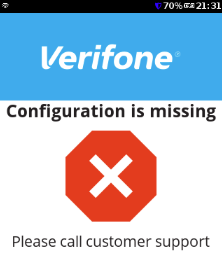
> For the complete documentation index, see [llms.txt](https://docs.verifone.com/llms.txt). Markdown versions of documentation pages are available by appending `.md` to page URLs; this page is available as [Markdown](https://docs.verifone.com/support-nordics/p400-two-piece-sa/errors/configuration-is-missing.md).
# Configuration Is Missing
What to do when your P400 Two-Piece shows Configuration is missing — make sure the terminal is online, then contact Support.
{% hint style="info" %}
**Use this page when** your terminal shows a **red cross** with the message **"Configuration is missing"** and **"Please call customer support"**.
{% endhint %}
Keywords
Also called: configuration is missing, config missing, missing configuration, missing settings, missing software, please call customer support. Search terms: configuration, config, settings, software, red cross, operator unit, online, network.
## Symptoms
You may see one or more of the following:
* A **red cross** with the message **"Configuration is missing"**.
* The message **"Please call customer support"** underneath.
* The terminal won't take payments.
**Why this happens:** your terminal is missing some of the software or settings it needs to take payments. Our Support team can send these to your terminal remotely — the terminal just needs to be online first.
## Before you start
Your P400 Two-Piece has two units:
* **Operator unit** — the unit at the till.
* **Customer unit** — the unit your customer uses to pay.
Check which unit is showing the message.
## Resolution
{% stepper %}
{% step %}
### Operator unit only: set it back to operator mode
If the message is on the **operator unit**, it may need to be set back to operator mode:
1. Press **#** to open the menu. If the menu doesn't open, press **4** and **6** at the same time instead.
2. Enter password **1234**.
3. Select **Administration**.
4. Press the **down arrow** and select **Operator unit**.
If the message is on the **customer unit**, skip to Step 2.
✅ **Message gone — stop here.** ❌ **Message still showing — continue to Step 2.**
{% endstep %}
{% step %}
### Check your terminal is online
1. Open the menu on the unit showing the message:
* **Operator unit:** press **#**.
* **Customer unit:** press **4** and **6** at the same time, then enter password **1234**.
2. Select **Administration > Settings > Communications**.
3. Look for **LAN** or **Wi-Fi** showing as **UP**.
* **If one shows UP:** your terminal is online — continue to Step 3.
* **If neither shows UP:** your terminal is offline. Reconnect it using [How to Connect the Cables](/support-nordics/p400-two-piece-sa/how-tos/how-to-connect-the-cables.md) (network cable) or [How to Set Up Wi-Fi](/support-nordics/p400-two-piece-sa/how-tos/how-to-set-up-wi-fi.md) (Wi-Fi), then check again.
{% endstep %}
{% step %}
### Run a network test
Run a quick network test to make sure the connection is working — see [How to Do a Network Test](/support-nordics/p400-two-piece-sa/how-tos/how-to-do-a-network-test.md).
* **If the test fails:** go back to Step 2 and check the connection again.
* **If the test passes:** continue to Step 4.
{% endstep %}
{% step %}
### Contact Verifone Support
Once your terminal is online, contact Verifone Support and let us know it's showing **"Configuration is missing"**. We'll send the missing software and settings to your terminal remotely.
Keep the terminal switched on and connected while we do this.
{% endstep %}
{% endstepper %}
**If the message has gone.** Your terminal is ready to use.
**If the message is still showing.** Contact Support below.
## Still not working?
{% hint style="info" %}
**Still need help? Contact Verifone Support.**
If the steps above haven't resolved the issue, contact Verifone Support. Tell us the troubleshooting steps you've already tried — it helps us get you to the right support faster.
{% endhint %}
---
# Agent Instructions
This documentation is published with GitBook. GitBook is the documentation platform designed so that both humans and AI agents can read, navigate, and reason over technical content effectively. Learn more at gitbook.com.
## Querying This Documentation
If you need additional information that is not directly available in this page, you can query the documentation by asking a question.
Perform an HTTP GET request on the following URL with the `ask` and `goal` query parameters:
```
GET https://docs.verifone.com/support-nordics/p400-two-piece-sa/errors/configuration-is-missing.md?ask=&goal=
```
`ask` is the immediate question: it should be specific, self-contained, and written in natural language.
`goal` is what the user is ultimately trying to achieve, the reason they need the answer. Sharing it helps GitBook give you a better, more relevant answer. A goal is most helpful when it describes the outcome the user wants rather than restating the question. For example, with `ask=how do I create an API token`, a goal like `automate deployments from our CI pipeline` lets GitBook tailor the answer to that use case.
The response will contain a direct answer to the question and relevant excerpts and sources from the documentation.
Use this mechanism when the answer is not explicitly present in the current page, you need clarification or additional context, or you want to retrieve related documentation sections.