> For the complete documentation index, see [llms.txt](https://docs.verifone.com/llms.txt). Markdown versions of documentation pages are available by appending `.md` to page URLs; this page is available as [Markdown](https://docs.verifone.com/support-norway/v400c/feil/failed-check-interface-config.md).
# Failed Check Interface Config
Hva du gjør når din V400c viser Failed check interface config under tilkobling til Wi-Fi — oppdater sikkerhetsinnstillingen for Wi-Fi.
{% hint style="info" %}
**Bruk denne siden når** terminalen din viser **Failed check interface config** under tilkobling til Wi-Fi.
{% endhint %}
## Symptomer
Du kan se ett eller flere av følgende:
* Terminalen viser **Failed check interface config** når den kobler til Wi-Fi.
* Terminalen viser ikke **"Network started"** etter at du har lagret Wi-Fi-innstillingene.
**Hvorfor dette skjer:** sikkerhetsinnstillingen for Wi-Fi (kalt **Group cipher**) på terminalen samsvarer ikke med Wi-Fi-nettverket ditt. Å endre den til **CCMP (AES)/TKIP** løser vanligvis dette.
## Før du begynner
For å åpne menyen, trykk **4** og **6** samtidig, og skriv deretter inn passordet **1234** og trykk på **den grønne knappen**.
## Løsning
{% stepper %}
{% step %}
### Åpne det lagrede Wi-Fi-nettverket
1. Åpne menyen.
2. Velg **Administrasjonsmeny > Settings > Communication**.
3. Velg **More > Configuration > Network Interface > Wi-Fi**.
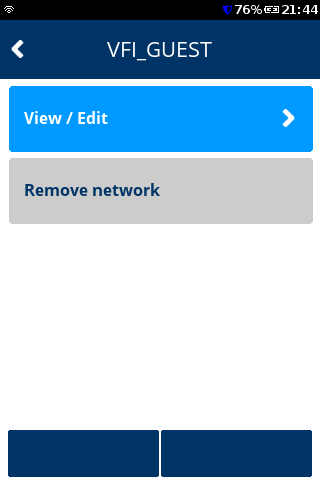
4. Trykk på Wi-Fi-nettverket ditt (SSID).
{% endstep %}
{% step %}
### Åpne sikkerhetsinnstillingene
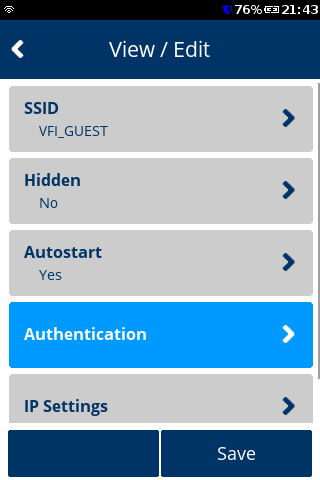
1. Trykk på **View/Edit**.
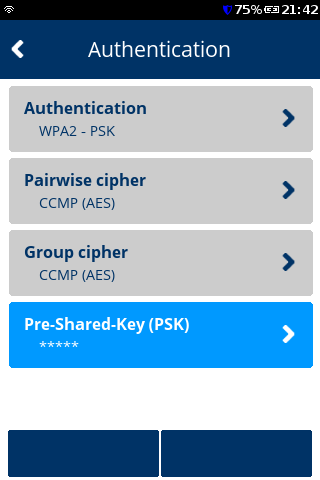
2. Trykk på **Authentication**.
{% endstep %}
{% step %}
### Endre Group cipher
1. Trykk på **Group cipher**.
2. Velg **CCMP (AES)/TKIP**.
{% endstep %}
{% step %}
### Lagre innstillingene
1. Trykk på **tilbakepilen**.
2. Trykk på **Save**, deretter **OK**, og så **Yes**.
{% endstep %}
{% step %}
### Kontroller tilkoblingen
Skjermen skal vise **"Network started"** med et **grønt hakemerke**.
✅ **Network started — stopp her.** ❌ **Kobler fortsatt ikke til — fortsett til steg 6.**
{% endstep %}
{% step %}
### Kontroller at Wi-Fi-nettverket fungerer
* Prøv å koble en annen enhet, for eksempel mobiltelefonen din, til det samme Wi-Fi-nettverket.
* Hvis du ikke har en annen internettforbindelse, kan du teste terminalen ved å bruke **mobilt tilgangspunkt** på mobiltelefonen din — se [Slik setter du opp Wi-Fi](/support-norway/v400c/veiledninger/slik-setter-du-opp-wi-fi.md).
✅ **Tilkoblet — stopp her.** ❌ **Kobler fortsatt ikke til — fortsett til steg 7.**
{% endstep %}
{% step %}
### Kontakt Verifone Support
Hvis terminalen fortsatt ikke kobler til, kontakt Verifone Support.
{% endstep %}
{% endstepper %}
**Hvis terminalen viser "Network started".** Den er tilkoblet og klar til bruk.
**Hvis den fortsatt ikke kobler til.** Kontakt Support nedenfor.
## Fungerer det fremdeles ikke?
{% hint style="info" %}
**Trenger du fortsatt hjelp? Kontakt Verifone Support.**
Hvis stegene ovenfor ikke har løst problemet, kontakt Verifone Support. Fortell oss hvilke feilsøkingstiltak du allerede har prøvd — det hjelper oss med å koble deg raskere til riktig støtte.
{% endhint %}
---
# Agent Instructions
This documentation is published with GitBook. GitBook is the documentation platform designed so that both humans and AI agents can read, navigate, and reason over technical content effectively. Learn more at gitbook.com.
## Querying This Documentation
If you need additional information that is not directly available in this page, you can query the documentation by asking a question.
Perform an HTTP GET request on the following URL with the `ask` and `goal` query parameters:
```
GET https://docs.verifone.com/support-norway/v400c/feil/failed-check-interface-config.md?ask=&goal=
```
`ask` is the immediate question: it should be specific, self-contained, and written in natural language.
`goal` is what the user is ultimately trying to achieve, the reason they need the answer. Sharing it helps GitBook give you a better, more relevant answer. A goal is most helpful when it describes the outcome the user wants rather than restating the question. For example, with `ask=how do I create an API token`, a goal like `automate deployments from our CI pipeline` lets GitBook tailor the answer to that use case.
The response will contain a direct answer to the question and relevant excerpts and sources from the documentation.
Use this mechanism when the answer is not explicitly present in the current page, you need clarification or additional context, or you want to retrieve related documentation sections.