> For the complete documentation index, see [llms.txt](https://docs.verifone.com/llms.txt). Markdown versions of documentation pages are available by appending `.md` to page URLs; this page is available as [Markdown](https://docs.verifone.com/support-sweden/t650c-tvadelad/sa-har-gor-du/terminalinstallation-ur-kartong.md).
# Terminalinstallation (ur kartong)
Så installerar du din nya T650 med två delar (T650C och P400) första gången med språk, nätverk och enhets-ID.
{% hint style="info" %}
Använd den här guiden när du installerar din nya T650 med två delar (T650C och P400) för första gången.
Vid installationen väljer du språk, ansluter terminalen till nätverket och aktiverar den med enhets-ID:t (*Device ID*) från ditt välkomstmejl.
{% endhint %}
{% hint style="warning" %}
**Viktigt:** Terminalens **serienummer** och ditt **enhets-ID** kopplas ihop först när du har slutfört installationen och angett enhets-ID:t på terminalen.
{% endhint %}
## Innan du börjar
* Anslut **P400** till **T650C** och sätt i T650C:s **USB-C-strömkabel** i ett eluttag. Läs mer i guiden [Så här ansluter du kablarna](/support-sweden/t650c-tvadelad/sa-har-gor-du/sa-har-ansluter-du-kablarna.md).
* Ha ditt **välkomstmejl** till hands. Där hittar du ditt **enhets-ID** och en QR-kod.
Du gör hela installationen på **T650C**. P400 får ström och nätverksanslutning från T650C och startar samtidigt.
## Installera terminalen steg för steg
{% stepper %}
{% step %}
### Slå på terminalen
Håll in **strömknappen** på T650C tills den startar.
{% endstep %}
{% step %}
### Välj språk
Välj ditt språk på den första skärmen.
{% endstep %}
{% step %}
### Anslut till nätverket
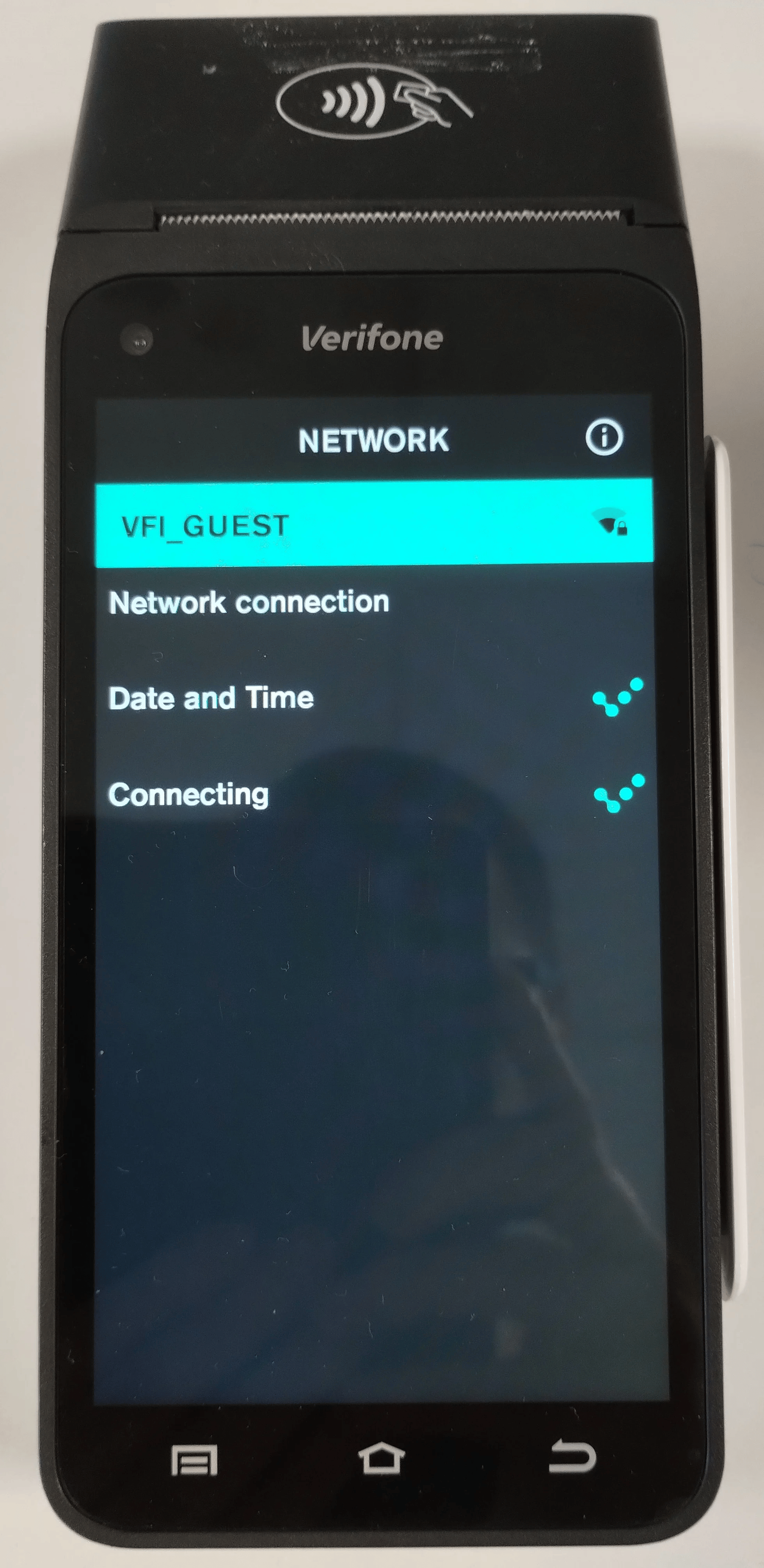
T650C visar de Wi-Fi-nätverk som finns tillgängliga.
* **Om du använder Wi-Fi:** Välj ditt nätverk, ange Wi-Fi-lösenordet och tryck på **Nästa**.
* **Om du använder Ethernet:** När nätverkskabeln är ansluten till T650C kan du trycka på **Nästa**.
{% endstep %}
{% step %}
### Ange enhets-ID
Skanna QR-koden i ditt välkomstmejl eller ange enhets-ID:t manuellt.
{% hint style="info" %}
Om du är osäker på ditt enhets-ID kontaktar du Verifone Support.
{% endhint %}
{% endstep %}
{% step %}
### Vänta medan terminalen uppdateras
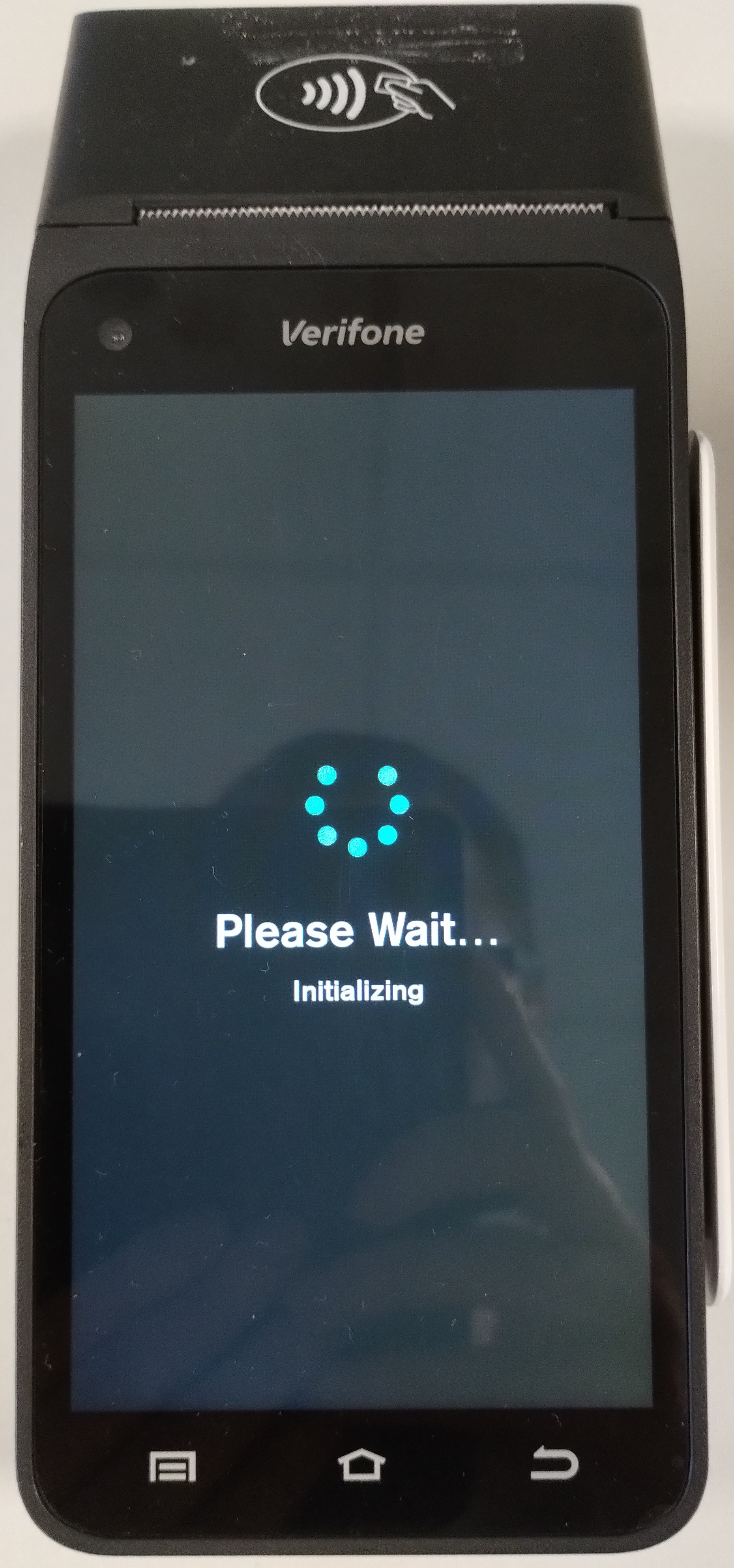
Terminalen kopplas till ditt konto och söker efter uppdateringar.
{% hint style="warning" %}
**Viktigt:** Stäng inte av terminalen och koppla inte loss någon av enheterna medan uppdateringarna installeras.
{% endhint %}
{% endstep %}
{% step %}
### Slutför installationen
När uppdateringarna är klara startar T650C om. Därefter visas antingen försäljningsskärmen direkt, eller så ber terminalen dig att ställa in koder för chef och kassör. Läs mer i guiden [Så här ställer du in koder för chef och kassör](/support-sweden/t650c-tvadelad/sa-har-gor-du/sa-har-staller-du-in-koder-for-chef-och-kassor.md).
{% hint style="success" %}
**Klart!** Terminalen är nu installerad, och P400 är redo att användas av dina kunder.
{% endhint %}
{% endstep %}
{% endstepper %}
{% hint style="info" %}
**Har terminalen fastnat på ”Söker efter uppdateringar”?** Följ guiden [Terminalen har fastnat på ”Söker efter uppdateringar”](/support-sweden/t650c-tvadelad/fel/terminalen-har-fastnat-pa-soker-efter-uppdateringar.md).
{% endhint %}
Nyckelord
Även kallat: första installation, ur kartong, OOBE, ny terminal, aktivera terminal, enhets-ID, Device ID. Söktermer: installation, ur kartong, OOBE, språk, nätverk, enhets-ID, QR-kod, uppdateringar, T650C, P400.
---
# Agent Instructions
This documentation is published with GitBook. GitBook is the documentation platform designed so that both humans and AI agents can read, navigate, and reason over technical content effectively. Learn more at gitbook.com.
## Querying This Documentation
If you need additional information that is not directly available in this page, you can query the documentation by asking a question.
Perform an HTTP GET request on the following URL with the `ask` and `goal` query parameters:
```
GET https://docs.verifone.com/support-sweden/t650c-tvadelad/sa-har-gor-du/terminalinstallation-ur-kartong.md?ask=&goal=
```
`ask` is the immediate question: it should be specific, self-contained, and written in natural language.
`goal` is what the user is ultimately trying to achieve, the reason they need the answer. Sharing it helps GitBook give you a better, more relevant answer. A goal is most helpful when it describes the outcome the user wants rather than restating the question. For example, with `ask=how do I create an API token`, a goal like `automate deployments from our CI pipeline` lets GitBook tailor the answer to that use case.
The response will contain a direct answer to the question and relevant excerpts and sources from the documentation.
Use this mechanism when the answer is not explicitly present in the current page, you need clarification or additional context, or you want to retrieve related documentation sections.