> For the complete documentation index, see [llms.txt](https://docs.verifone.com/llms.txt). Markdown versions of documentation pages are available by appending `.md` to page URLs; this page is available as [Markdown](https://docs.verifone.com/support-sweden/victa/sa-har-gor-du/sa-har-testar-du-chipkortlasaren.md).
# Så här testar du chipkortläsaren
Så testar du chipkortläsaren på din Victa-terminal och rengör den vid behov.
{% hint style="info" %}
Använd den här guiden när du behöver kontrollera om chipkortläsaren på din Victa-terminal fungerar.
Om testet misslyckas visar guiden också hur du rengör läsaren.
{% endhint %}
## Testa chipkortläsaren steg för steg
{% stepper %}
{% step %}
### Öppna Diagnostik
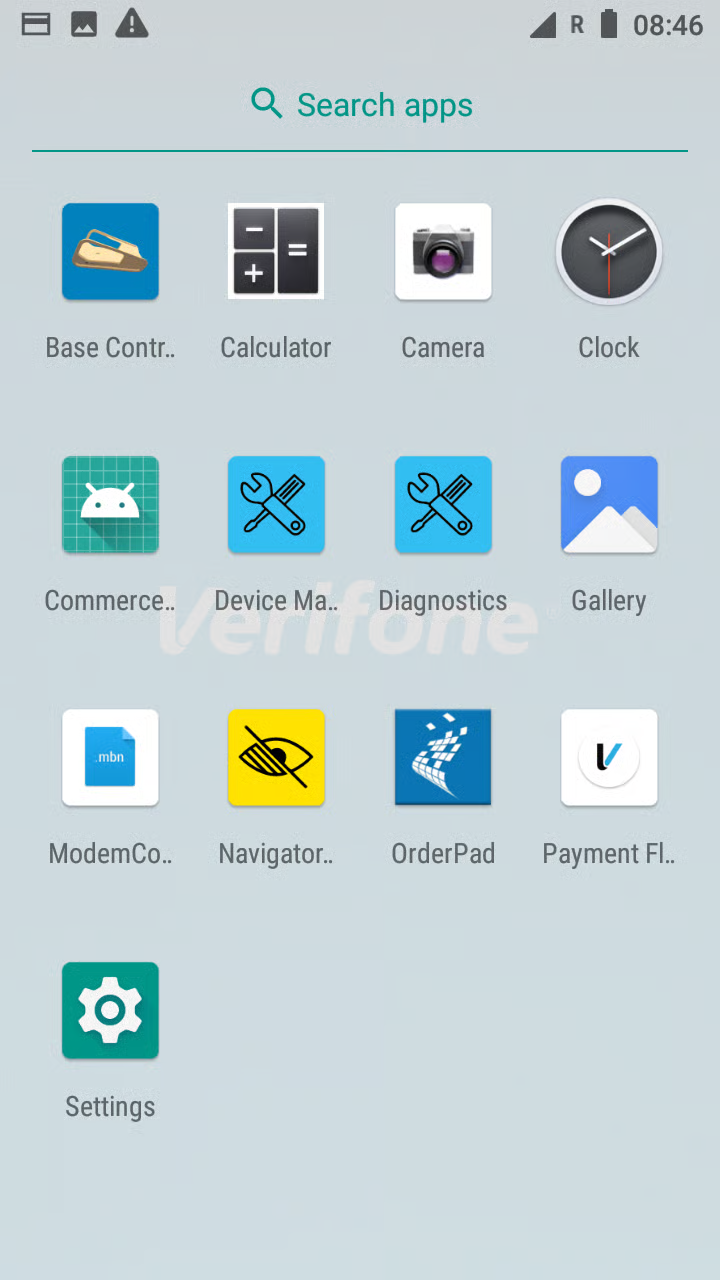
1. Öppna applistan genom att svepa **uppåt** på startskärmen. Om terminalen öppnas direkt i **Connect Express** sveper du **nedåt** från skärmens överkant och trycker på **inställningsikonen** längst ned till höger för att komma till Android-menyn.
2. Tryck på **Diagnostik**.
{% endstep %}
{% step %}
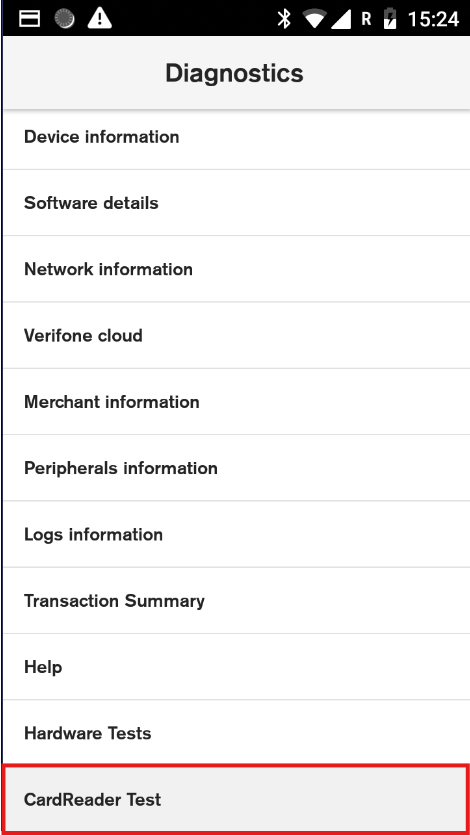
### Öppna Kortläsartest
Bläddra nedåt och välj **Kortläsartest**.
{% endstep %}
{% step %}
### Sätt in ett kort och kontrollera resultatet
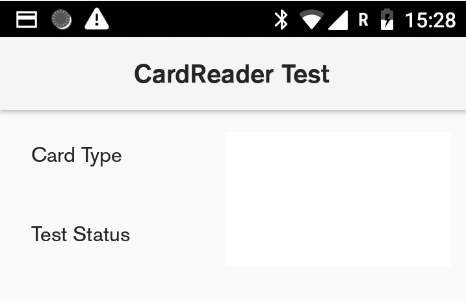
Sätt in ett kort när terminalen ber om det. Testet visar om chipkortläsaren fungerar.
✅ **Om testet godkänns:** Chipkortläsaren fungerar som den ska.
❌ **Om testet misslyckas:** Rengör chipkortläsaren enligt stegen nedan.
{% endstep %}
{% endstepper %}
## Om testet misslyckas: rengör chipkortläsaren
{% stepper %}
{% step %}
### Stäng av terminalen
Håll strömknappen intryckt i cirka **1 sekund** och tryck sedan på **Stäng av**.
{% endstep %}
{% step %}
### Rengör läsaren
Ta ett kort, gärna ett bankkort med upphöjda siffror. Sätt in det **upp och ned och bakvänt**, så att chipet **inte** hamnar i läsaren. Ta ut kortet och sätt in det igen **10 gånger** och vicka lite på det varje gång, så att smuts inne i läsaren lossnar.
{% endstep %}
{% step %}
### Slå på terminalen igen
Håll strömknappen intryckt i cirka **2 sekunder** tills startskärmen visas.
{% endstep %}
{% step %}
### Gör en testbetalning
Gör en liten testbetalning och sätt in ett kort för att kontrollera att chipkortläsaren fungerar.
✅ **Om kortet läses:** Problemet är löst.
❌ **Om kortet fortfarande inte läses:** Chipkortläsaren kan vara skadad. Kontakta Verifone Support för att få en ersättningsterminal. Under tiden kan du fortsätta ta emot **kontaktlösa** betalningar.
{% endstep %}
{% endstepper %}
Nyckelord
Även kallat: kortläsartest, testa chipkortläsaren, chipet läses inte, rengöra chipkortläsaren. Söktermer: chipkortläsare, kortläsare, Kortläsartest, Diagnostik, rengöra, chip.
---
# Agent Instructions
This documentation is published with GitBook. GitBook is the documentation platform designed so that both humans and AI agents can read, navigate, and reason over technical content effectively. Learn more at gitbook.com.
## Querying This Documentation
If you need additional information that is not directly available in this page, you can query the documentation by asking a question.
Perform an HTTP GET request on the following URL with the `ask` and `goal` query parameters:
```
GET https://docs.verifone.com/support-sweden/victa/sa-har-gor-du/sa-har-testar-du-chipkortlasaren.md?ask=&goal=
```
`ask` is the immediate question: it should be specific, self-contained, and written in natural language.
`goal` is what the user is ultimately trying to achieve, the reason they need the answer. Sharing it helps GitBook give you a better, more relevant answer. A goal is most helpful when it describes the outcome the user wants rather than restating the question. For example, with `ask=how do I create an API token`, a goal like `automate deployments from our CI pipeline` lets GitBook tailor the answer to that use case.
The response will contain a direct answer to the question and relevant excerpts and sources from the documentation.
Use this mechanism when the answer is not explicitly present in the current page, you need clarification or additional context, or you want to retrieve related documentation sections.