> For the complete documentation index, see [llms.txt](https://docs.verifone.com/llms.txt). Markdown versions of documentation pages are available by appending `.md` to page URLs; this page is available as [Markdown](https://docs.verifone.com/support-us/verifone-hq/vhq-parameter-management/configuring-parameter-form-view-file.md).
# Configuring parameter form view file
This section discusses configuring Parameters form view file in VHQ.
{% hint style="info" %}
**Use this when** you need to upload the parameter form view (.vpfx) file that controls how an application's parameters are edited in the VHQ UI.
{% endhint %}
VHQ provides a user-friendly interface for editing application parameters using the form file. VPFX is typically prepared by customer administrators, regional support representatives, or VHQ support personnel.
Application parameters stored on a device can have cryptic names, and parameter values can be of specific types (string, numeric) with a permitted set of values. For each parameter in the *Parameter Definition* file, the **Parameter Form View** file defines:
* A user-friendly name shown in the GUI.
* A description of the parameter.
* A default value.
* Rendering control — text box, drop list, numeric, etc.
* Validation rules for the parameter value.
{% hint style="info" %}
To edit an application's parameters using VHQ, the parameter form view file must be configured for that application.
{% endhint %}
## Configure the parameter form view file for an application
{% stepper %}
{% step %}
### Open the Applications Library
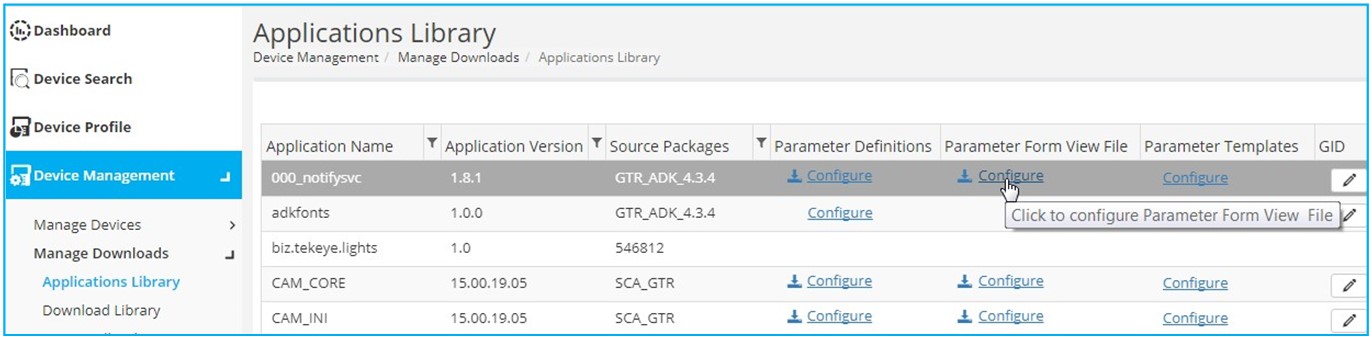
Go to **Device Management** > **Manage Downloads** > **Applications Library**.
{% endstep %}
{% step %}
### Click Configure
Click **Configure** in the *Parameter Form View File* column for the selected application.
{% endstep %}
{% step %}
### Browse and select the file
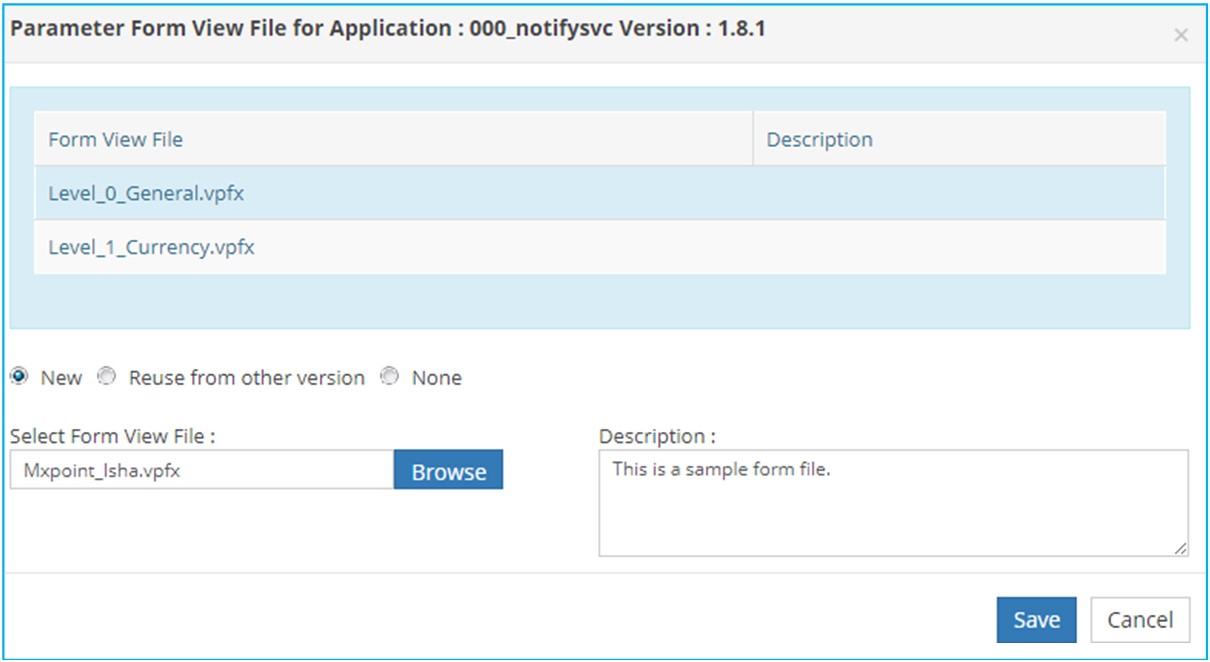
The *Parameter Form View File for Application* window lists the form files already uploaded for this application, with their descriptions. Choose one of three options:
* **New**: Browse to select and import a new form view file.
* **Reuse from other versions**: Select a form view file from another version of the application, and optionally add a description.
* **None**: No form view file is selected.
{% endstep %}
{% endstepper %}
{% hint style="info" %}
**Example**: You imported a form view file for App1 version 1.0. A new version, App1 1.1, becomes available with issue fixes but no parameter changes — you can reuse the form view file already set up for App1 1.0.
{% endhint %}
Keywords
Also called: parameter form view file, .vpfx. Search terms: reuse from other versions.
---
# Agent Instructions
This documentation is published with GitBook. GitBook is the documentation platform designed so that both humans and AI agents can read, navigate, and reason over technical content effectively. Learn more at gitbook.com.
## Querying This Documentation
If you need additional information that is not directly available in this page, you can query the documentation dynamically by asking a question.
Perform an HTTP GET request on the current page URL with the `ask` query parameter, and the optional `goal` query parameter:
```
GET https://docs.verifone.com/support-us/verifone-hq/vhq-parameter-management/configuring-parameter-form-view-file.md?ask=&goal=
```
`ask` is the immediate question: it should be specific, self-contained, and written in natural language.
`goal` is optional and describes the broader end goal you are ultimately trying to accomplish on behalf of the user. GitBook uses it to tailor the answer towards what is most useful for that goal.
The response will contain a direct answer to the question and relevant excerpts and sources from the documentation.
Use this mechanism when the answer is not explicitly present in the current page, you need clarification or additional context, or you want to retrieve related documentation sections.