# Import & merge file
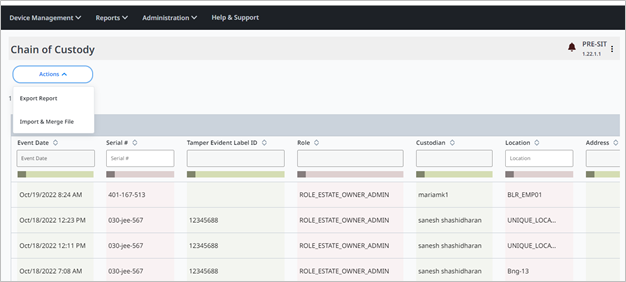
This feature is used to bulk onboard the device details on Device Management through CSV file using **Import and Merge File** option. The fields can be saved as a template which can be used for bulk upload.
**Save As Template** option is used to save the existing data fields as a template, details are filled and uploaded on Device Management using **Import and Merge File** option.
**To onboard the Device Details for bulk upload on Device Management.**
1\. Go to **Device Management** > **Reports** > **Chain of Custody** > **Actions > Import & Merge File**.
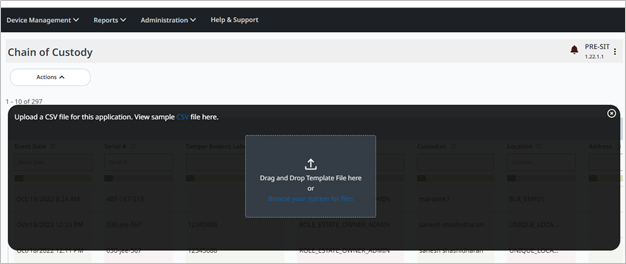
2\. **Drag and Drop Template File here** screen is displayed.
3\. Click **Drag and Drop** **Template File here** to browse and upload a file or Drag and Drop the file to upload.
---
# Agent Instructions: Querying This Documentation
If you need additional information that is not directly available in this page, you can query the documentation dynamically by asking a question.
Perform an HTTP GET request on the current page URL with the `ask` query parameter:
```
GET https://docs.verifone.com/verifone-central-device-management/verifone-central/asset-tracking/viewing-the-device-status-chain-of-custody/import-and-merge-file.md?ask=
```
The question should be specific, self-contained, and written in natural language.
The response will contain a direct answer to the question and relevant excerpts and sources from the documentation.
Use this mechanism when the answer is not explicitly present in the current page, you need clarification or additional context, or you want to retrieve related documentation sections.