> For the complete documentation index, see [llms.txt](https://docs.verifone.com/llms.txt). Markdown versions of documentation pages are available by appending `.md` to page URLs; this page is available as [Markdown](https://docs.verifone.com/verifone-central-getting-started/verifone-central/verifone-central-device-manager/devices/active-lifecycle-and-key-indicators.md).
# Active lifecycle and key indicators
Review one device's custody progress, health signals, history, and job activity.
Use **Active lifecycle and key indicators** to review one device's custody progress, health signals, and detailed activity.
This view connects asset tracking with device history, diagnostics, and job data.
### When to use this page
Use this page when you need to:
* confirm where a device sits in its custody flow
* review health signals before support or rollout work
* inspect software, parameter, or connectivity detail
* check what changed on the device over time
* verify whether scheduled work ran successfully
Use [Device details](https://verifone.gitbook.io/us-core-help-center/verifone-central/verifone-central/devices/view-devices/device-details) when you only need the main device record and device-level actions.
### Before you start
Confirm that:
* you are signed in to the correct customer or estate
* you can already open the target device record
* you know whether you need lifecycle, health, history, or job information
Prepare these inputs when available:
* device **Serial Number** or **Device ID**
* the expected lifecycle stage
* the issue or activity you want to verify
### Open Active lifecycle
{% stepper %}
{% step %}
### 1. Open the device list
Go to **Verifone Central** → **Device Management** → **Devices** → **View Devices**.
{% endstep %}
{% step %}
### 2. Select the device
Open the device you want to review.
{% endstep %}
{% step %}
### 3. Open **Active Life Cycle**
Use the device page to open the lifecycle and indicator view.
{% endstep %}
{% endstepper %}
{% hint style="info" %}
A green check marks a completed stage. A pink circle marks a stage still in progress.
{% endhint %}
### What to check first
When the page opens, start with these checks:
1. Review the lifecycle path to confirm the expected stage.
2. Review red and amber key indicators.
3. Open **History** for a past change or **Jobs** for scheduled work.
This first pass helps you choose the right section to open next.
### Understand the key indicators
Key indicators summarize current health and recent activity for the last 7 days.
All indicators use the same color model:
* **Green** — no health rules triggered in the last 7 days
* **Amber** — at least one minor or concern rule triggered
* **Red** — at least one fault rule triggered
Use these indicators to spot problems quickly:
* **Battery** — power or battery health concerns
* **Connection** — communication or connectivity concerns
* **Device Status** — current operational state concerns
* **Download** — package download issues
* **Install** — installation issues
* **Memory** — storage or memory pressure
#### Parameter Sync
Use **Parameter Sync** to confirm whether device parameters match the server state.
The indicator stays green only when parameters are fully in sync.
#### Software Sync
Use **Software Sync** to confirm whether the device software version matches the server state.
The indicator stays green only when software is fully in sync.
### Choose the right section
Use the section that matches the question you need to answer:
* use **Profile** for device identity, hardware, network, and platform facts
* use **Details** for software, parameters, diagnostics, and security data
* use **History** for changes, communication, and prior events
* use **Jobs** for scheduled or completed operational work
### Review device data sections
#### Profile
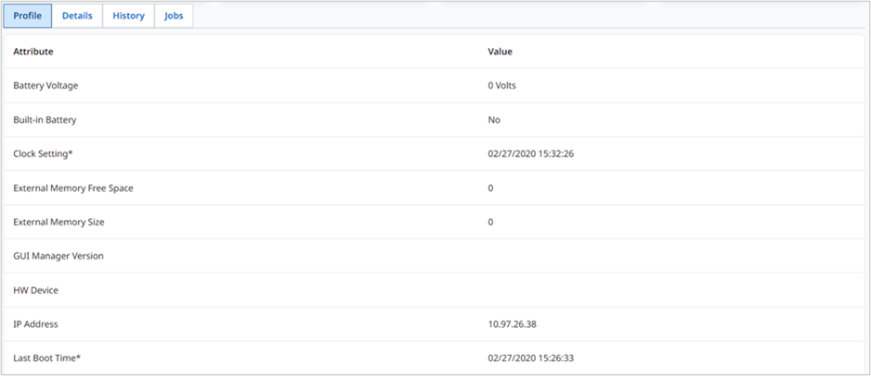
Use **Profile** to review hardware, network, and platform information.
Use this section when you need to confirm:
* device platform and version details
* network identity and connectivity basics
* battery support and current battery-related values
* hardware characteristics and maintenance settings
Common Profile fields
Common fields include:
* agent and POS agent versions
* battery support and battery level
* clock setting and last boot time
* DT name and hardware device details
* IP address, MAC address, and network configuration
* internal and external memory details
* maintenance window settings
* OS version and security policy
* stylus, sponsor, and manufacture information
#### Details
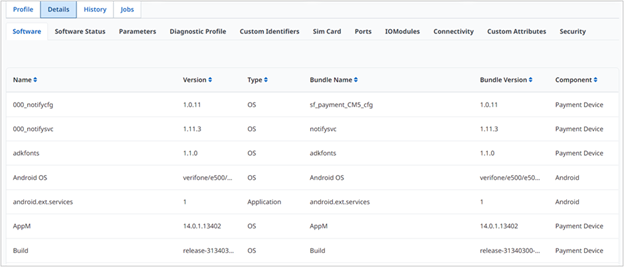
Use **Details** to inspect software, parameters, diagnostics, and connectivity.
Use this section when you need to answer questions such as:
* does the device have the expected software and versions
* are parameters in sync with the server
* do diagnostic or security values explain the issue
* do SIM, ports, or connectivity details show a fault
Common Details sections
This area can include:
* **Software** — name, version, type, bundle, and component
* **Software Status** — packages, file status, and key profile status
* **Parameters** — application versions and sync state
* **Diagnostic Profile** — process data, keys, and validity range
* **Custom Identifiers** — site, lane, PPID, and app version
* **SIM Card** — IMEI, operator, phone number, and signal details
* **Ports** and **I/O Modules** — connection and firmware details
* **Connectivity** and **Bluetooth** profile data
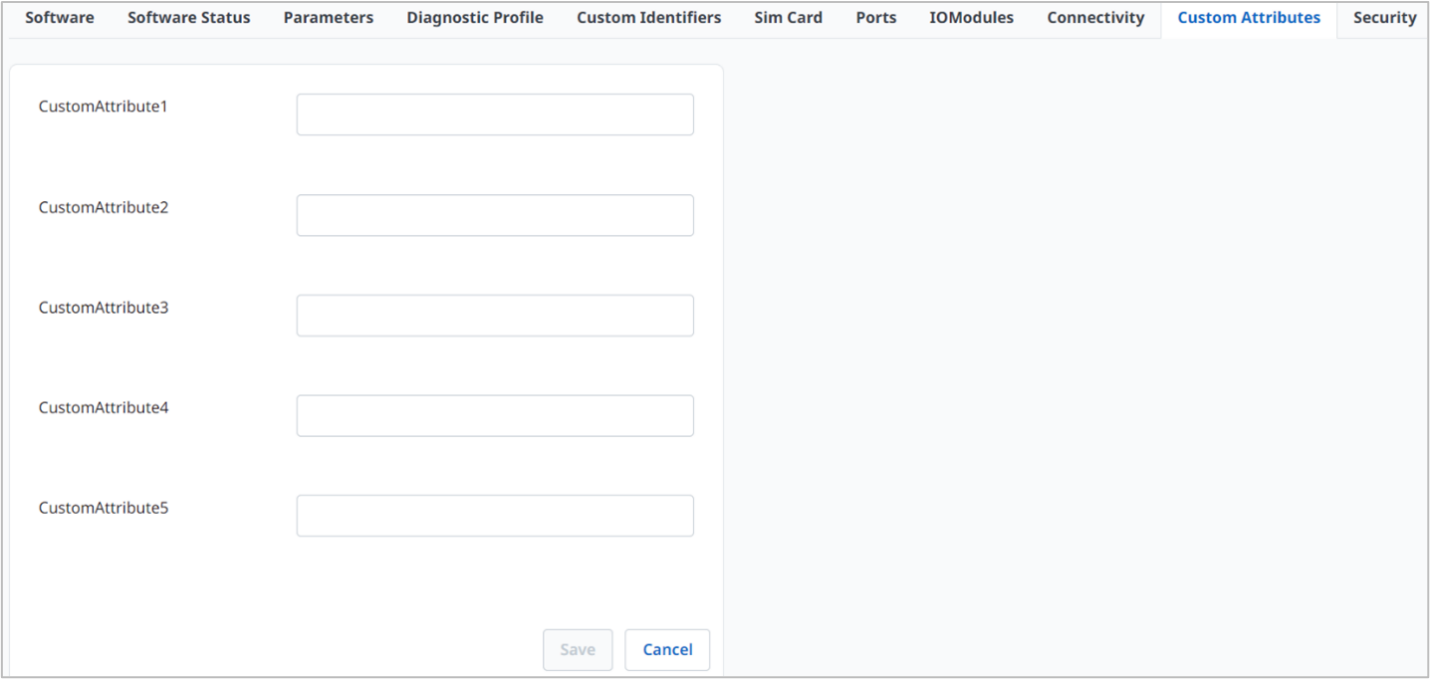
* **Custom Attributes**
* **Security** — encryption keys and VeriShield details
#### History
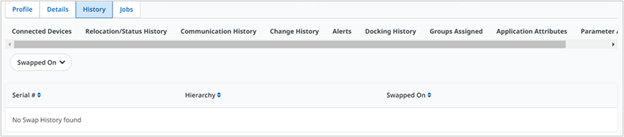
Use **History** to review device changes over time.
Use this section when you need to confirm:
* when the device last contacted the server
* whether the device moved, changed state, or changed groups
* whether alerts or parameter changes explain the current issue
Common History sections
This area can include:
* connected devices and last contact date
* relocation and status history
* communication history and heartbeat counts
* change history
* alert history
* docking history
* assigned groups
* application attributes
* parameter audit history
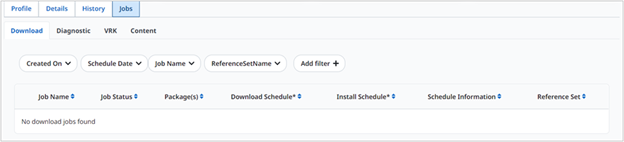
#### Jobs
Use **Jobs** to review scheduled or completed operational work for the device.
Use this section when you need to confirm:
* whether a rollout job was submitted
* whether diagnostic, download, VRK, or content work completed
* whether job status explains a software or content mismatch
Common Job sections
This area can include:
* **Download** jobs
* **Diagnostic** jobs
* **VRK** jobs
* **Content** jobs
Job records can show the job name, status, packages or actions, schedules, reference set, and submission dates.
### Use the full tracking report
Use the full tracking report when you need broader custody history outside the device page.
Go to **Verifone Central** → **Device Management** → **Reports** → **Device Details** → **Full Tracking Report**.
Use the report when the on-page lifecycle view is not enough for audit or tracking review.
### Troubleshooting checks
If the page does not match the expected device state, check these first:
* **Unexpected lifecycle stage** — review whether the device actually completed the prior custody step
* **Red or amber indicators** — open the related section and confirm whether the issue is current or historical
* **Software or parameter mismatch** — compare **Details** values with the intended server state
* **No recent activity** — check **History** for last contact and heartbeat behavior
* **Rollout or diagnostics issue** — check **Jobs** for submission, schedule, and status
### Complete the review
Before you take action, confirm whether the issue is current, historical, or job-related. Record the affected indicator, current lifecycle stage, and evidence from the relevant section.
Use [Device details](https://verifone.gitbook.io/us-core-help-center/verifone-central/verifone-central/devices/view-devices/device-details) for device actions. Use [View devices](https://verifone.gitbook.io/us-core-help-center/verifone-central/verifone-central/devices/view-devices) for estate-level filtering.
### Verify the result
After review, confirm that:
* the lifecycle path matches the expected custody stage
* the key indicators explain the current health state
* the relevant section supports the conclusion you reached
* any required follow-up page or action is now clear
### Result
You can identify the device's custody stage, health state, and relevant operational evidence before follow-up work.
### Next steps
* [Device details](https://verifone.gitbook.io/us-core-help-center/verifone-central/verifone-central/devices/view-devices/device-details) — return to the main device record
* [Device heartbeats](https://verifone.gitbook.io/us-core-help-center/verifone-central/verifone-central/devices/registering-the-device/device-heartbeats) — understand recent device communication
* [Asset tracking](https://verifone.gitbook.io/us-core-help-center/verifone-central/verifone-central/asset-tracking) — review broader tracking workflows
* [Alerts and notifications](https://verifone.gitbook.io/us-core-help-center/verifone-central/verifone-central/devices/alerts-and-notifications) — investigate alert activity
---
# Agent Instructions
This documentation is published with GitBook. GitBook is the documentation platform designed so that both humans and AI agents can read, navigate, and reason over technical content effectively. Learn more at gitbook.com.
## Querying This Documentation
If you need additional information that is not directly available in this page, you can query the documentation by asking a question.
Perform an HTTP GET request on the following URL with the `ask` and `goal` query parameters:
```
GET https://docs.verifone.com/verifone-central-getting-started/verifone-central/verifone-central-device-manager/devices/active-lifecycle-and-key-indicators.md?ask=&goal=
```
`ask` is the immediate question: it should be specific, self-contained, and written in natural language.
`goal` is what the user is ultimately trying to achieve, the reason they need the answer. Sharing it helps GitBook give you a better, more relevant answer. A goal is most helpful when it describes the outcome the user wants rather than restating the question. For example, with `ask=how do I create an API token`, a goal like `automate deployments from our CI pipeline` lets GitBook tailor the answer to that use case.
The response will contain a direct answer to the question and relevant excerpts and sources from the documentation.
Use this mechanism when the answer is not explicitly present in the current page, you need clarification or additional context, or you want to retrieve related documentation sections.