> For the complete documentation index, see [llms.txt](https://docs.verifone.com/llms.txt). Markdown versions of documentation pages are available by appending `.md` to page URLs; this page is available as [Markdown](https://docs.verifone.com/verifone-central-getting-started/verifone-central/verifone-central-device-manager/devices/add-devices/add-a-single-device.md).
# Add a single device
Create one device record manually before the device contacts the server.
Use this flow to create one device record manually in Device Management.
### When to use this flow
Use manual add when:
* you need to create one device record
* the device record must exist before first contact
* you already know the target hierarchy and reference set
If you need to add many devices at once, use [Bulk import devices](https://verifone.gitbook.io/us-core-help-center/verifone-central/verifone-central/devices/add-devices/bulk-import-devices).
### Use the manual flow for the right cases
Manual add works best when:
* one device needs careful review before save
* the device data is not part of a prepared import file
* the placement or reference set needs a deliberate one-device check
### Before you start
Confirm that:
* your role allows device creation
* the device does not already have a record in Device Management
* you know where the device should be placed
* the required reference set is ready for that device
Prepare these details:
* **Serial Number**
* **Device ID**
* **Model**
* target **Hierarchy**
* target **Reference set**
### Required field checks
Review each value before you enter it:
* **Serial Number** identifies the physical device
* **Device ID** must match the intended managed record
* **Model** must match the real device model
* **Hierarchy** controls ownership and visibility
* **Reference set** controls the intended device baseline
### Validate the device details
Before you save the record, confirm that:
* the **Serial Number** and **Device ID** belong to the same device
* the device identifiers are not already used by another record
* the selected **Model** matches the physical device
* the target **Hierarchy** is the correct placement for the device
* the selected **Reference set** matches the intended configuration
Search for both identifiers before you enter them. Stop if either identifier already returns a record.
{% hint style="warning" %}
Do not use this flow if the device should create its own record during first contact.
{% endhint %}
### Add the right record
Use this flow to create the record only once.
If the device already exists in Device Management, stop and verify the existing record instead of creating another one.
### Add the device
{% stepper %}
{% step %}
### 1. Open the add flow
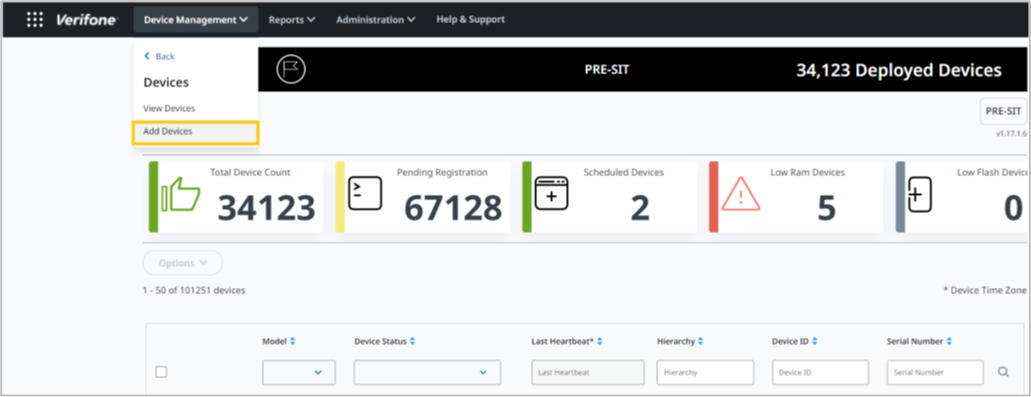
Go to **Verifone Central** → **Device Management** → **Devices** → **Add Devices**.
Choose the single-device add option.
{% endstep %}
{% step %}
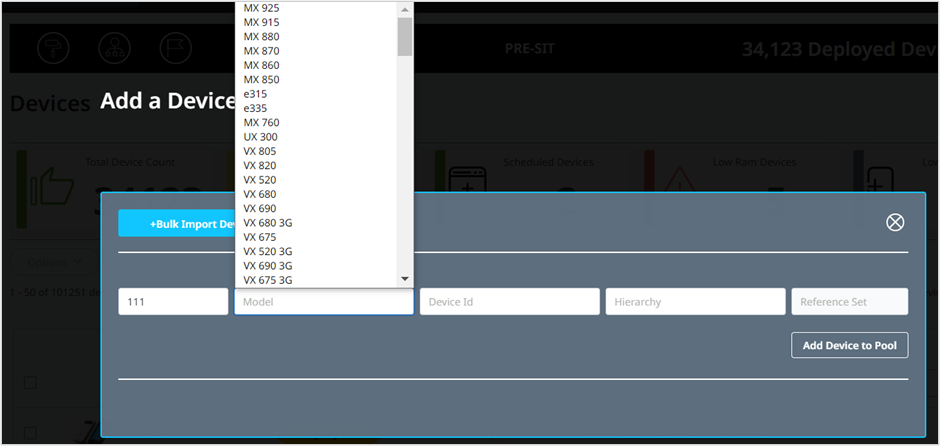
### 2. Enter the device identifiers
Enter the device identifiers.
Check the values before you continue. Identifier mistakes can create the wrong record or block later registration.
{% endstep %}
{% step %}
### 3. Select the model and placement
Select the device model.
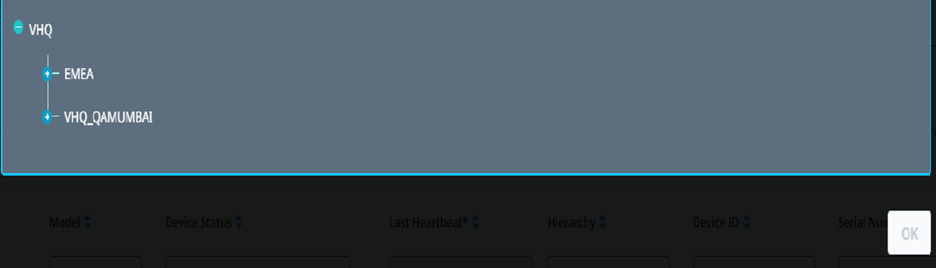
Select the hierarchy for the device.
Use the hierarchy that should own and manage the device after registration.
{% endstep %}
{% step %}
### 4. Select the reference set and save
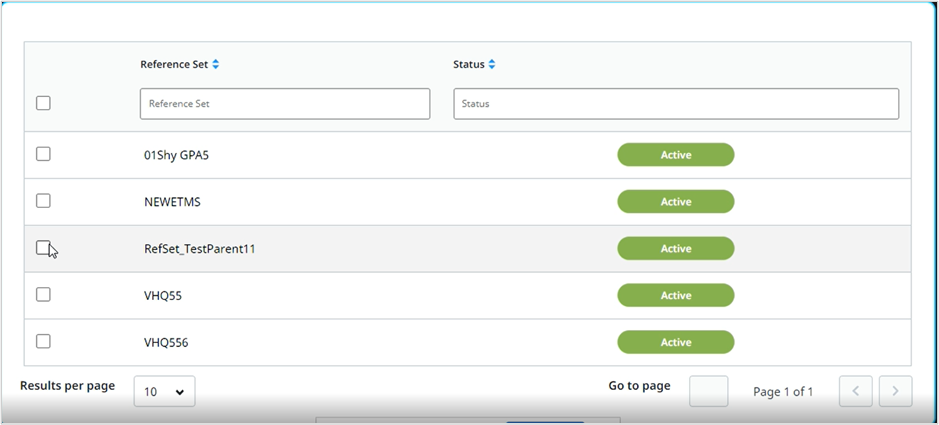
Select the reference set.
Select **Continue** to save the device.
Review the values once more before you save.
{% endstep %}
{% step %}
### 5. Verify the new record
Confirm that:
* the device appears in the device list
* the identifiers are correct
* the device is placed in the intended hierarchy
* the expected reference set is assigned
* the device is ready for first-time registration
{% endstep %}
{% endstepper %}
{% hint style="info" %}
Use manual add when you want to control the device record before the device connects to the server.
{% endhint %}
### Verify the saved values
After the record is created, confirm these fields on the saved device:
* **Serial Number**
* **Device ID**
* **Model**
* **Hierarchy**
* **Reference set**
If any value is wrong, correct it before the device starts registration work.
Record the device ID and selected hierarchy in the deployment handoff. This lets the installer confirm they are registering the intended record.
### If the device does not save as expected
Check these first:
* a required field is not blank
* the identifiers are unique
* the selected hierarchy is valid for your scope
* the reference set is available for the target device
If the save succeeds but the record looks wrong, review the saved device in [Device details](https://verifone.gitbook.io/us-core-help-center/verifone-central/verifone-central/devices/view-devices/device-details) before the device contacts the server.
#### Common outcomes
Use these checks to narrow the issue:
* **The record is not created** — review missing or invalid values and submit again
* **The device appears in the wrong place** — correct the selected hierarchy before registration
* **The record exists but registration later fails** — review [Registering the device](https://verifone.gitbook.io/us-core-help-center/verifone-central/verifone-central/devices/registering-the-device) and [Device heartbeats](https://verifone.gitbook.io/us-core-help-center/verifone-central/verifone-central/devices/registering-the-device/device-heartbeats)
* **The record matches another physical device** — stop deployment and resolve the identifier mismatch before registration
### Result
The device record is added with the intended identifiers, placement, and reference set.
### Next steps
* [Registering the device](https://verifone.gitbook.io/us-core-help-center/verifone-central/verifone-central/devices/registering-the-device) — complete first-time registration
* [View devices](https://verifone.gitbook.io/us-core-help-center/verifone-central/verifone-central/devices/view-devices) — review the new device record
* [Device details](https://verifone.gitbook.io/us-core-help-center/verifone-central/verifone-central/devices/view-devices/device-details) — confirm the saved device values
* [Bulk import devices](https://verifone.gitbook.io/us-core-help-center/verifone-central/verifone-central/devices/add-devices/bulk-import-devices) — add many devices instead
---
# Agent Instructions
This documentation is published with GitBook. GitBook is the documentation platform designed so that both humans and AI agents can read, navigate, and reason over technical content effectively. Learn more at gitbook.com.
## Querying This Documentation
If you need additional information that is not directly available in this page, you can query the documentation by asking a question.
Perform an HTTP GET request on the following URL with the `ask` and `goal` query parameters:
```
GET https://docs.verifone.com/verifone-central-getting-started/verifone-central/verifone-central-device-manager/devices/add-devices/add-a-single-device.md?ask=&goal=
```
`ask` is the immediate question: it should be specific, self-contained, and written in natural language.
`goal` is what the user is ultimately trying to achieve, the reason they need the answer. Sharing it helps GitBook give you a better, more relevant answer. A goal is most helpful when it describes the outcome the user wants rather than restating the question. For example, with `ask=how do I create an API token`, a goal like `automate deployments from our CI pipeline` lets GitBook tailor the answer to that use case.
The response will contain a direct answer to the question and relevant excerpts and sources from the documentation.
Use this mechanism when the answer is not explicitly present in the current page, you need clarification or additional context, or you want to retrieve related documentation sections.