> For the complete documentation index, see [llms.txt](https://docs.verifone.com/llms.txt). Markdown versions of documentation pages are available by appending `.md` to page URLs; this page is available as [Markdown](https://docs.verifone.com/verifone-central-getting-started/verifone-central/verifone-central-device-manager/devices/view-devices.md).
# View devices
Search, review, and manage device records from one list.
Use **View devices** to search the estate, review device records, and run common bulk actions.
The page lists managed devices in the current estate and gives you direct access to device-level actions.
### When to use this page
Use **View devices** when you need to:
* find one device or a subset of devices
* review device status before taking action
* run bulk actions such as export, move, or group assignment
### Before you start
Confirm that:
* you are signed in to the correct customer or estate
* your role allows access to device management actions
* you know whether you need to search, export, move, or update device records
### Use this page to verify device outcomes
After onboarding or registration, use **View devices** to confirm that:
* the device record exists
* the device shows the expected status
* the device is placed in the expected hierarchy
### Common tasks at a glance
Use this page to:
* filter the list to the target devices
* open one device record for detail review
* apply one action to one or more selected devices
### Choose the safest starting point
Start with the narrowest identifier you have:
* use **Device ID** when you need one exact record
* use **Serial Number** when that is the only verified identifier
* use **Model**, **Hierarchy**, or **Device Status** when you need a working set
This reduces the risk of applying an action to the wrong device set.
### What you can do
Use **View devices** to:
* search for devices by common filters
* open and review device records
* clone, move, group, or delete devices
* export device data, metadata, or VRK certificates
* enable or disable download automation
* change device status
### Open View devices
Go to **Verifone Central** → **Device Management** → **Devices** → **View Devices**.
Use this entry point to open the device list for the current estate.
The page shows the device list and the actions available for selected devices.
### Use the Actions menu
Select one or more devices, then open **Actions**.
Use the menu to apply the same action to the selected device set.
### Verify the selected scope first
Before you run any action, confirm that:
* the current filters still show the intended device set
* the selected rows match the action you plan to run
* you are not mixing devices that need different outcomes
### Use a safe bulk-action pattern
1. Filter the list using the narrowest reliable identifier.
2. Review the result count and selected rows.
3. Run one action with one intended outcome.
Re-filter the list after the action. Confirm that each device now has the expected hierarchy, group, status, or exported output.
### Search for devices
Use search filters to find a specific device or narrow the current list.
Available filters include:
* **Model** — filter by one or more device models
* **Device Status** — filter by **Active**, **Inactive**, **Pending Hierarchy Assignment**, or **Pending Registration**
* **Last Heartbeat** — filter by the last device contact time
* **Hierarchy** — filter by assigned hierarchy
* **Device ID** — search by device identifier
* **Serial Number** — search by serial number
This filter panel helps you narrow the device list by status, model, hierarchy, or identifiers.
{% hint style="info" %}
Devices with a charging base can share the same serial number.
{% endhint %}
### Choose filters by goal
Use these patterns:
* search by **Device ID** or **Serial Number** when you need one known device
* filter by **Hierarchy** or **Model** when you need an operational subset
* filter by **Device Status** or **Last Heartbeat** when you need exception review
For more background on device status and heartbeat behavior, see [Device life cycle](https://verifone.gitbook.io/us-core-help-center/verifone-central/verifone-central/devices/registering-the-device/device-life-cycle) and [Device heartbeats](https://verifone.gitbook.io/us-core-help-center/verifone-central/verifone-central/devices/registering-the-device/device-heartbeats).
### Choose the right action
Use:
* **Clone Device** when you want a new record based on an existing profile
* **Move** or **Assign to Group** when the device should stay in the estate but be reorganized
* **Delete** only when the device should no longer be managed in the estate
* **Status** when the device remains in the estate but should be marked **Active** or **Inactive**
Use the least destructive action that solves the problem.
Choose **Move**, **Assign to Group**, or **Status** before **Delete** when the device should stay managed.
{% hint style="warning" %}
Review the selected device count before **Delete**, **Move**, export, or status changes.
{% endhint %}
For destructive actions, review the current lifecycle state first. Do not use **Delete** to solve a placement, registration, or temporary service issue.
### Common device actions
#### Clone a device
Use **Clone Device** to create a new device record based on an existing device profile.
This action also copies download management, key management, and software management details.
1. Select the source device.
2. Open **Actions** → **Clone Device**.
3. Enter the new **Serial Number** and **Device ID**.
4. Complete the clone action.
Use this form to enter the new device identifiers before creating the cloned record.
The new device is created with the cloned settings and the new identifiers you entered.
{% hint style="info" %}
You can also clone a device from [Device details](https://verifone.gitbook.io/us-core-help-center/verifone-central/verifone-central/devices/view-devices/device-details).
{% endhint %}
#### Delete a device
Use **Delete** to remove a device from the estate.
1. Select the device.
2. Open **Actions** → **Delete**.
3. Confirm the deletion.
This confirmation dialog helps prevent accidental device deletion.
{% hint style="info" %}
After deletion, the server does not accept messages from that device. If the device contacts the server again, the system generates a **Deleted device contacting** alert.
{% endhint %}
Use **Inactive** instead of **Delete** when the device may return to service later.
#### Move a device
Use **Move** to place a device under a different hierarchy in the estate.
1. Select the device.
2. Open **Actions** → **Move**.
3. Select the target hierarchy.
4. Select **Move**.
Choose the destination hierarchy before confirming the device move.
#### Assign devices to a group
Use **Assign to Group** to organize selected devices into an existing group or a new group.
This screen lets you choose whether to use an existing group or create a new one.
To assign devices to an existing group:
1. Select **An Existing Group**.
2. Choose the group.
3. Select **OK**.
Select the target group, then confirm the assignment.
To create and assign a new group:
1. Select **A New Group**.
2. Enter the new group details.
3. Select **Add**.
Enter the new group details, then add the selected devices to it.
#### Move a device to the estate owner pool
Use **Move to Estate Owner Pool** to place a device at the root hierarchy level.
1. Select the device.
2. Open **Actions** → **Move to Estate Owner Pool**.
3. Confirm the move.
Use this confirmation step before moving the device to the root hierarchy level.
### Export device data
Use exports when you need device information outside the UI.
Available exports include:
* **Export** — device details in CSV or XML
* **Export Device Metadata** — device metadata based on selected export preferences
* **Export VRK Certificates** — VRK certificates as a zip file
Use this flow for any export.
{% hint style="info" %}
Use exports for review, audit, or downstream processing when the device data must leave the UI.
{% endhint %}
### Verify export output
After you submit an export, confirm that:
* the notification entry matches the export you requested
* the file type matches the intended downstream use
* the downloaded file includes the expected devices
{% stepper %}
{% step %}
### 1. Select devices
Choose one or more devices from the current list.
Select only the devices you want to include in the export.
{% endstep %}
{% step %}
### 2. Choose the export type
Open **Actions**, then select the export you need:
* **Export** for device details in CSV or XML
* **Export Device Metadata** for metadata output with export options
* **Export VRK Certificates** for VRK certificate zip files
Choose the export action that matches the output you need.
Use **Export Device Metadata** when you need metadata-specific output.
Use **Export VRK Certificates** when you need certificate files.
{% endstep %}
{% step %}
### 3. Complete the export request
Enter any required export options, then submit the request.
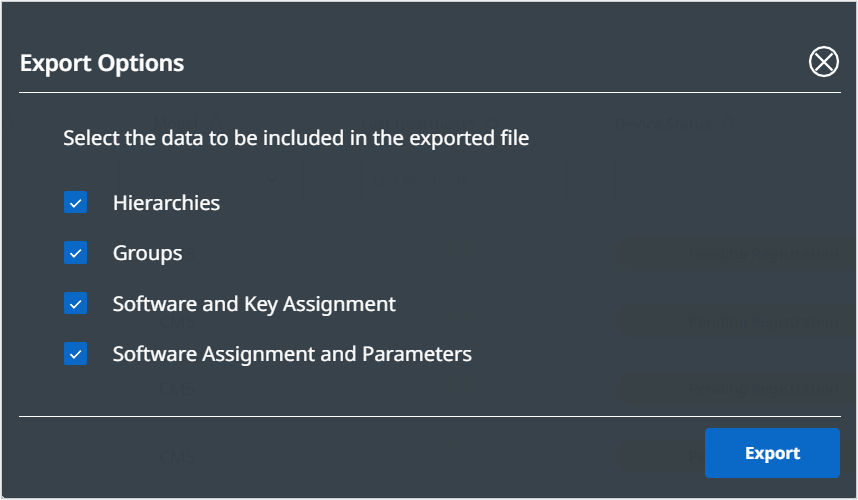
For **Export Device Metadata**, choose the metadata preferences first.
Use the export options screen to control which metadata is included.
Submit the request after confirming the export preferences.
For **Export VRK Certificates**, enter a file name before saving.
Enter a file name before saving the certificate export request.
{% endstep %}
{% step %}
### 4. Download the completed file
Open the notification list to review export requests and download completed files.
Open notifications to review pending and completed export requests.
Use this list to find the requested export file.
Download the export file once the request is complete.
This confirmation message indicates that the file download completed successfully.
{% endstep %}
{% endstepper %}
### Manage automation and status
#### Enable download automation
Use **Enable for Download Automation** to allow automated software download management for the selected device.
Confirm the automation change before applying it to the selected device.
Confirm the action when prompted.
#### Disable download automation
Use **Disable for Download Automation** to stop automated software download management for the selected device.
Use this prompt to confirm that automation should be disabled.
Confirm the action when prompted.
#### Change device status
Use **Status** to change the selected device state to **Active** or **Inactive**.
The system validates status changes and may show messages such as:
* **Selected Device is already an Active device**
* **Devices with Pending Registration Status will not be affected, are you sure you want to continue**
* **Device status successfully changed**
The page also shows the device status and sub-status.
Review the current status and sub-status before applying a change.
Use **Inactive** when the device should remain in the estate but should not be treated as active. For more detail, see [Device life cycle](https://verifone.gitbook.io/us-core-help-center/verifone-central/verifone-central/devices/registering-the-device/device-life-cycle).
### Common problems to check
Use these checks to narrow the issue:
* **Too many devices match the search** — add **Hierarchy**, **Model**, or **Last Heartbeat** before selecting rows
* **A device cannot be found** — confirm the current customer or estate and recheck the identifier used
* **A bulk action feels risky** — narrow the list again and confirm the selected count before you continue
* **The device changed state but still needs investigation** — open [Device details](https://verifone.gitbook.io/us-core-help-center/verifone-central/verifone-central/devices/view-devices/device-details) for record-level review
### Result
Use **View devices** to find devices, safely apply bulk actions, and verify the result before detailed follow-up work.
### Next steps
* [Device details](https://verifone.gitbook.io/us-core-help-center/verifone-central/verifone-central/devices/view-devices/device-details) — review a single device in more detail
* [Dashboard](https://verifone.gitbook.io/us-core-help-center/verifone-central/verifone-central/devices/dashboard) — monitor estate KPIs and alerts
* [Device life cycle](https://verifone.gitbook.io/us-core-help-center/verifone-central/verifone-central/devices/registering-the-device/device-life-cycle) — understand device status states
---
# Agent Instructions
This documentation is published with GitBook. GitBook is the documentation platform designed so that both humans and AI agents can read, navigate, and reason over technical content effectively. Learn more at gitbook.com.
## Querying This Documentation
If you need additional information that is not directly available in this page, you can query the documentation by asking a question.
Perform an HTTP GET request on the following URL with the `ask` and `goal` query parameters:
```
GET https://docs.verifone.com/verifone-central-getting-started/verifone-central/verifone-central-device-manager/devices/view-devices.md?ask=&goal=
```
`ask` is the immediate question: it should be specific, self-contained, and written in natural language.
`goal` is what the user is ultimately trying to achieve, the reason they need the answer. Sharing it helps GitBook give you a better, more relevant answer. A goal is most helpful when it describes the outcome the user wants rather than restating the question. For example, with `ask=how do I create an API token`, a goal like `automate deployments from our CI pipeline` lets GitBook tailor the answer to that use case.
The response will contain a direct answer to the question and relevant excerpts and sources from the documentation.
Use this mechanism when the answer is not explicitly present in the current page, you need clarification or additional context, or you want to retrieve related documentation sections.