> For the complete documentation index, see [llms.txt](https://docs.verifone.com/llms.txt). Markdown versions of documentation pages are available by appending `.md` to page URLs; this page is available as [Markdown](https://docs.verifone.com/verifone-central-getting-started/verifone-central/verifone-central-device-manager/devices/view-devices/device-details.md).
# Device details
Review one device record, verify its current state, and run device-level actions.
Use **Device details** to inspect one managed device and act on it directly.
Use it when you need the device identity, placement, software baseline, or health for one device.
### When to use this page
Use **Device details** when you need to:
* verify a device after onboarding or registration
* confirm status, placement, software, or care details
* run one-device actions without using bulk tools
Use [View devices](https://verifone.gitbook.io/us-core-help-center/verifone-central/verifone-central/devices/view-devices) when you need search, filtering, or bulk actions.
### Before you start
Confirm that:
* you are signed in to the correct customer or estate
* you can open the target device from **View Devices**
* you know whether you need status checks, software review, or a device action
Prepare these inputs when available:
* device **Serial Number** or **Device ID**
* the expected hierarchy or location
* the expected lifecycle state or software version
### Open Device details
{% stepper %}
{% step %}
### 1. Open the device list
Go to **Verifone Central** → **Device Management** → **Devices** → **View Devices**.
{% endstep %}
{% step %}
### 2. Find the device
Search or filter the list, then select the device you want to review.
{% endstep %}
{% step %}
### 3. Review the page header and core details
Start with the current status, identifiers, and latest contact details.
{% endstep %}
{% endstepper %}
### What to check first
When the page opens, confirm these fields first:
* **Device Status** — confirms the current lifecycle state
* **Last Heartbeat** — confirms recent device contact
* **Hierarchy** — confirms placement in the estate
* **Software Status** — shows whether the device software state needs attention
For more background on status and heartbeat behavior, see [Device life cycle](https://verifone.gitbook.io/us-core-help-center/verifone-central/verifone-central/devices/registering-the-device/device-life-cycle) and [Device heartbeats](https://verifone.gitbook.io/us-core-help-center/verifone-central/verifone-central/devices/registering-the-device/device-heartbeats).
### Understand the page sections
The page groups device data into four main areas.
#### Identity and status
Use this section to confirm that you opened the correct record and that the device is behaving as expected.
Key fields include:
* **Model**, **Serial Number**, and **Device ID** for record identity
* **Device Status** and **Last Heartbeat** for current operational state
* **Automation Enabled** and **Swap Enabled** for device capabilities
* **Last Device Profile** and **Last Diagnostic Profile** for the latest applied profiles
* **VeriShield Encryption** for encryption status
Use this section first after onboarding, registration, or support triage.
#### Organization and location
Use this section to confirm where the device belongs:
* **Hierarchy**
* **Time zone**
* **Location Name**
* **Site ID**
* **Location Type**
* **Location Status**
* **Location Address**
Use this section when you need to validate ownership, placement, or deployment location.
#### Software
Use this section to confirm the software baseline now applied to the device:
* **Reference set**
* **OS Name**
* **Android version**
* **ADK version**
* **Agent version**
Use it before software troubleshooting, rollout follow-up, or baseline validation.
#### Care
Use this section to check the current device condition:
* **Model Status**
* **Health Status**
* **Software Status**
Use it when you need to spot issues that may need action before rollout, support, or replacement work.
### Choose the right device action
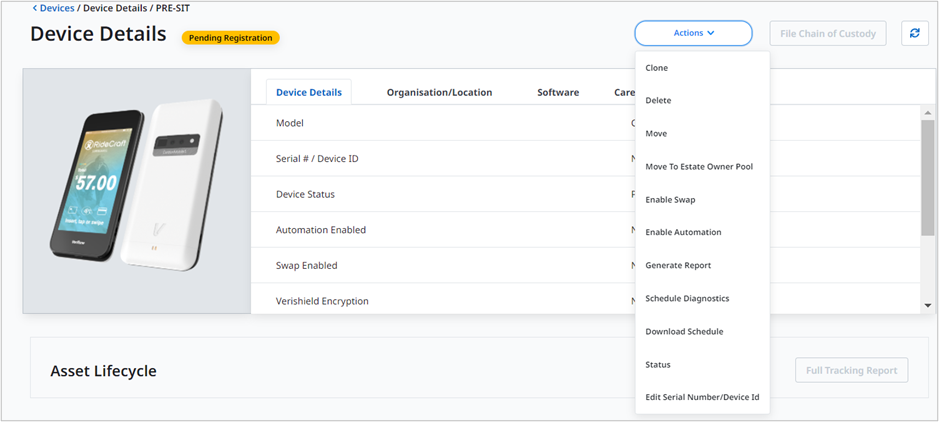
Open **Options** to run actions for the selected device only.
* **Clone Device** — create a new device record from the current profile
* **Move** — assign the device to a different hierarchy
* **Move to Estate Owner Pool** — move the device to the root hierarchy level
* **Status** — change the device state
* **Enable Swap** — allow the device to be used in a swap flow
* **Enable Automation** — allow download automation for the device
* **Generate Report** — create a report for the selected device
* **Schedule Diagnostics** — request diagnostics for the device
* **Download Schedule** — review or download the device schedule
* **Edit Serial Number/Device ID** — update the device identifiers
* **Delete** — remove the device from the estate
Use this page for device-specific actions. Use [View devices](https://verifone.gitbook.io/us-core-help-center/verifone-central/verifone-central/devices/view-devices) when you need to apply the same action to multiple devices.
Use these quick rules:
* use **Move** or **Move to Estate Owner Pool** when the device stays in the estate but needs different placement
* use **Status** when the device remains in the estate but should no longer be treated as active
* use **Delete** only when the device should no longer be managed in the estate
{% hint style="warning" %}
Use **Inactive** instead of **Delete** when the device may return to service later.
{% endhint %}
### Common device actions
#### Clone a device
Use **Clone Device** when you need a new device record based on an existing profile.
This action copies download management, key management, and software management details from the source device.
Prepare:
* a new **Serial Number**
* a new **Device ID**
Use cloning when the new device should start with the same management profile as the current device.
#### Move a device
Use **Move** when the device should stay in the estate but belong to a different hierarchy.
Use **Move to Estate Owner Pool** when the device should move to the root hierarchy level.
Verify the move by checking the **Hierarchy** field after the action completes.
#### Change device status
Use **Status** when the device remains in the estate but should change between **Active** and **Inactive**.
Use this action when operational handling changes, but the device record should stay managed.
For state meanings, see [Device life cycle](https://verifone.gitbook.io/us-core-help-center/verifone-central/verifone-central/devices/registering-the-device/device-life-cycle).
#### Delete a device
Use **Delete** only when the device should no longer be managed in the estate.
After deletion:
* the device record is removed from normal estate management
* the server does not accept messages from that device
* the system generates a **Deleted device contacting** alert if the device contacts the server again
Use **Inactive** instead when the device may return later.
### Schedule diagnostics
Use **Schedule Diagnostics** when you need to run supported diagnostics for a device.
{% stepper %}
{% step %}
### 1. Open the diagnostics action
Open **Options** → **Schedule Diagnostics**.
{% endstep %}
{% step %}
### 2. Select the required diagnostics
Choose the diagnostic options you want the device to run.
{% endstep %}
{% step %}
### 3. Submit the request
Select **Submit**.
{% endstep %}
{% step %}
### 4. Confirm the request
When the confirmation message appears, select **OK**.
{% endstep %}
{% endstepper %}
Use diagnostics when you need device-level evidence before support or remediation work.
### Edit device identifiers
Use **Edit Serial Number/Device ID** when the current identifiers are incorrect on the existing record.
Do not use this action to create another device record. Use [Clone Device](https://verifone.gitbook.io/us-core-help-center/verifone-central/verifone-central/devices/view-devices) or [Add devices](https://verifone.gitbook.io/us-core-help-center/verifone-central/verifone-central/devices/add-devices) instead.
Go to **Verifone Central** → **Device Management** → **Devices** → **View Devices** → select a device → **Options** → **Edit Serial Number/Device ID**.
{% stepper %}
{% step %}
### 1. Open the edit form
Open **Edit Serial Number/Device ID** from **Options**.
{% endstep %}
{% step %}
### 2. Enter the corrected values
Enter the new **Serial Number** and **Device ID**.
{% endstep %}
{% step %}
### 3. Save the change
Select **Save**.
{% endstep %}
{% step %}
### 4. Verify the updated record
Confirm that the page now shows the corrected identifiers.
{% endstep %}
{% endstepper %}
{% hint style="info" %}
The system rejects duplicate values. You cannot save a serial number or device ID that already exists.
{% endhint %}
### Common validation checks
Expect these checks when you update or review a device:
* **Serial Number** and **Device ID** must stay unique
* hierarchy changes should place the device under the intended node
* status changes should match the operational state you expect
* software and care values should reflect the latest device condition
If a result does not match expectations, recheck the current estate, the selected device, and the action you submitted.
### Troubleshooting checks
If the page does not match the expected device state, check these first:
* **Device not found** — confirm the current estate and search again in [View devices](https://verifone.gitbook.io/us-core-help-center/verifone-central/verifone-central/devices/view-devices)
* **Unexpected status** — review [Device life cycle](https://verifone.gitbook.io/us-core-help-center/verifone-central/verifone-central/devices/registering-the-device/device-life-cycle) to confirm what the state means
* **Old or missing heartbeat** — review [Device heartbeats](https://verifone.gitbook.io/us-core-help-center/verifone-central/verifone-central/devices/registering-the-device/device-heartbeats) to understand recent device contact
* **Wrong hierarchy or location** — use **Move** or review [Hierarchies](https://verifone.gitbook.io/us-core-help-center/verifone-central/verifone-central/devices/manage-hierarchies-and-groups/hierarchies)
* **Wrong software baseline** — compare the device values with the intended rollout or reference set
#### Use the right follow-up path
Choose the next page based on the issue:
* use [View devices](https://verifone.gitbook.io/us-core-help-center/verifone-central/verifone-central/devices/view-devices) when you need broader search, filtering, or bulk correction
* use [Device life cycle](https://verifone.gitbook.io/us-core-help-center/verifone-central/verifone-central/devices/registering-the-device/device-life-cycle) when the current state is unclear
* use [Device heartbeats](https://verifone.gitbook.io/us-core-help-center/verifone-central/verifone-central/devices/registering-the-device/device-heartbeats) when recent connectivity is the main question
### Verify the result
After you update a device or review its state, confirm that:
* the device status matches the expected lifecycle state
* the hierarchy and location values are correct
* the software and care fields reflect the current device state
* any requested action completed for the selected device
Use these outcome checks for common actions:
* **Move** — the **Hierarchy** field shows the new placement
* **Status** — the **Device Status** field shows the intended state
* **Edit Serial Number/Device ID** — the page shows the corrected identifiers
* **Schedule Diagnostics** — the request is accepted and confirmed in the UI
### Result
You can use **Device details** to verify one device quickly and complete targeted actions without leaving the device context.
### Next steps
* [View devices](https://verifone.gitbook.io/us-core-help-center/verifone-central/verifone-central/devices/view-devices) — return to the device list and bulk actions
* [Dashboard](https://verifone.gitbook.io/us-core-help-center/verifone-central/verifone-central/devices/dashboard) — review estate-wide KPIs and alerts
* [Device life cycle](https://verifone.gitbook.io/us-core-help-center/verifone-central/verifone-central/devices/registering-the-device/device-life-cycle) — understand device status states
---
# Agent Instructions
This documentation is published with GitBook. GitBook is the documentation platform designed so that both humans and AI agents can read, navigate, and reason over technical content effectively. Learn more at gitbook.com.
## Querying This Documentation
If you need additional information that is not directly available in this page, you can query the documentation by asking a question.
Perform an HTTP GET request on the following URL with the `ask` and `goal` query parameters:
```
GET https://docs.verifone.com/verifone-central-getting-started/verifone-central/verifone-central-device-manager/devices/view-devices/device-details.md?ask=&goal=
```
`ask` is the immediate question: it should be specific, self-contained, and written in natural language.
`goal` is what the user is ultimately trying to achieve, the reason they need the answer. Sharing it helps GitBook give you a better, more relevant answer. A goal is most helpful when it describes the outcome the user wants rather than restating the question. For example, with `ask=how do I create an API token`, a goal like `automate deployments from our CI pipeline` lets GitBook tailor the answer to that use case.
The response will contain a direct answer to the question and relevant excerpts and sources from the documentation.
Use this mechanism when the answer is not explicitly present in the current page, you need clarification or additional context, or you want to retrieve related documentation sections.